
Setting Up Quotivity App Cards:
-
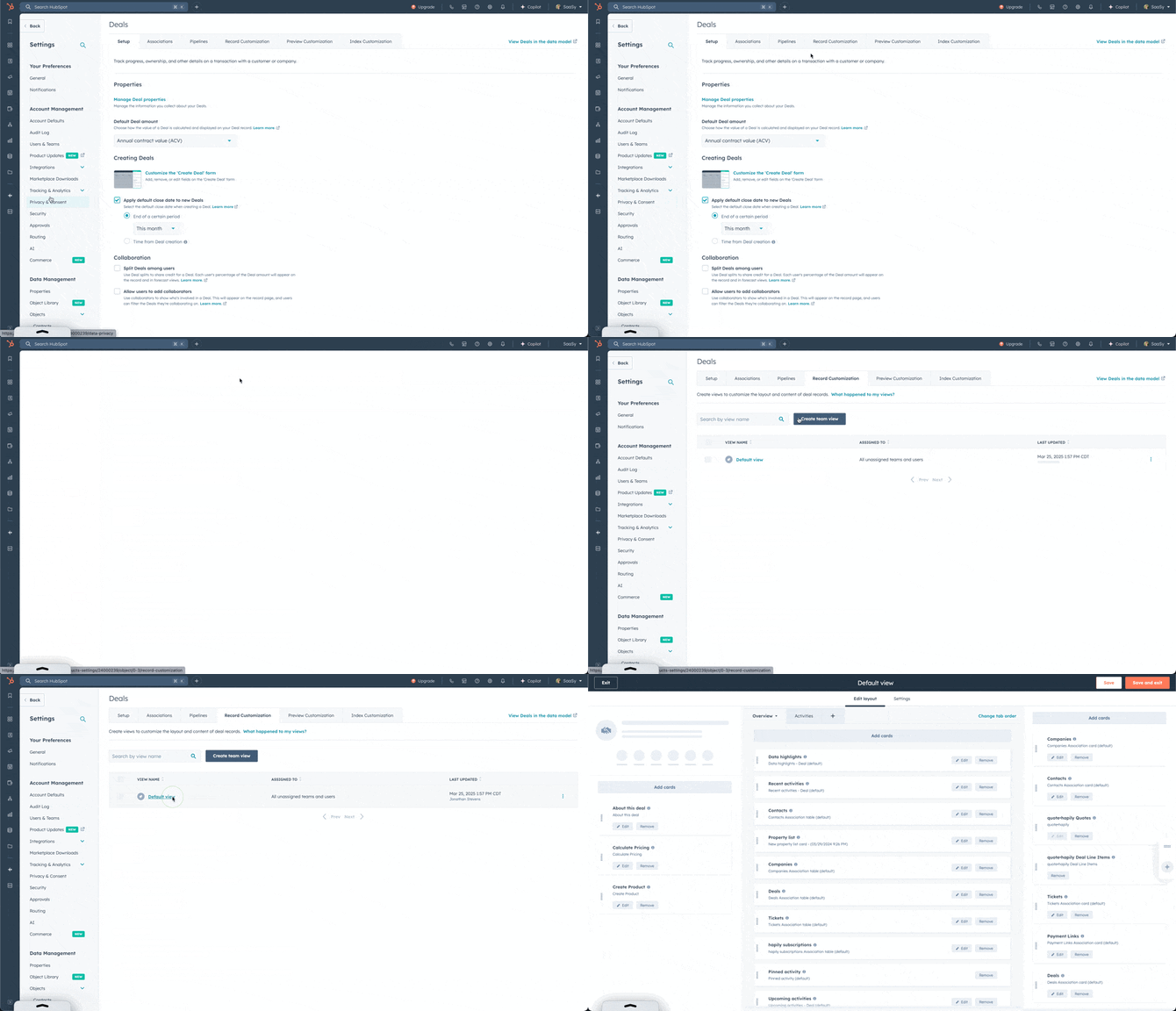
Access Record View Settings: Within the settings, go to "Objects" > "Deals" > "Record Customization" and select the view you want to edit.
-
Add the Quotivity App Cards:
-
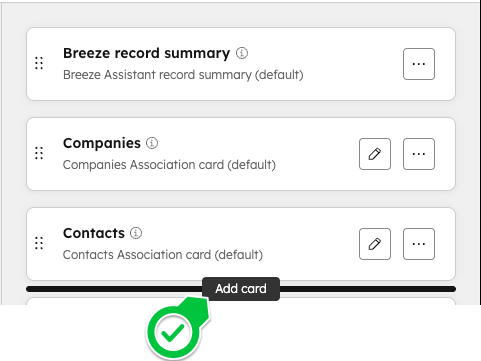
In the right sidebar, hover between any two existing cards and then click on "Add Card"
-
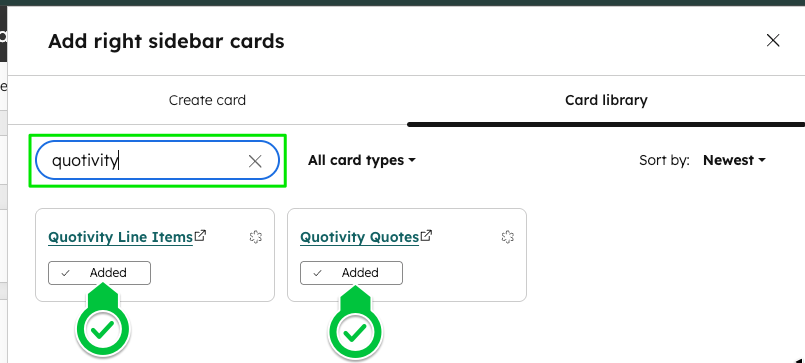
Click on the "Card Library" tab, search for "Quotivity," and add both cards.
-
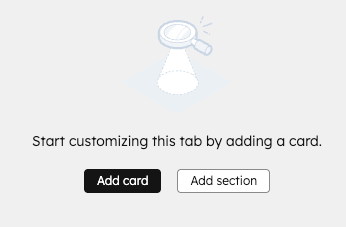
In the middle column, add a new tab and name it "Quote Approvals"

-
Click on "Add card" and select the Quotivity Approvals card.
-
-
Position Cards: Drag and place the cards in your preferred order within the sidebar and center column.
-
Save Changes: Once positioned, click "Save" to apply the changes to your Deal record view.
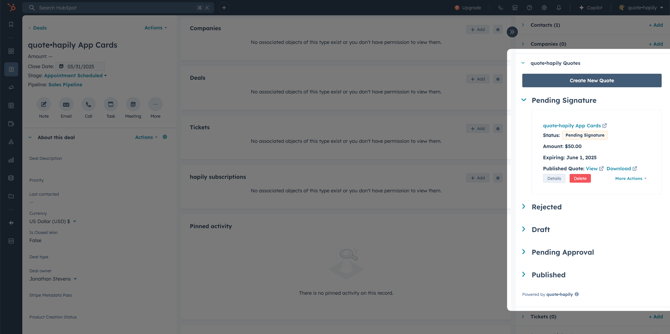
The Quotivity Quotes App Card
This card displays all quotes associated to the deal categorized by the quote status. It also provides functionality to create, edit, view, delete, clone, approve, and recall quotes as needed.
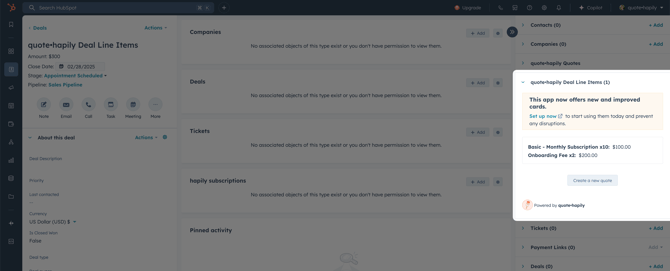
The Quotivity Deal Line Items Card
This card provides an overview of the line items linked to a deal. It does not allow users to edit line items, ensuring that the line items on the deal adhere to your company's policies.
The Quotivity Approvals Card
This card enables you to approve, reject, preview, edit, and recall published quotes. You can also search through quotes using the quote name or filters such the associated deal, quote status, and quote approver.