Skip to content
  • There are no suggestions because the search field is empty.

Adding the Attach File Viewer Module to an Existing HubSpot Quote Template

Walkthrough of how to render a PDF document to a HubSpot Template


Overview

The Attach File Viewer module in Quotivity allows you to embed a file viewer directly into your HubSpot quote templates. This provides buyers with instant access to supporting files — like contracts, spec sheets, or presentations — without leaving the quote.

This guide walks you through adding the module to an existing HubSpot quote template.

Prerequisites

Before you begin, ensure you have:

  • HubSpot Super Admin or Marketing access to edit templates.

  • Quotivity installed in your HubSpot portal.

  • An existing custom quote template to edit.

Step-by-Step Instructions

Step 1 – Open Your Quote Template in HubSpot

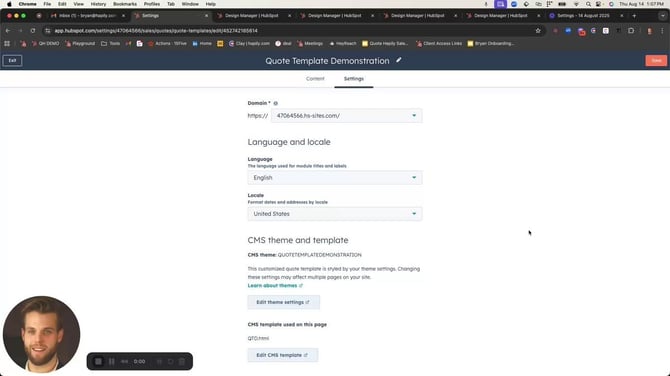
  1. In HubSpot, go to Settings (gear icon).

  2. Navigate to Objects → Quotes → Quote templates.

  3. Locate the template you want to edit and click Edit CMS Template.
frame_000

Step 2 – Open the Module Panel

In the left-hand panel of the template editor:

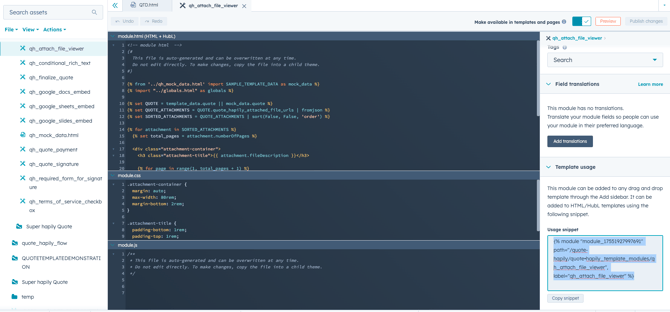
  1. Search for "qh_attach_file_viewer" in the module list.

  2. Open up the module and grab the snippet code (bottom right hand corner)

  3. File #1

    Page 1 of MEDC Reserve Update FY24.pdf
    Page 2 of MEDC Reserve Update FY24.pdf
    Page 3 of MEDC Reserve Update FY24.pdf
    Page 4 of MEDC Reserve Update FY24.pdf
    Page 5 of MEDC Reserve Update FY24.pdf
    Page 6 of MEDC Reserve Update FY24.pdf
    Page 7 of MEDC Reserve Update FY24.pdf
    Page 8 of MEDC Reserve Update FY24.pdf
    Page 9 of MEDC Reserve Update FY24.pdf
    Page 10 of MEDC Reserve Update FY24.pdf
    Page 11 of MEDC Reserve Update FY24.pdf
    Page 12 of MEDC Reserve Update FY24.pdf
    Page 13 of MEDC Reserve Update FY24.pdf
    Page 14 of MEDC Reserve Update FY24.pdf
    Page 15 of MEDC Reserve Update FY24.pdf
    Page 16 of MEDC Reserve Update FY24.pdf
    Page 17 of MEDC Reserve Update FY24.pdf
    Page 18 of MEDC Reserve Update FY24.pdf
    Page 19 of MEDC Reserve Update FY24.pdf
    Page 20 of MEDC Reserve Update FY24.pdf
    Page 21 of MEDC Reserve Update FY24.pdf
    Page 22 of MEDC Reserve Update FY24.pdf
    Page 23 of MEDC Reserve Update FY24.pdf
    Page 24 of MEDC Reserve Update FY24.pdf
    Page 25 of MEDC Reserve Update FY24.pdf
    Page 26 of MEDC Reserve Update FY24.pdf
    Page 27 of MEDC Reserve Update FY24.pdf
    Page 28 of MEDC Reserve Update FY24.pdf
    Page 29 of MEDC Reserve Update FY24.pdf
    Page 30 of MEDC Reserve Update FY24.pdf
    Page 31 of MEDC Reserve Update FY24.pdf
    Page 32 of MEDC Reserve Update FY24.pdf
    Page 33 of MEDC Reserve Update FY24.pdf

    File #2

    Page 1 of Eco Bulletin textile and garment IFG FEB 2025.pdf
    Page 2 of Eco Bulletin textile and garment IFG FEB 2025.pdf
    Page 3 of Eco Bulletin textile and garment IFG FEB 2025.pdf
    Page 4 of Eco Bulletin textile and garment IFG FEB 2025.pdf
    Page 5 of Eco Bulletin textile and garment IFG FEB 2025.pdf
    Page 6 of Eco Bulletin textile and garment IFG FEB 2025.pdf
    Page 7 of Eco Bulletin textile and garment IFG FEB 2025.pdf
    Page 8 of Eco Bulletin textile and garment IFG FEB 2025.pdf
    Page 9 of Eco Bulletin textile and garment IFG FEB 2025.pdf
    Page 10 of Eco Bulletin textile and garment IFG FEB 2025.pdf
    Page 11 of Eco Bulletin textile and garment IFG FEB 2025.pdf
    Page 12 of Eco Bulletin textile and garment IFG FEB 2025.pdf
    Page 13 of Eco Bulletin textile and garment IFG FEB 2025.pdf
    Page 14 of Eco Bulletin textile and garment IFG FEB 2025.pdf
    Page 15 of Eco Bulletin textile and garment IFG FEB 2025.pdf
    Page 16 of Eco Bulletin textile and garment IFG FEB 2025.pdf
    Page 17 of Eco Bulletin textile and garment IFG FEB 2025.pdf
    Page 18 of Eco Bulletin textile and garment IFG FEB 2025.pdf
    Page 19 of Eco Bulletin textile and garment IFG FEB 2025.pdf
    Page 20 of Eco Bulletin textile and garment IFG FEB 2025.pdf
    Page 21 of Eco Bulletin textile and garment IFG FEB 2025.pdf
    Page 22 of Eco Bulletin textile and garment IFG FEB 2025.pdf
    Page 23 of Eco Bulletin textile and garment IFG FEB 2025.pdf
    Page 24 of Eco Bulletin textile and garment IFG FEB 2025.pdf
    Page 25 of Eco Bulletin textile and garment IFG FEB 2025.pdf
    Page 26 of Eco Bulletin textile and garment IFG FEB 2025.pdf
    Page 27 of Eco Bulletin textile and garment IFG FEB 2025.pdf
    Page 28 of Eco Bulletin textile and garment IFG FEB 2025.pdf
    Page 29 of Eco Bulletin textile and garment IFG FEB 2025.pdf
    Page 30 of Eco Bulletin textile and garment IFG FEB 2025.pdf
    Page 31 of Eco Bulletin textile and garment IFG FEB 2025.pdf
    Page 32 of Eco Bulletin textile and garment IFG FEB 2025.pdf
    Page 33 of Eco Bulletin textile and garment IFG FEB 2025.pdf

Screenshot 2025-08-14 at 1.35.25 PM

Step 3 – Add the Attach File Viewer Module

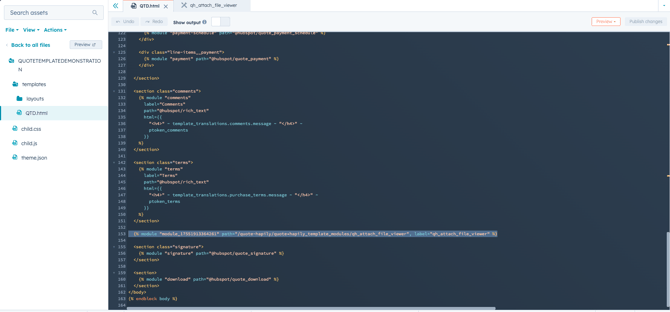
  1. Drag the Attach File Viewer module from the left panel into the desired section of your quote template.

  2. Position it where you want the file viewer to appear for buyers. Most customers insert above the Signature Module. 
Screenshot 2025-08-14 at 1.35.46 PM

Step 4 – Publish Changes and Review the the Module 

  1. Publish the changes and go back to your template in HubSpot

  2. Click on settings and refresh the page 

  3. You should now see the module added to your quote, no need to configure anything else. 

Step 5 – Test your template 

  1. Review the attach file prompt user setup to make sure you've enabled this inside of the quote builder
  2. Once configured select the template you added the module to, and publish the quote!


Related Articles