
Where the Buyer Company Module Appears
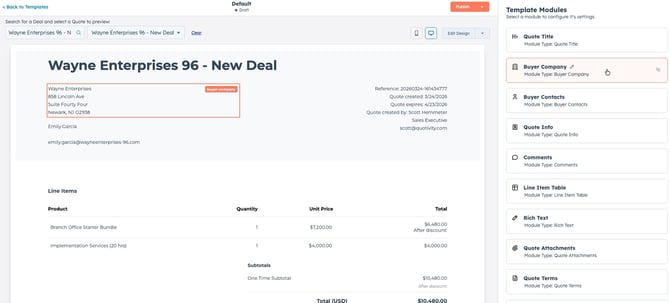
When editing a quote template, the Buyer Company module appears in two places:
- The Template Modules panel on the right-hand side of the template editor
- The quote preview in the top-left of the quote header, displaying the buyer's address block
Opening the Module Configuration
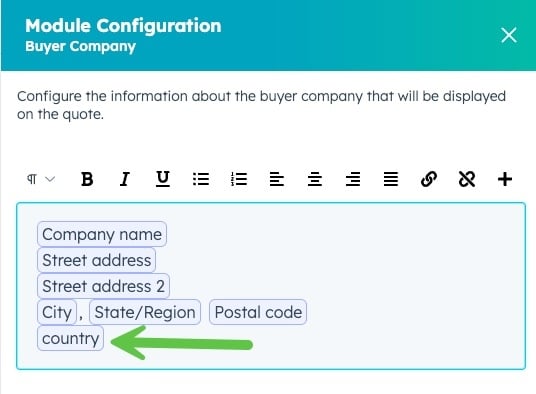
Click Buyer Company in the Template Modules panel to open its configuration panel on the right side of the screen. This slides open a Module Configuration drawer labeled "Buyer Company."
Default Fields
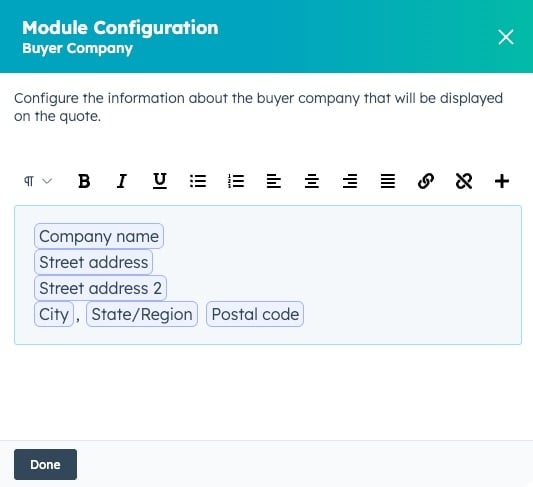
Out of the box, the Buyer Company module displays the following fields pulled from the buyer's company record:
- Company name
- Street address
- Street address 2
- City, State/Region, Postal code
These are rendered as token chips in the rich text editor. The resulting output appears automatically in the top-left section of the quote when a buyer company is associated with the deal.

Customizing the Content with the Rich Text Editor
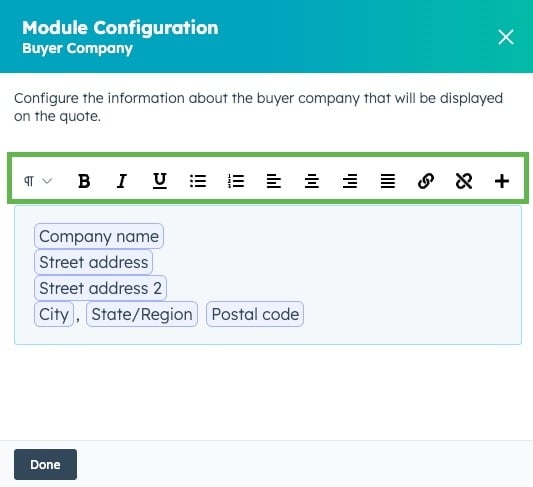
The Buyer Company content area is a rich text editor, giving you full control over formatting and layout. The toolbar at the top provides standard formatting options including bold, italic, underline, lists, alignment, and more.
You can freely edit the surrounding text, add line breaks, change formatting, or restructure how the address is presented.
Inserting Additional Company Field Tokens
Beyond the default address fields, you can insert any company field available in your system as a dynamic token.
To add a token:
- Place your cursor in the editor where you want the field to appear.
- Click the
+(plus) icon in the toolbar to open the token picker. - Set the Type to
Company. - Search for or select the Property you want to display (e.g., City, Phone, Custom Field).
- Click Insert Token.
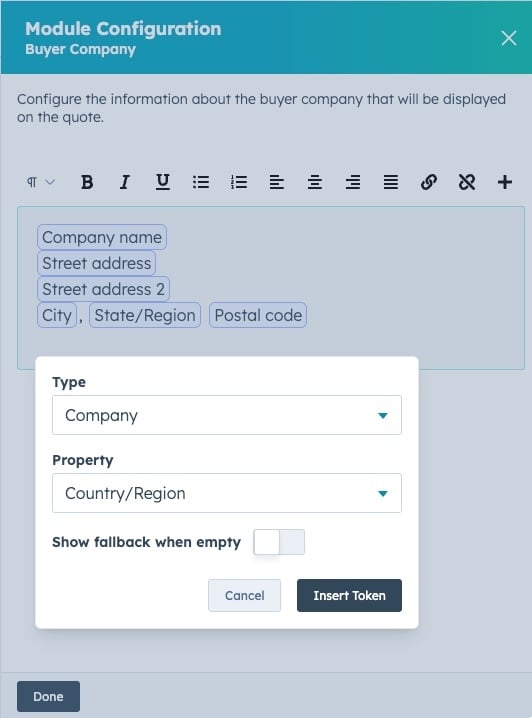
Tip: Tokens also support fallback values, so if a field is empty on a company record, you can define a default to display instead.
Previewing the Result
Once your configuration is saved, the buyer company information renders live in the quote preview. The module output appears in the top-left of the quote header, directly beneath the quote title.
The address block shown above reflects the default token configuration — company name, street address lines, and city/state/postal code — exactly as configured in the module.
Summary
| Feature | Details |
|---|---|
| Default fields | Company name, Street address, Street address 2, City, State, Postal code |
| Editor type | Rich text (supports formatting) |
| Custom tokens | Any Company field via the + Insert Token button |
| Fallback values | Supported per token |
| Output location | Top-left of the quote header |
For additional customization of other quote header modules, see related articles on Buyer Contacts, Quote Info, and Quote Title modules.