
1. What is the Terms Library?
The Terms Library in Quotivity is where you store ready-to-use contract language, payment terms, and any other relevant details that you can quickly add to quotes.
Instead of typing the same terms over and over, you can save them once and reuse them whenever you create a new quote. This keeps your quotes consistent and saves time.
2. Why use the Terms Library?
Use Case:
Imagine you always offer “Payment Terms: Net 30” or “Shipping: 3–5 business days.” Without the Terms Library, you’d have to type that every time you send a quote. With the library, you just pick it from a list — no typos, no guesswork, and no wasted time.
3. How to create a new term
Step 1 — Open the Terms Library
From the left menu, select Terms Library.
You’ll see a list of all existing terms, along with a + Create New Terms button.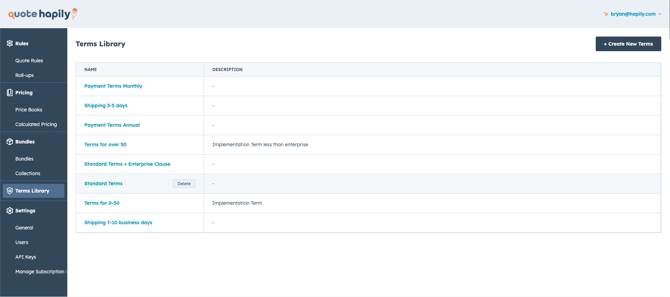
Step 2 — Add your term details
-
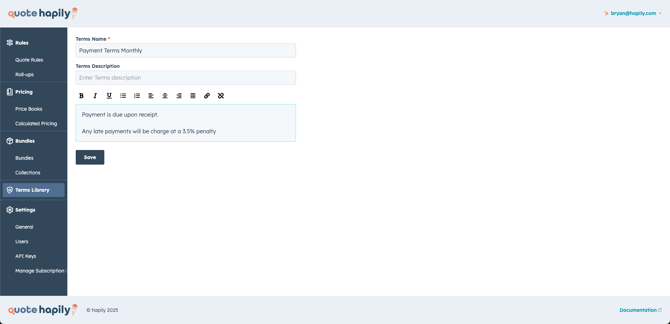
Click + Create New Terms.
-
Fill out:
-
Terms Name – a short, descriptive title (e.g., “Payment Terms Monthly”).
-
Terms Description (optional) – for internal notes or details.
-
Terms Content – the exact wording you want to appear in your quote. This can be styled with bold, italics, bullet points, or links.
-
-
Click Save.
4. Using your saved terms in a quote
Step 1 — Start a new quote
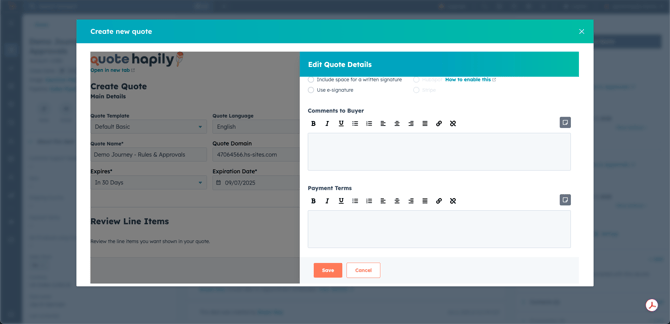
Navigate to edit details, scroll to the Payment Terms or Comments to Buyer section.
Step 2 — Insert a saved term
-
Click the document icon next to the text box.
-
A list of your saved terms will appear — search or scroll to find the one you want
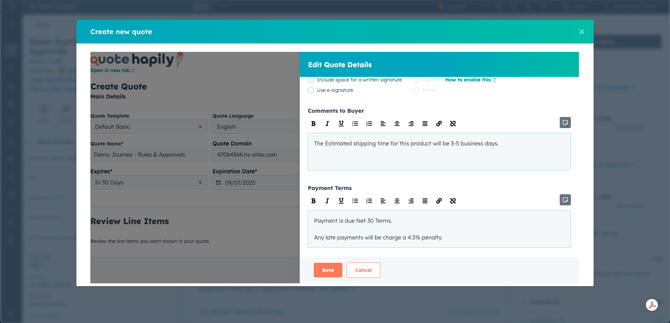
- Click the term you need and it will insert the text automatically
Step 3 — Adjust if needed
Once inserted, you can edit the term for that specific quote without changing the saved version in the library.
5. Tips & Best Practices
-
Name terms clearly – Make them easy to identify in the dropdown.
-
Keep them up to date – Review periodically to ensure compliance with current policies or regulations.
-
Use descriptions for internal clarity – Especially helpful if you have similar terms for different scenarios.
-
Organize by category – For example, prefix shipping terms with “Shipping -” and payment terms with “Payment -” for easier searching.