
Two places to use custom code in your Quotivity Templates
The Quotivity Template Designer allows you to create beautiful and professional quote templates without writing any code. But when you do want to write code to add special behavior or data-driven design elements to your quote, we have you covered.
Custom Code module: The first way is to use our Custom Code module on your template. This allows you to have an entire section on your page that is driven entirely by your custom code.
Custom Line Item Table columns: The second way is to add a column to your line item table that also uses custom code.
The difference between these two is the data that you have available to you. With the custom code module, you have access to all of your quote data, including the related line items, deal, company, and contacts. With the custom line item table column, we provide you with a line_item token that makes it easy to access data for each individual row.
TL;DR;AI ("Too long, didn't read — I have AI")
Don't want to learn LiquidJS? We don't blame you. Both modules include an AI Copilot for writing your LiquidJS:
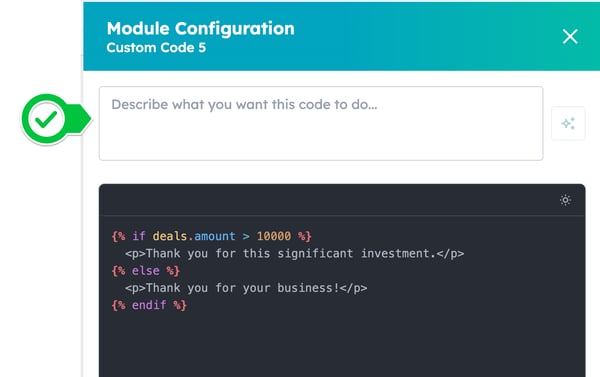
The Copilot, of course understands LiquidJS, but It also knows about the native and custom properties in your HubSpot portal. Just tell it what you want in plain English and play with the results.
A Quick Introduction to LiquidJS
LiquidJS is an open source template language based on "Liquid" from Shopify. It is very similar to HubL, HubSpot's own markup/template language.
LiquidJS uses two types of markup:
Outputs — displaying data
Wrap a variable in double curly braces to display its value:
{{ quote.hs_quote_amount }}
You can transform values using filters, usually added after a value using a | (pipe) symbol.:
{{ quote.hs_quote_amount | money }}
Filters in LiquidJS are simple functions that change how a piece of information is shown.
For example, a filter can make text uppercase, format a date, or add something to the end of a value before it appears on the page.
Tags — adding logic
Tags use {% and %} and let you add conditions and loops:
Conditionals:
{% if deals.amount > 10000 %}

  <p>Thank you for this significant investment.</p>

{% else %}

  <p>Thank you for your business!</p>

{% endif %}
Loops (Custom Code module only):
{% for item in line_items %}

  <p>{{ item.name }} — {{ item.price | money }}</p>

{% endfor %}
Note: The include, render, and layout tags that LiquidJS usually supports are not available in Quotivity templates.
Available Tokens
Tokens are the data variables you can reference in your templates that refer to HubSpot data related to your quote. They map to HubSpot's internal property names.
Custom Code Module
|
Namespace |
What it contains |
Example |
|---|---|---|
|
|
Quote-level properties |
|
|
|
All line items on the quote |
|
|
|
Contact(s) on the deal |
|
|
|
Company/companies on the deal |
|
|
|
Deal properties |
|
Custom Column (Line Item Table)
In a custom column, your code runs once per row — you're working with one line item at a time:
|
Namespace |
What it contains |
|---|---|
|
|
The current line item |
|
|
Quote-level properties |
|
|
Deal properties |
Money & Currency Filters
Quotivity includes built-in filters for formatting numeric values as currency:
|
Filter |
Example output |
|---|---|
|
|
$1,299.00 |
|
|
$1,299.00 |
|
|
1299.00 |
|
|
$1,299 |
|
|
Strips currency symbols to return a plain number |
Examples:
{{ item.price | money }}

{{ item.price | parse_currency | plus: 50 | money }}
Quotivity also supports all standard LiquidJS filters including upcase, downcase, append, truncate, default, and many more.
Tip: Use the default filter for properties that might not always have a value:
{{ item.hs_sku | default: "N/A" }}
Step-by-Step: Using the Custom Code Module
The Custom Code module lets you write free-form HTML and LiquidJS to display anything you like anywhere in your quote template.
Add the custom code module to your template.
- Open your quote template in Quotivity.
- Click Edit Design to open the landing page in HubSpot.
- Click the + button to add a new CMS module.
- Search for "code".
- Drag the "Custom Code (Quotivity)" module onto your page.
- Publish your changes.
- Return to Quotivity.
Add/edit code in your custom code module.
- Open your quote template in Quotivity.
- In the right-hand panel, click the Custom Code module.
- Optionally, use the AI assistant at the top of the panel — describe what you want to display and Quotivity will generate the code for you.
- Write or edit your LiquidJS template in the code editor using the tokens and filters above.
- The syntax indicator below the editor will flag any errors in real time.
- Click Save — the live preview will update immediately.
Example — a custom message based on deal size:
{% if deals.amount > 10000 %}

  <p>A dedicated account manager will reach out to you shortly.</p>

{% else %}

  <p>Thank you for your business!</p>

{% endif %}
Example — a summary table of all line items:
<table>

  {% for item in line_items %}

    <tr>

      <td>{{ item.name }}</td>

      <td>{{ item.price | money }}</td>

    </tr>

  {% endfor %}

</table>
Step-by-Step: Adding a Custom Column to the Line Item Table
Custom columns let you add a fully customized, calculated, or conditional column to the line items table.
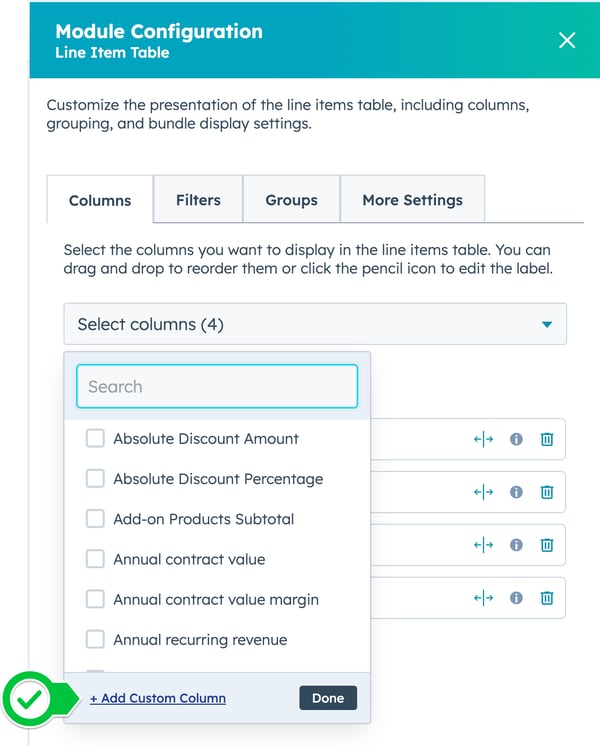
- Open your quote template and click the Line Items module in the right-hand panel.
- Go to the Columns tab.
- Open the column selector dropdown and click + Add Custom Column at the bottom.
- The new column appears in the list. Click the label to rename it (e.g. "Savings").
- Click the code icon on the column row to open the code editor.
- Use the AI assistant to generate the code, or write your own LiquidJS using the item, quote, and deals tokens.
- The syntax indicator will confirm whether your code is valid.
- Click Done, then Save the module.
Example — showing a discount label:
{% if item.hs_discount_percentage > 0 %}

  {{ item.hs_discount_percentage }}% off

{% else %}

  —

{% endif %}
Example — displaying a formatted unit price:
{{ item.price | money }}
Tips & Things to Know
- Misspelled tokens cause errors. The template engine is strict about variable names — check the syntax indicator before saving.
- Custom columns are per-row. Your code runs once per line item, so use the
itemnamespace for the current row's data. - The AI assistant knows your tokens. When using AI-generated code, it has access to the full list of properties available on your HubSpot account, so you can describe what you want in plain English.