
Customizing Quotivity Templates with HubSpot Landing Pages
Every Quotivity quote template is powered by an underlying HubSpot landing page that controls its overall layout and design. By editing that landing page, you can add logos, custom text sections, Quotivity-specific modules, forms, signature blocks, and even turn a simple quote into a multi-page proposal — all without changing any quote content inside Quotivity itself.
How It Works
The HubSpot landing page behind each Quotivity template is responsible for layout and structure only. You do not edit quote content (line items, pricing, contact info) there — that stays in Quotivity. Think of the landing page as the "frame" around your quote.
Step 1: Open the HubSpot Landing Page Editor
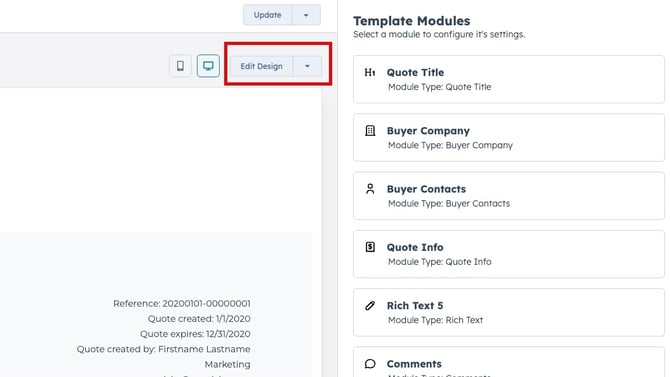
From within a Quotivity template, click the Edit Design button. This opens a new browser tab with your template's underlying HubSpot landing page in edit mode.
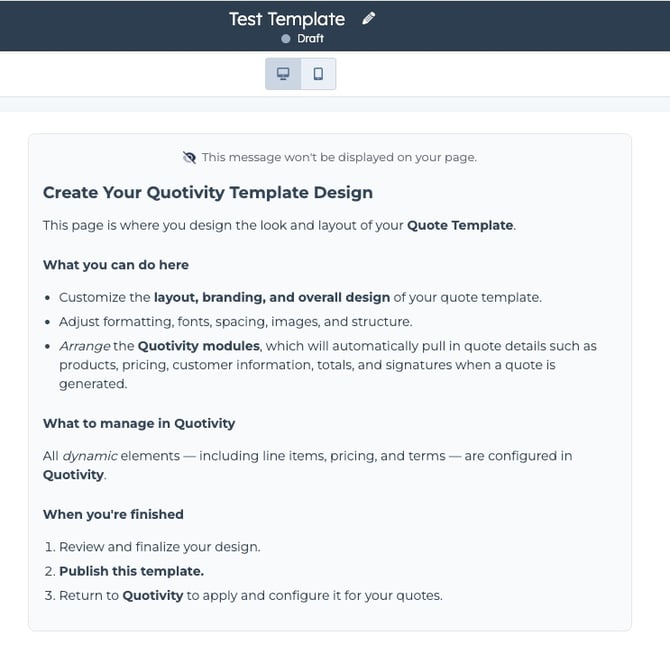
When the landing page opens, you'll see a note from Quotivity at the top of the page explaining what you're looking at.
Step 2: Add Hard-Coded Elements (e.g., Your Logo)
Some elements — like a company logo — are best added directly to the landing page as hard-coded content. This means they'll appear on every quote using that template and won't be editable from inside Quotivity.
To add a logo (or any standard element), click into the appropriate section on the landing page and use HubSpot's standard module editing tools.
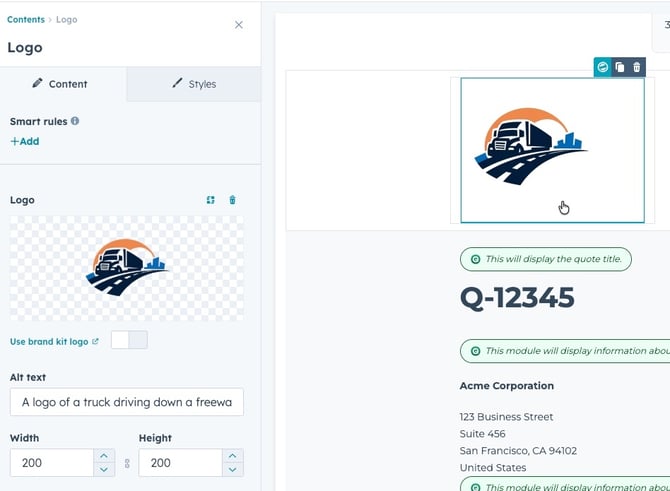
Note: Any HubSpot native module you add (rich text, image, heading, etc.) will be hard-coded to the landing page. It will appear on the quote but cannot be edited from within the Quotivity template editor.
Step 3: Add Quotivity Modules
Quotivity modules are special HubSpot modules that, once placed on the landing page, become editable inside the Quotivity template editor. This is what makes them powerful — you can customize their content per template without returning to HubSpot.
To find them, click Add in the HubSpot editor, then search for "Quotivity" in the module search panel.
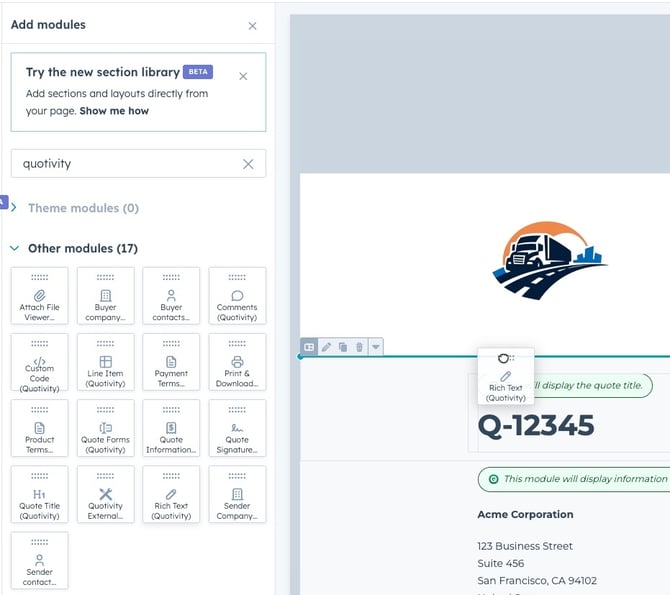
Commonly used Quotivity modules include:
- Rich Text (Quotivity) — Editable text sections (great for cover letters, notes, or intro copy)
- Quote Signature — Adds a signature block for buyer sign-off
- Custom Code (Quotivity) — For advanced customization
- Quote Forms — Embed a HubSpot form directly into the quote
Drag any module into the desired position on the landing page.
Step 4: Publish the Landing Page
Once you're satisfied with the layout changes, click Publish in the HubSpot editor to save and publish the landing page.
Step 5: Review Changes in Quotivity
Switch back to your Quotivity browser tab. Quotivity will automatically detect that the underlying landing page has changed and pull in the updates.
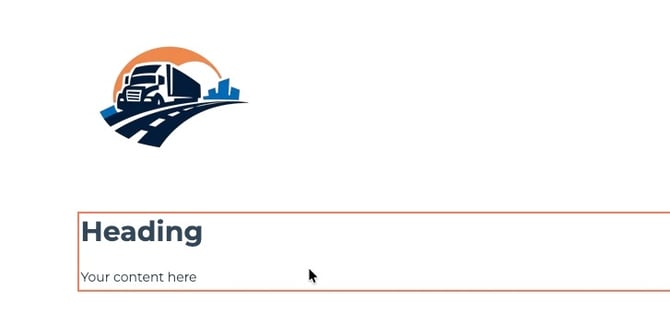
You'll now see your newly added Quotivity modules listed in the Template Modules panel on the right. You can:
- Edit module content directly within Quotivity by clicking on the module
- Rename modules for easier identification (e.g., rename "Rich Text 1" to "Text Next to Logo")
Step 6: Edit Your Quotivity Modules
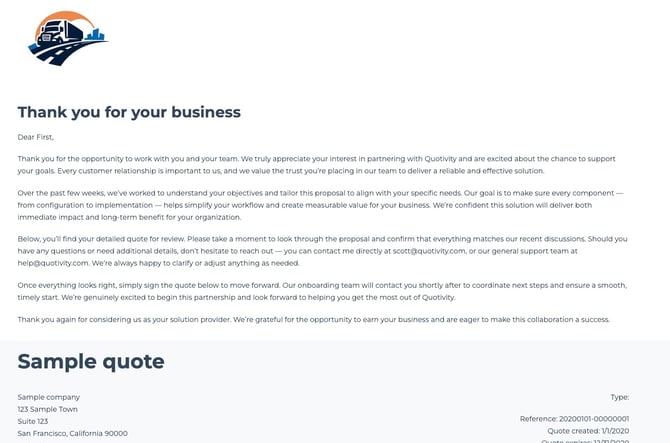
Click any Quotivity module in the template editor to edit its content. For example, a Rich Text module above the quote header is a great place for a cover letter.
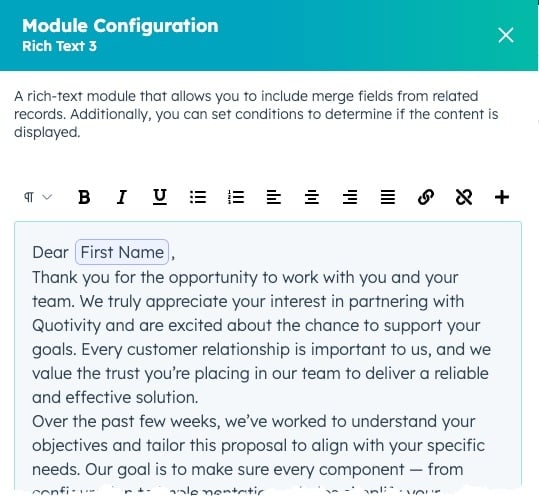
You can add headings, body copy, and — importantly — merge fields to personalize the content. For example:
Dear there,
This pulls the contact's first name dynamically from HubSpot when the quote is generated.
Pulling Changes Manually
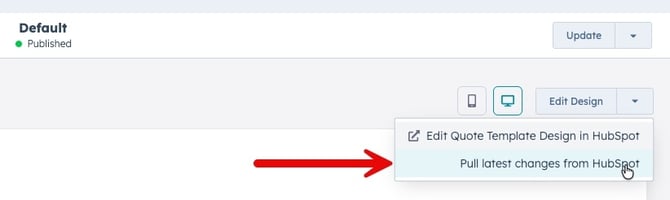
If you make additional edits to the HubSpot landing page after the initial sync, Quotivity won't always detect them automatically. To manually sync changes, click the dropdown arrow next to the Edit Design button and select Pull latest changes from HubSpot.
Key Reminders
- HubSpot modules = hard-coded. Native HubSpot modules (images, headings, rich text) are baked into the landing page and cannot be edited from within Quotivity.
- Quotivity modules = editable. Only modules from the Quotivity module library can be edited inside the Quotivity template editor.
- Publish before syncing. Always publish the HubSpot landing page before trying to pull changes into Quotivity.
- Use for proposals. The landing page approach is powerful for building multi-page proposals — add imagery, rich content sections, and custom layouts just as you would any HubSpot webpage.