
Use Case for Price Books
Selling in different regions: Imagine a company that sells products in multiple regions, each with its own pricing strategy. By creating regional Price Books, the company can assign appropriate pricing to customers based on location, ensuring consistency and accuracy in quotes.
Simplifying product catalogs by team: Some businesses have multiple sales teams that handle different product lines. By using separate Price Books, businesses can restrict product visibility so that each sales team only sees the products relevant to them. This prevents errors, streamlines sales processes, and ensures that the right teams quote the right products.
Assigning Price Books to Quotes
Assigning the correct Price Book to a quote ensures that the appropriate pricing is applied. Here's how to do it:
Automatic Assignment via Quote Rules:
Administrators can set up Quote Rules that automatically assign a specific Price Book to a quote based on predefined conditions, such as customer location or deal size. Learn more
Manual Selection by Users:
Users can manually select the appropriate Price Book when creating a quote. This ensures flexibility in cases where unique pricing is required.
Assigning Products to Price Books
Organizing products within Price Books allows for tailored pricing strategies. To assign products to a Price Book:
In Quotivity:
-
- Navigate to the "Price Books" section in the Quotivity Admin app.
- Select the desired Price Book and add products by searching for them by name, product type, or SKU.
In HubSpot:
Price Book Adjustment Options
By default, the price of a product is set to the price in HubSpot. Price Books allow you to adjust that price in several ways:
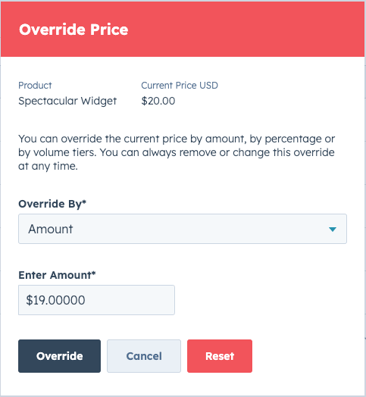
Override by Amount
You can change the price directly by choosing "Override by Amount."
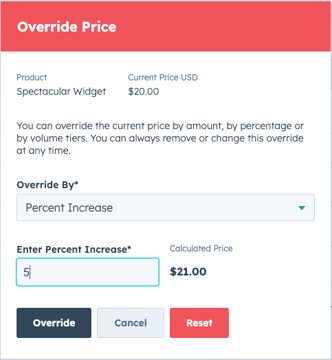
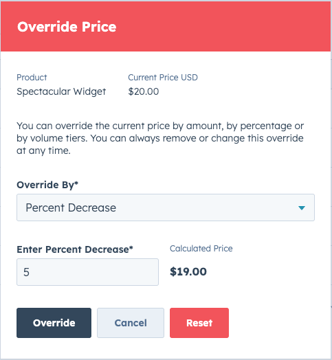
Override By Percentage
You can adjust the price as a percentage of the standard price from HubSpot.
Volume Pricing
Quotivity also allows you to change the unit price based on the quantity purchased.
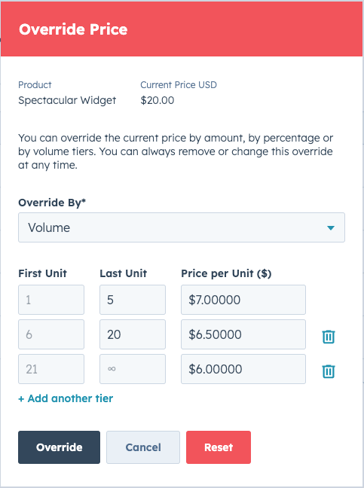
Note: Volume pricing considers the quantity of all similar SKUs when determining the volume tier.
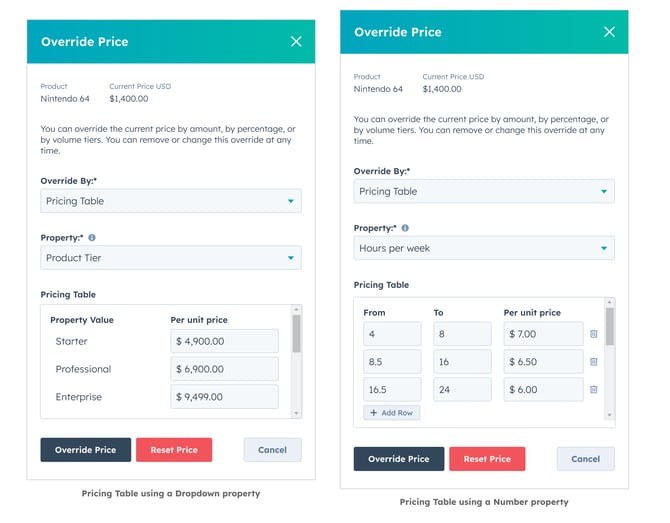
Pricing Tables
Pricing Tables allow you to specify the price of a product using the value of a numeric or enumerated field (e.g., Drop-down, Radio, Checkbox).
Tips and Best Practices
-
Clear Naming Conventions:
-
Regular Reviews:
- Periodically review and update Price Books to ensure pricing remains accurate and competitive.
-
Leverage Automation:
- Utilize Quote Rules to automate the assignment of Price Books, reducing manual errors and increasing efficiency.
More Reading
For further insights and detailed guides, explore these resources:
By effectively utilizing Price Books in Quotivity, businesses can streamline their pricing strategies, ensure accuracy in quotes, and precisely cater to diverse customer needs.