
Here's how to set it up:
1. Navigate to Quote Rules
-
Go to Quotivity settings.
-
Click “Quote Rules”.
2. Create a New Rule
-
Click “Create Quote Rule”.
-
Give it a name (e.g.,
Attach File Rule – Enterprise MSA).
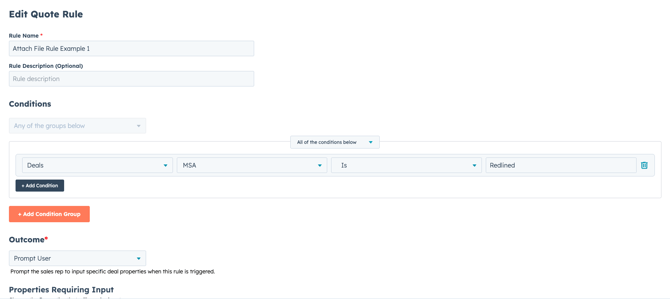
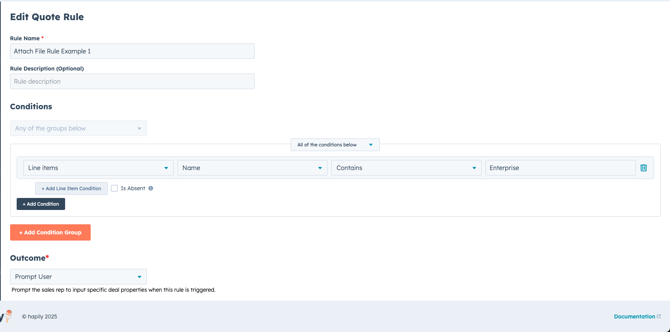
3. Set the Triggering Conditions
These determine when the rep should be prompted to upload a file.
You can use any combination of:
-
Line Items → e.g.,
Name contains "Enterprise" -
Deal Properties → e.g.,
MSA is Redlined
Quick Tips:
- If you want to always require a PDF to be attached to a quote you can run a blanket rule. (e.g. If Deal Name is Known Prompt User to Attach File)
- Otherwise you can use any combination of object properties to set the conditions for when a PDF is required.
- When combining multiple conditions make sure to choose the AND function on the rule builder if you want to require a PDF when all those conditions are met, otherwise use an OR function, if just one of those conditions require a user to attach a file. (if line item name is Enterprise or if customer requested a Redline, we require user to attach a file).
4. Set the Outcome to “Prompt User”
-
Scroll to the Outcome section.
-
Set the dropdown to Prompt User.
This means that when the conditions are met, the rep will be blocked from publishing the quote until they provide a PDF to be attached.

5. Add a Required File Upload
In the “Properties Requiring Input” section:
-
Leave the “Deal Properties” selection blank (unless you also want to require a text or dropdown field).
-
Instead, scroll to the File Description input.
-
Add the name of the required file (e.g.,
CUSTOM MSA).
6. Save the Rule and Turn It On
-
Click Save.
-
Make sure the rule is switched ON using the toggle (bottom right hand corner)
7. Now Generate a quote and test your rule
- When the rule conditions have been met inside HubSpot or the quote builder your sales reps should be prompted with the following prompt. (e.g. line item name contains "Enterprise")
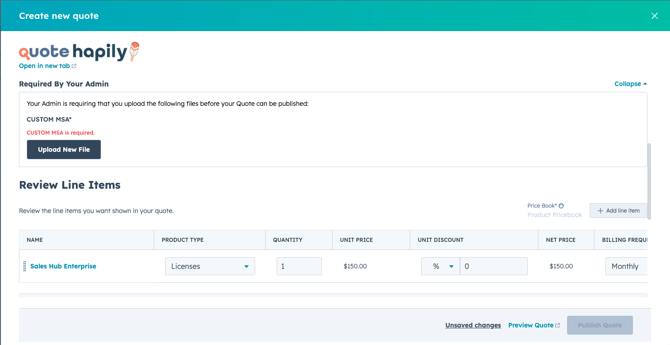
They will see a section labeled “Required By Your Admin” telling them to upload a file with the label “CUSTOM MSA”.
They cannot publish the quote until a file is uploaded.
Once uploaded, the file is:
-
Stored on the quote record,
-
Appended to the final PDF output of the quote.
- Make sure the file was successfully captured. Once succesful you will now be able to publish the quote.

Quick Tip:
- When the the file has been successfully uploaded, wait about 15 seconds before publishing and Preview the quote to make sure the file was attached correctly.
