
Blocking Discounts with Override Options in Quotivity
What This Feature Does
Block Rules in Quotivity prevent quotes from being published when they violate pricing or discount policies, such as discounting a product beyond an acceptable percentage. This ensures quotes stay in line with company policy before they reach an approver’s desk.
However, there are cases where a discount might be necessary for a strategic reason. That’s where override logic comes in. You can prompt the sales rep to explain their reasoning, and based on that reason, either allow the quote to go through or escalate it straight to leadership for approval.
Use Case
Imagine your company doesn’t allow discounts over 30 percent on a software product. Normally, any quote like that should be blocked.
But in special cases, like a competitive deal or end-of-quarter push, you may want to allow it, as long as there's a good reason.
In Quotivity, you can:
-
Block quotes with steep discounts
-
Prompt the user for a “Discount Reason”
-
Allow the quote to publish if the reason is valid
-
Or escalate the quote for approval, such as routing directly to the CEO
How to Set It Up
Step 1: Create a Block Rule for Discounts above a certain amount
Goal: Prevent quotes with a discount over 30 percent from being published.
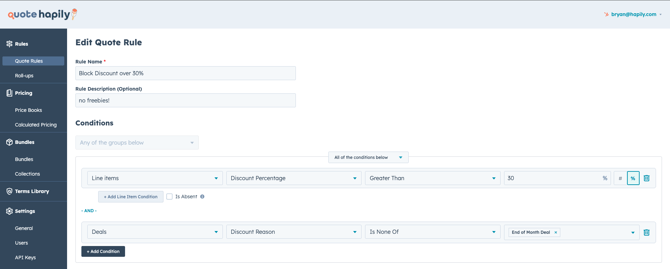
Rule Name: Block Discount over 30%
Condition: Line items > Discount Percentage > 30%
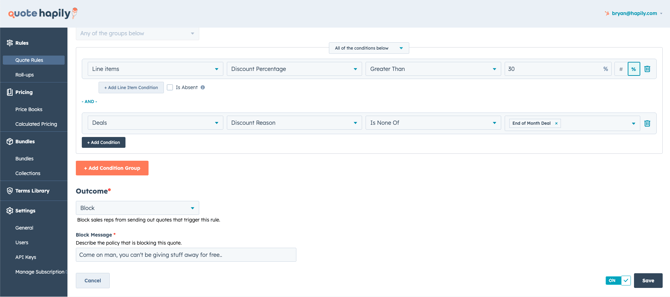
Outcome: Block the sales rep
Block Message: “Come on man, you can’t be giving stuff away for free…” this is customizable to your preference.
Rule: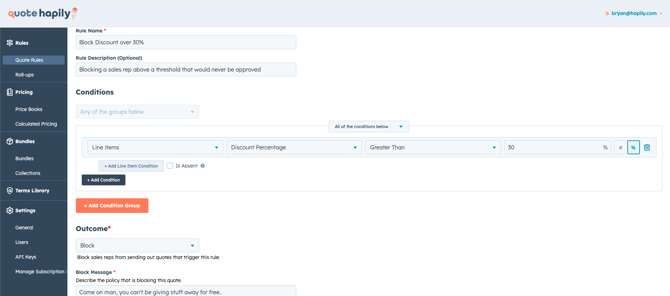
Outcome: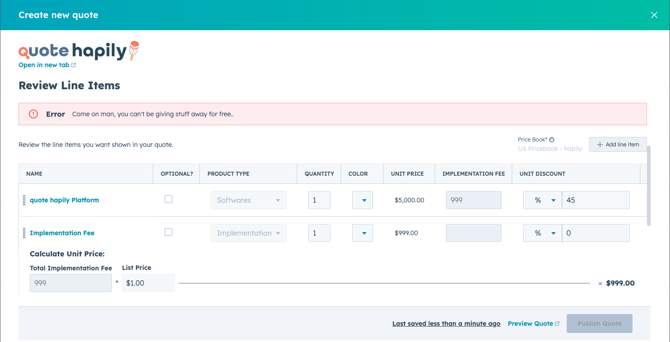
Step 2: Prompt the User for a Discount Reason
Goal: Give the sales rep a chance to justify the discount.
Create a new quote rule with the same condition:
Line items > Discount Percentage > 30%
Outcome: Prompt User
Properties Requiring Input: Discount Reason (a custom property on the Deal)
When a sales rep enters a discount over 30 percent, they’ll be required to select a Discount Reason before moving forward.
Rule:
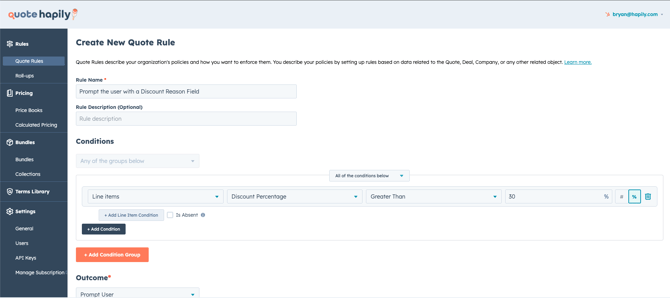
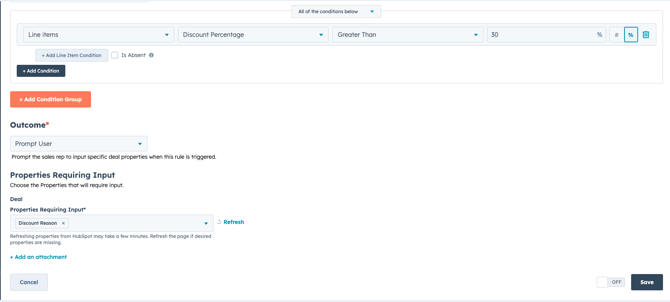
Outcome:
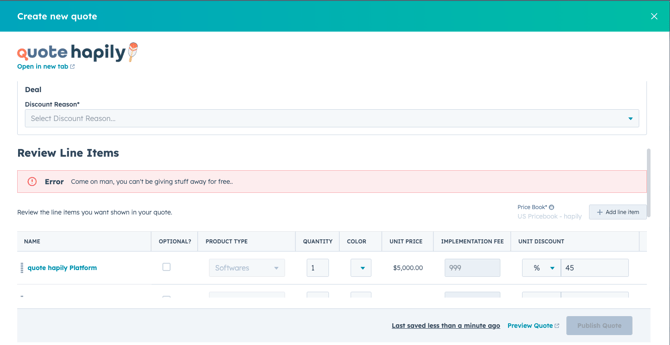
Step 3: Now Adjust the original Block Rule to Allow Certain Reasons
Goal: Allow publishing if a specific Discount Reason is selected.
Edit the original Block Rule and add a second condition:
Deals > Discount Reason > Is None Of > End of Month Deal
This means the quote is only blocked if the reason is missing or not a reason we would discount this high. If “End of Month Deal” is selected, the quote will be allowed to publish.
Rule:
Outcome:
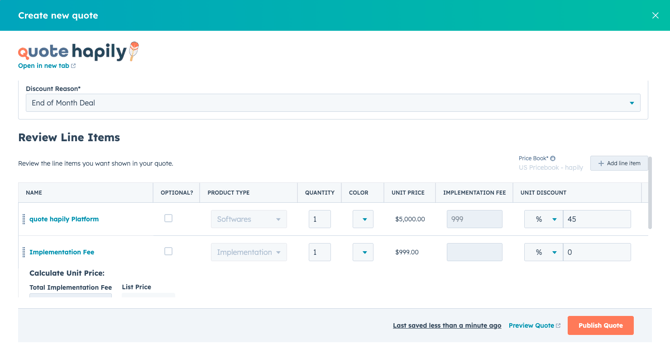
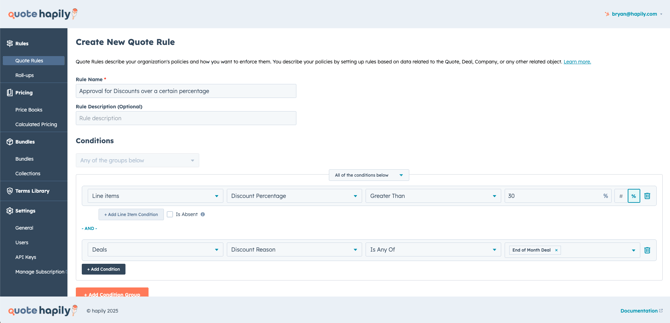
Step 4: Automatically Trigger an Approval Instead
Goal: Send the quote to the CEO for review if it meets high-risk criteria.
Create a new rule with these conditions:
Line items > Discount Percentage > 30%
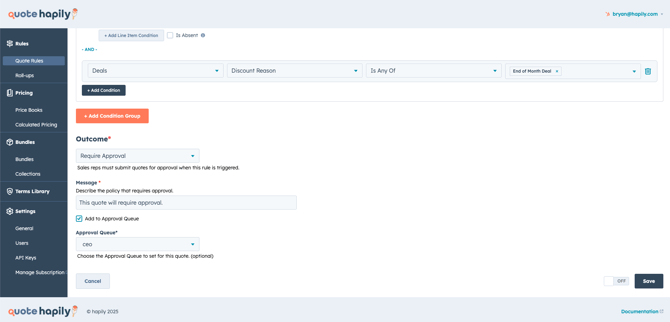
Deals > Discount Reason > Is Any Of > End of Month Deal
Outcome: Require Approval
Approval Queue: CEO
Approval Message: This quote will require approval.
Now, when the sales rep selects a valid reason, the quote will be routed to the appropriate person for review rather than being blocked. Any other reason would result in a block, based on our previous block rule.
Rule:
Outcome: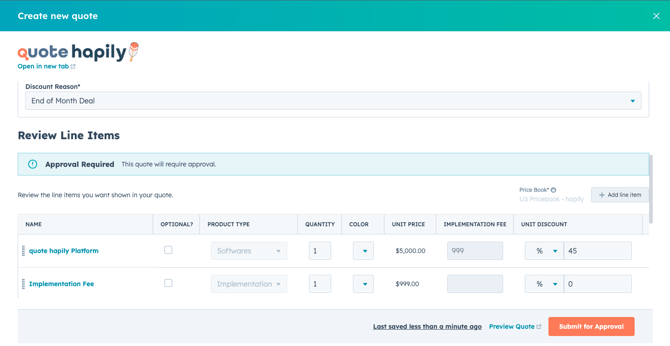
Tips and Best Practices
-
Use a drop down deal field for Discount Reasons such as “Strategic Renewal” or “Competitive Deal” to control the inputs from the sales rep.
-
Train sales reps on which reasons will override a block and which will not
-
Use the Prompt User rule with required fields to ensure justification is always collected
-
Consider adding additional rules to route specific reasons to different approvers