
What is Table-Based Pricing?
Table-based pricing lets you set different prices for a product based on property values—like customer tiers, company size, or any custom property you define. It’s a smart way to tailor prices to different types of customers without having to create multiple products or price books.
When Would You Use This?
Imagine you're selling software with different pricing for "Good," "Better," and "Best" subscription tiers—or offering lower prices to nonprofits or startups. With table-based pricing, your sales team can quickly pick the right price during quoting without manual calculations or discounting.
How to Set Up Table-Based Pricing
1. Go to the Price Book
-
From the left-hand menu, navigate to Pricing > Price Books.
-
Choose the price book where your product lives.
-
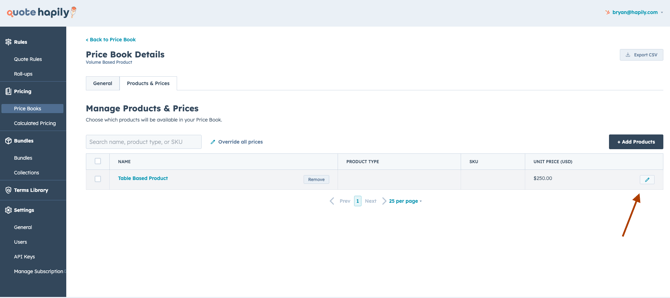
Go to the Products & Prices tab.
2. Click the Pencil Icon ✏️ to Edit Pricing
-
Find your product and click the pencil icon to override its pricing.
3. Choose "Pricing Table" as the Override Type
-
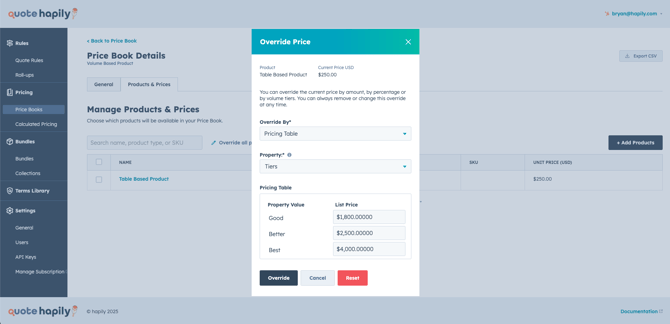
In the Override Price pop-up, select Override By: Pricing Table.
-
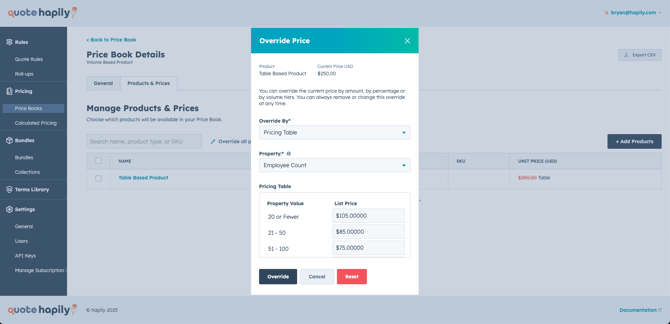
Pick a HubSpot Product Property (like “Tiers” or “Employee Count”) to base your pricing on.
-
Fill in the table with each property value and its corresponding list price.
Examples:
Using “Tiers” Property:
Using “Employee Count” Property:
What It Looks Like in a Quote
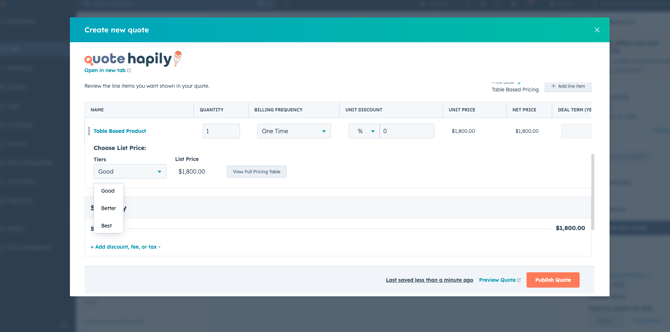
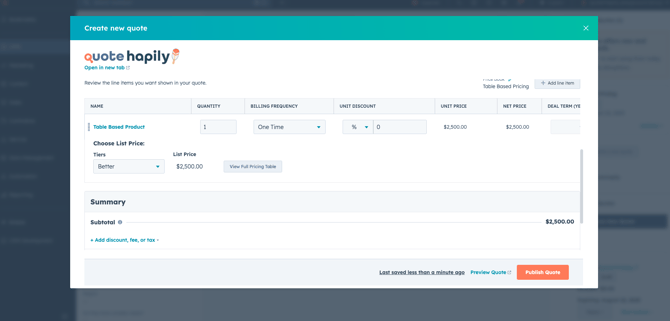
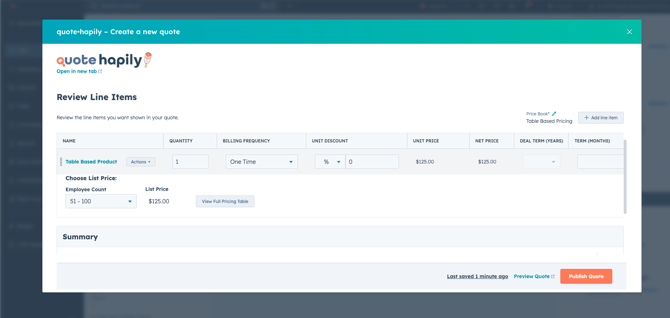
Once your table-based pricing is set, reps can select the appropriate property value in the quote and the price updates automatically.
-
In the quote builder, select the Table-Based Product from the Pricebook.
-
Choose from the available tiers (e.g., Good, Better, Best).
-
The unit price updates based on your table.
How to Automatically Apply Table Pricing Using Quote Rules
Want to take table pricing even further? You can use quote rules to automatically apply the right pricing based on company properties (like "Employee Count")—saving time and reducing manual entry for your sales reps.
Why Use Quote Rules?
-
Ensures consistent pricing
-
Eliminates manual selection by reps
-
Speeds up quote creation
📋 Set Up the Rule
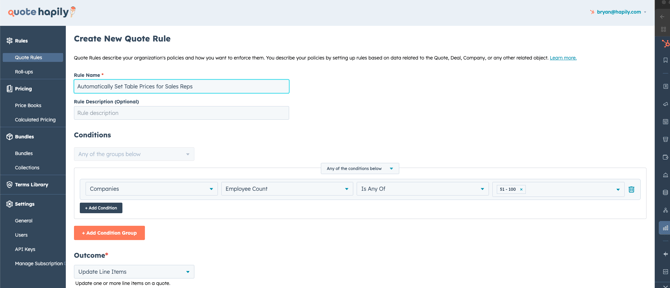
1. Go to Rules > Quote Rules
-
Click “Create Quote Rule”.
2. Name Your Rule
-
Example:
Automatically Set Table Prices for Sales Reps
3. Define the Condition
-
Example: Companies > Employee Count > Is Any Of > 51–100
4. Define the Outcome
-
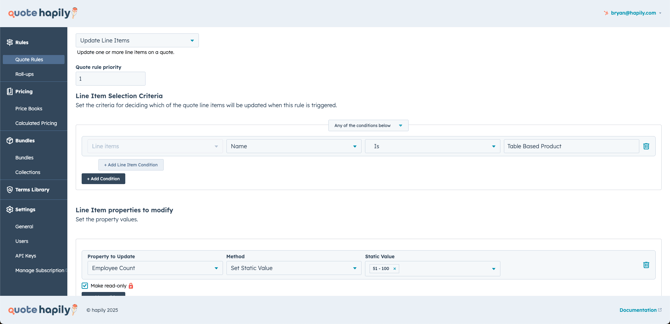
Set Outcome = Update Line Items
-
Add selection criteria:
-
Line Items > Name > Is > Product You Want to Update
- This can also be done using Product Types you want to update also running table pricing.
-
-
Then modify the property:
-
Property to Update = Employee Count
-
Static Value = 51–100
- Mark Read Only to make it uneditable by the sales rep.
-
✅ How It Works in Action
As long as the company record has the Employee Count set to 51–100 (in your CRM)...
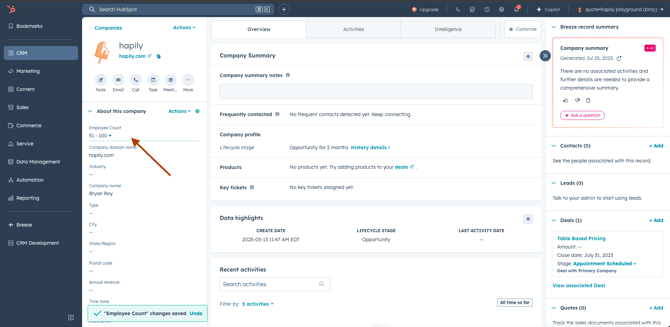
...the quote will automatically pull the correct list price from your table-based pricing—no rep input needed.
Tips and Best Practices
-
Keep your property names clear: Use labels like “Tiers” or “Customer Type” so reps know what they’re selecting.
-
Start with a few rows: You can always add more values as your pricing needs grow.
-
Use dropdown properties: The cleaner the selection options, the fewer mistakes reps can make.
-
Test it: Create a test quote with each value to verify prices are applying correctly.