
Sign in to the Quotivity Admin app
After you install Quotivity, you'll be taken to the Admin app.
You can access the Admin app at any time by clicking SIGN IN from the quotivity.com website or by visiting our admin site directly. You do not need a password. Instead, Quotivity will email you a one-time-use link to the Admin app or you can sign in directly with your Google or Microsoft account.
1. Invite members of your team
Invite any team members who will help you configure Quote Rules, Price Books, or Approval processes.
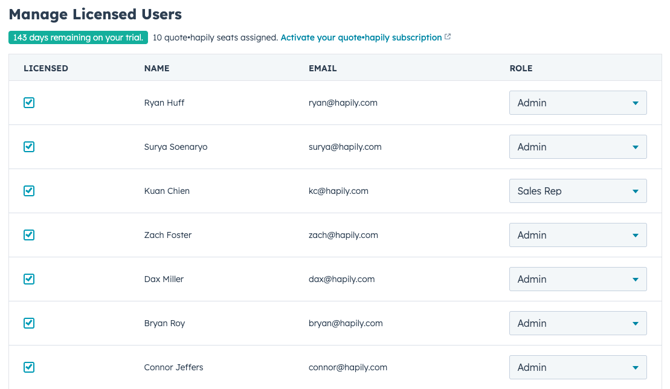
Click "Users" in the sidebar. From here, you can activate users by clicking the "Licensed" checkbox next to their name.
User Roles
Choose the appropriate role for each user:
- The Sales Rep role is for users who build or approve quotes.
- Admin users have Sales Rep permissions + they can access the Admin app to manage Quote Rules, Price Books, User access, and more.
Trial period
During the trial period, you can activate as many users as you'd like. Once you've activated your subscription, you'll only be able to grant access to as many users as you've purchased licenses for.
2. Set up your initial Quote Rules
You should now work with your team to define the initial Quote Rules you want to build out. Quote Rules allow you to enforce quoting policies. These rules can be tailored to various conditions, ensuring that quotes adhere to policies and allowing reps to send quotes out with confidence. See our How to Create Quote Rules document for more details.
3. Create a Price Book
Follow the steps outlined in the How to Create a Price Book document.
4. Set up your approval processes
Follow the steps outlined in the How to Create a Quote Approval Process document.
5. Set Company Information in the Quotivity preferences
- Visit the Quotivity Settings screen.
- Set the "Sender company" information.
- Review the remaining preferences.
6. Final HubSpot Setup
-
Remove the HubSpot default "Quotes" and "Line Items" CRM Cards from the Deal screen.
- Open the Record Customization screen in HubSpot settings for the Deal object.
- Edit the view.
- In the right-side sidebar, look for and remove the Quotes ("Quotes (default)") CRM Card.
- In the right-side sidebar, look for and remove the "Line Items" ("Line Items (default)") CRM Card.
- Add the Quotivity "Quotes" and "Line Items" CRM Cards to the Deal screen.
- With the Edit View screen still up, add the "Quotivity Quotes" and the "Quotivity Deal Line Items" CRM Cards to the sidebar.
- Move both of these to the top of the sidebar.
- Enable each of the sales reps and quote approvers for Quotivity.
- Return to the Quotivity Admin app and click "Users" in the header.
- Check the Licenses box next to each sales rep or quote approver, and ensure that the Role is set to "Sales Rep". This will trigger an email invite to these users.