
Configuring Line Items in Your Quote Template
The Line Item module is one of the core building blocks of your quote template. This article walks you through the key configuration options available, from choosing which columns to display to grouping products and controlling how bundles appear.
Overview
The line item table sits at the heart of every quote. When you click on the Line Item module — visible both in the quote preview and in the module list on the right-hand panel — a configuration drawer opens with several customization options.
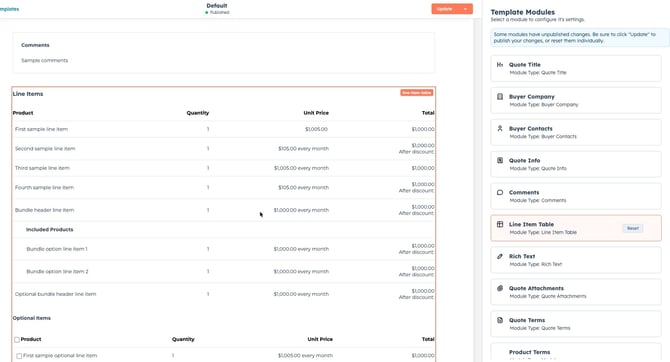
Configuring Columns
Under the Columns section, you can choose which data fields appear as columns in the line item table.
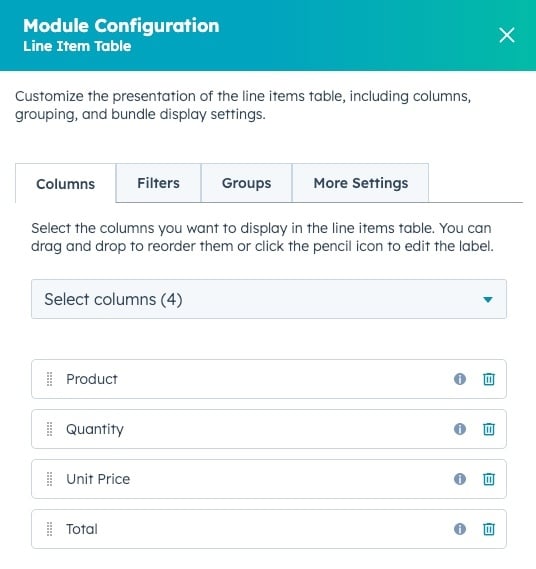 Select from the available list and add each column you want to display.
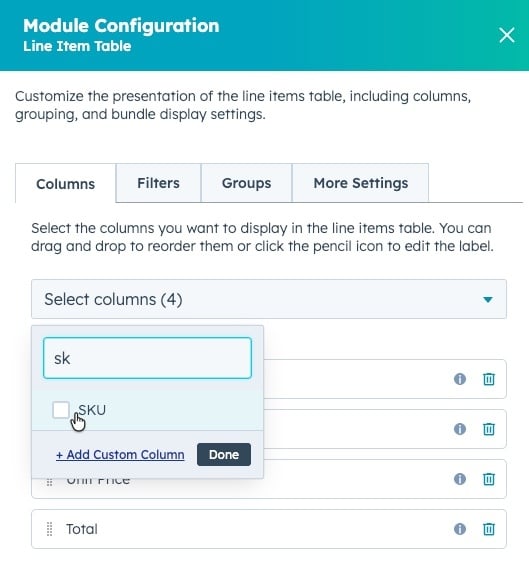
Use this to tailor the table to what your buyers need to see — for example, showing SKU, quantity, unit price, and term length while omitting fields that aren't relevant to a particular deal type.
Grouping Line Items
Grouping is one of the most commonly used configuration options. It lets you organize line items into labeled sections within the table automatically.
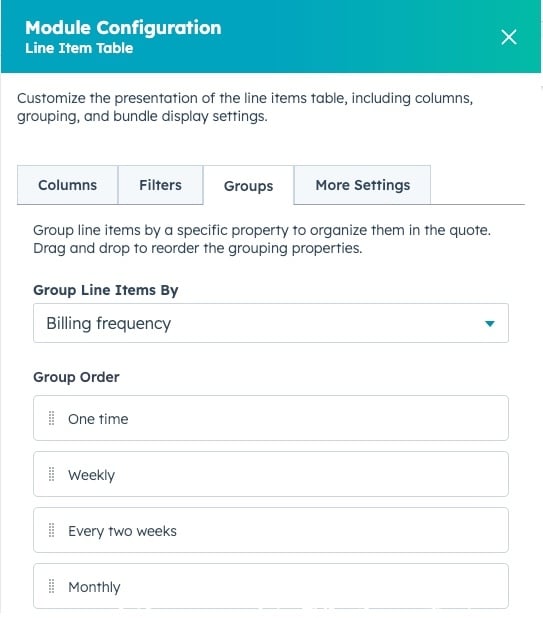
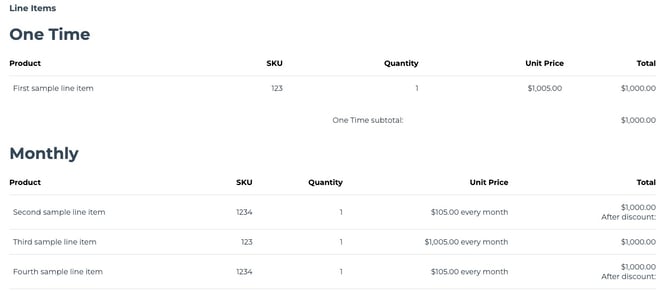
Some grouping options:
- Billing Frequency — separates one-time, monthly, and annual products into distinct groups. This is a popular choice for SaaS and subscription-based products.
- Product Type — groups items by their product category.
- Custom Property — group by any custom property on your line items (e.g., a property called Quote Section that you define in your product catalog).
Filtering Line Items
The Filter option lets you restrict which line items appear in a given module. This is an advanced option and not commonly needed, but it's useful when you want to split line items across multiple modules on the same quote.
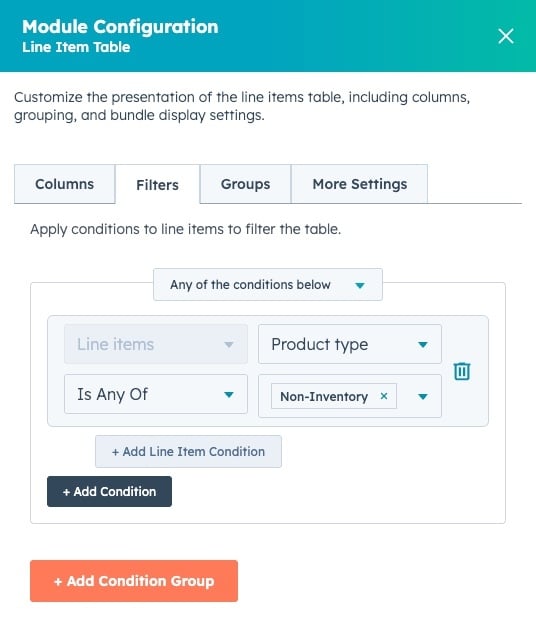
Example use case: Add two separate Line Item modules to your quote — one filtered to show one-time products and another for recurring products. Each module can have its own section heading, giving the quote a cleaner, more readable structure.
More Settings - Display Settings
The More Settings panel contains additional toggles, most of which are enabled with sensible defaults out of the box.
More Settings - Bundle Settings
If your product catalog includes bundles, the Bundle Settings section is particularly important. It controls how bundle members are displayed in the line item table.
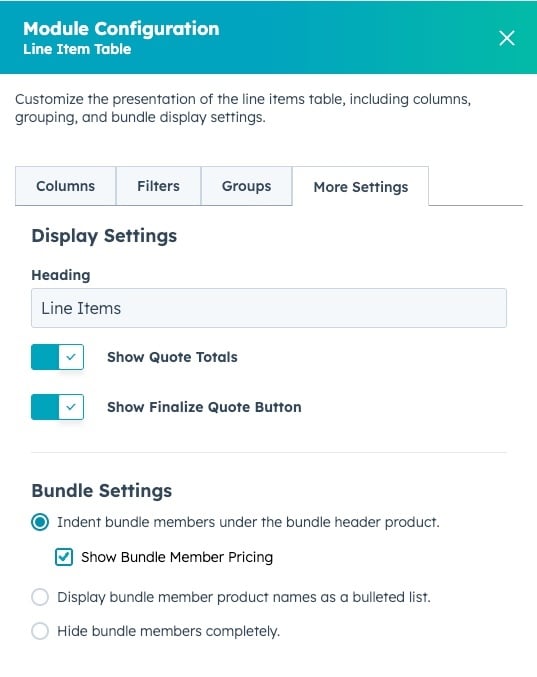
There are two common configurations:
| Scenario | Recommended Setting |
|---|---|
| Pricing is at the bundle header level | Show bundle members (indented), hide member-level pricing |
| Pricing is the sum of member prices | Show bundle members (indented) and show member-level pricing |
To show bundle members: Enable the Show Bundle Members toggle. Members will appear indented beneath the bundle header in the line item table.
To show or hide member pricing: Toggle member pricing on if your quote logic prices at the individual component level. Leave it off if the bundle header carries the total price and the member list is for informational purposes only.
Summary
| Setting | What It Does |
|---|---|
| Columns | Choose which fields appear as table columns |
| Filter | Restrict which line items this module displays |
| Grouping | Auto-group items by billing frequency, product type, or a custom field |
| Bundle Settings | Control member visibility and member-level pricing display |
For further configuration help, contact your admin or refer to related articles on quote template modules.