
What is Price Override?
Price overrides let you customize the default price of products for specific customer groups, regions, or use cases—all within a Price Book. Instead of changing the product itself, you create a custom version of the price based on your sales strategy.
This is perfect when you want to:
-
Offer discounted pricing to VIP customers
-
Adjust prices for different regions or countries
-
Set temporary pricing for promotions or sales
How to create a Customer Specific Pricebook
Let’s say you have a set of products with standard pricing, but you want to give a 25% discount to a customer group. Instead of editing each product, you can create a price book and override the prices for all or some items.
🛠️ How to Override Prices in a Price Book
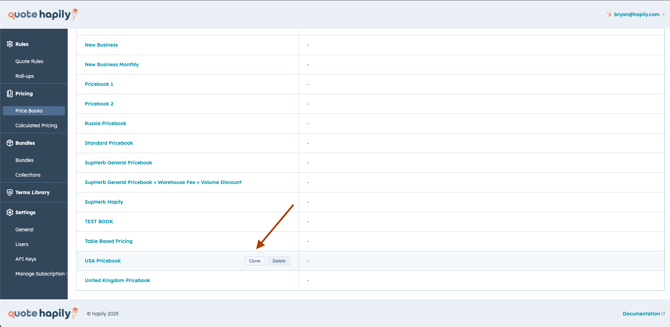
1. Go to Pricing > Price Books
From the left-hand menu, select Price Books, then either create a new one or clone an existing one. You should clone a book if you're selling the same products in the new price book but at different prices.
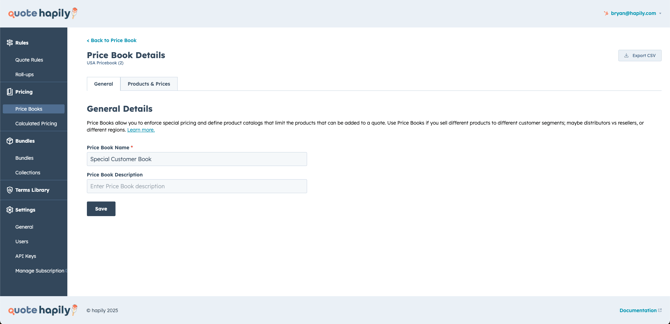
2. Set Up the New Price Book
-
Give your new price book a name (like “Special Customer Book”).
-
Optionally add a description.
-
Click Save.
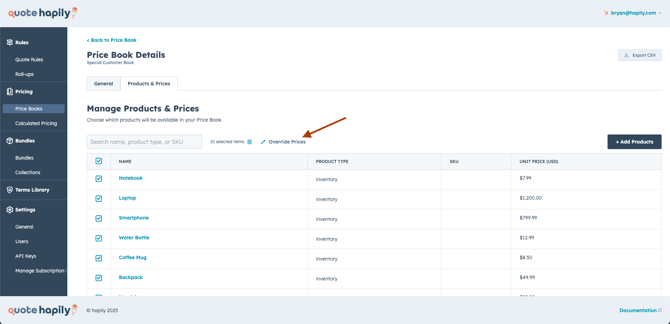
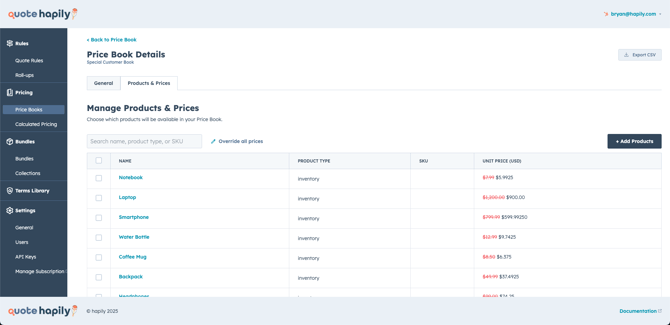
3. Go to the Products & Prices Tab
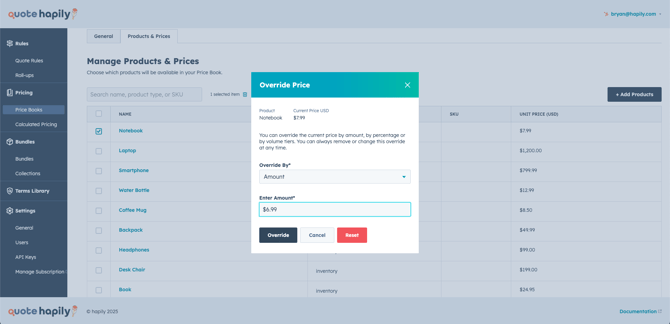
If you cloned another price book you will see a list of all available products from the previous book, if this is a net new pricebook add the products you want from your Product Library. Now Select the ones you want to change and click Override Prices.
4. Choose How You Want to Override
You can override by:
-
Amount (e.g., set to $6.99) (only available when a single product is chosen)
-
Percent Increase (e.g., raise prices by 10%)
-
Percent Decrease (e.g., lower prices by 25%)
In this example, we applied a 25% percent decrease:
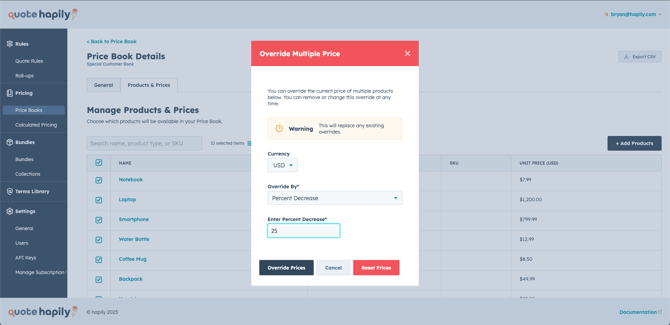
Click Override Prices, you’ll see both the original and discounted price side by side.
5. Use Your New Price Book in a Quote
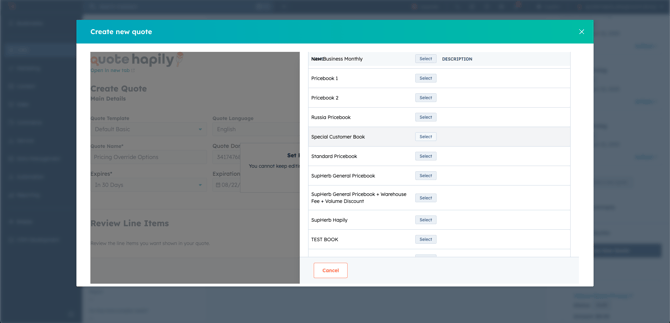
When creating a new quote:
-
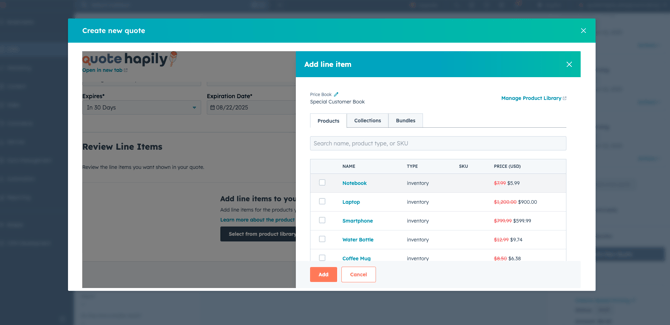
Choose your custom Price Book
-
All overridden prices will be pulled in automatically, and will be reflected on the line item
Tips: Check out our article on How to Set a Price book for a Sales Rep to make sure the sales rep is assigned the right price book based on the type of customer they're quoting.