
The Product Configurator works with the bundles you already built. The only
admin configurations specific to it are optional:
1. Icons on bundle options — chosen in Quotivity Studio when you edit an
option
2. Images on products — set on the HubSpot product; they must be publicly
available URLs
Neither is required to turn the configurator on. They make the guided panel
easier to scan: icons mark option sections, and images appear on product cards.Prerequisites
admin configurations specific to it are optional:
1. Icons on bundle options — chosen in Quotivity Studio when you edit an
option
2. Images on products — set on the HubSpot product; they must be publicly
available URLs
Neither is required to turn the configurator on. They make the guided panel
easier to scan: icons mark option sections, and images appear on product cards.Prerequisites
- An Admin role in Quotivity Studio
- The Bundle Configurator feature on your plan
- Bundles with options (and option products) already defined
Set an icon on a bundle option
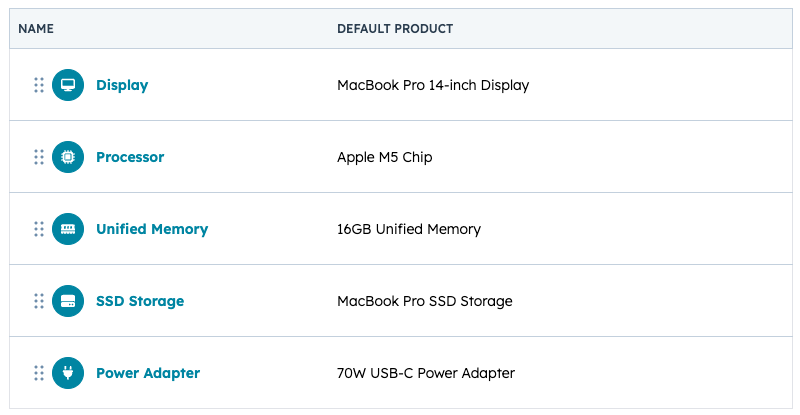
- Click the circle next to the Bundle Option name.
- Search hundreds of icons to find the right one — or choose No Icon
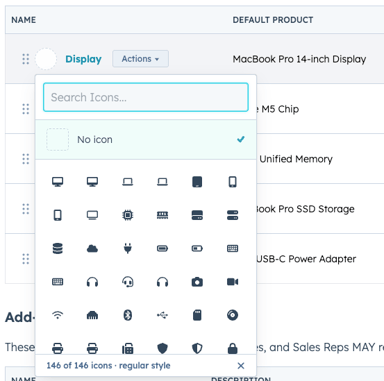
Icons only show in the configurator when at least one option in the bundle has an icon assigned for that view.
Set images on products
Product images come from HubSpot — typically the product's Images field (hs_images). The configurator reads that value and shows it on product cards when the URL is usable.
- Open the product in HubSpot (or your usual product sync source).
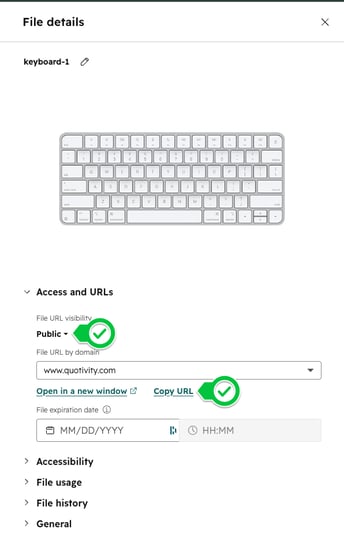
- Set a publicly available image URL on the product. The address must be a public, secure https link that Quote Builder can load without signing in — private file links, temporary signed URLs that expire, and non-http schemes won't display.
- Confirm the product is an option product on the bundle. The next time a rep opens the configurator, cards for that option can show the image.
If an image URL is missing, invalid, or fails to load, the card shows a placeholder instead of breaking the layout. Images are optional; the configurator still lists name, description, SKU, and price.
Where to upload Product Images in HubSpot
if you don't have product URL if you don't have product image URLs handy. You can upload them directly in HubSpot. image URLs handy. You can upload them directly in HubSpot.
- Under the Content menu in HubSpot, click Files.
- Optionally create or choose an existing folder.
- Click the Create or Upload button and upload your image(s).
- Once uploaded, click the uploaded file, then click Copy URL.
Tips
- Prefer clear, recognizable icons (plans, support, hardware) over decorative ones — reps scan option headers quickly.
- Use consistent image framing across option products (similar crop and background) so cards feel like one catalog.
- After updating HubSpot images, have a rep reopen Configure Bundle on a test quote to confirm the public URL loads in Quote Builder.