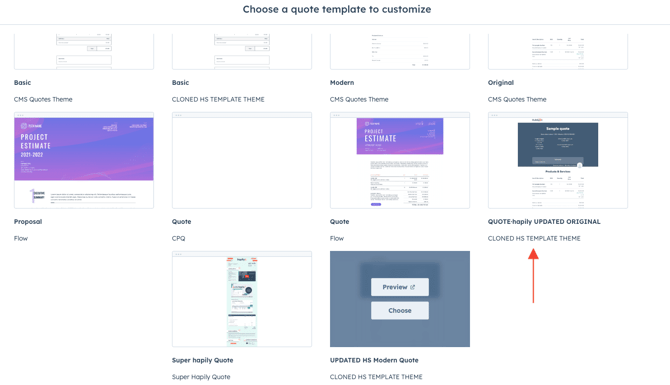
🧠 Why?
When you install Quotivity into your HubSpot portal, it provides a variety of modules to upgrade your quote templates - allowing you to upgrade how your products are displayed, embed new content, and upgrade the look and feel of what you're selling to your customer.
-
Advanced configuration options
-
Conditional rendering
-
Optional line items
-
And more—powered by Quotivity
HubSpot provides 3 quote templates by default, in order to upgrade the modules on these templates, we'll need to clone them to a child theme. More info below!
✅ Prerequisites
Before you begin, ensure:
- The Quotivity app is installed and configured
-
You have permissions to edit coded templates in HubSpot’s Design Manager
🪜 Step-by-Step Instructions
1. Clone a HubSpot Quote Template
Start by cloning an existing HubSpot quote template so that you can safely modify it.
2. Open the template.html File
Once the template is cloned, open the template.html file.
🚨Key Note: change the 'label' at the top of the file so HubSpot sees this as a new quote template!
This is where you’ll embed the Quotivity module.
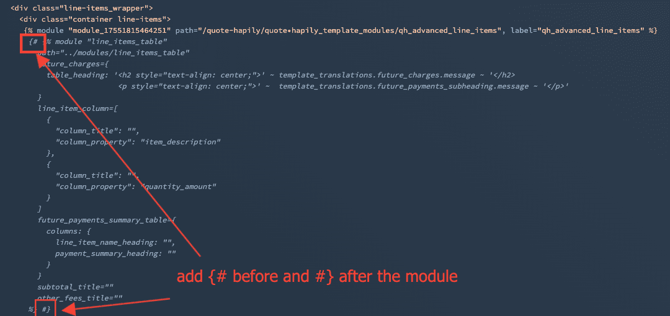
3. Comment out the native HS line items module
Add {# before and #} after the native HS module you'd like to hide on the quote template. This will retain the code but will be ignored by the template.
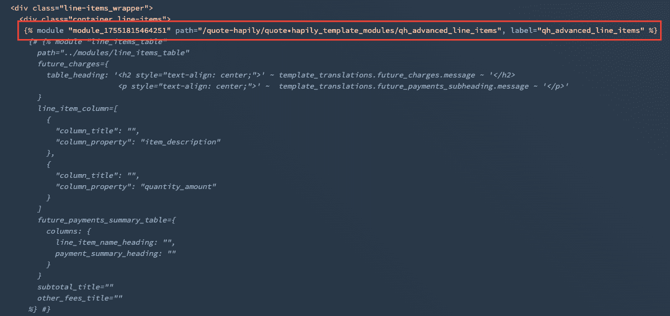
4. Copy the Usage Snippet for the new module
In Design Manager, navigate to the file of the module you'd like to add to your new quote template.
Scroll to the bottom of the right-hand column and click the 'copy snippet' button.
Paste that new snippet into the quote template file
5. Publish Changes
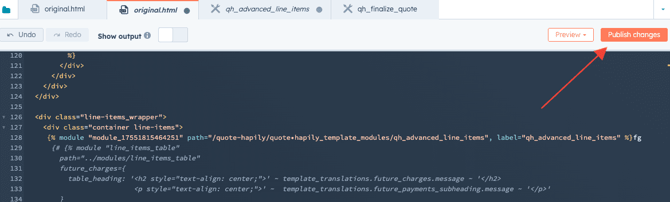
Be sure to publish your changes!
Now you can navigate to Settings > Objects > Quotes > Quote Templates > Customize Quote Template and see your new template and configure the settings for the Quotivity module