
When setting up Quotivity, you may encounter the following error when trying to create a quote:
Error: No active quote templates found
This error means Quotivity cannot find a valid, published template to generate your quote from. It almost always comes down to one of three setup steps being incomplete. Work through the checks below in order — most cases are resolved after step 1 or step 2.
Step 1: Confirm Quotivity Templates Are Activated
Quotivity lets you choose between using its own template system or sticking with native HubSpot templates. If this setting isn't turned on, Quotivity won't look for its templates at all.
- Go to your Quotivity settings.
- Find the Templates section.
- Confirm the Use Quotivity templates toggle is switched on (it will show a checkmark when enabled).
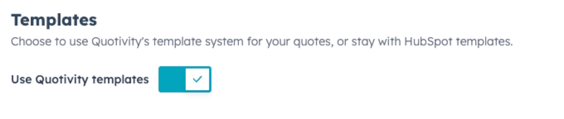
If this toggle is off, turn it on and try creating your quote again.
Step 2: Confirm You Have at Least One Published Quotivity Template
Even with Quotivity templates activated, you need at least one template that has actually been published — a draft template won't satisfy this check.
- Navigate to your Quotivity template library.
- Check whether any templates exist and, if so, confirm their status is Published (not Draft).
- If none are published, publish an existing template or create a new one and publish it.
Step 3: Confirm You Have an Active Legacy HubSpot Quote Template
This step is especially important if your HubSpot portal was created in the second half of 2026 or later. Newer portals may not come with a default legacy quote template, and Quotivity's rendering process relies on at least one active legacy template being present in HubSpot.
- In HubSpot, go to the quote template library.
- Check whether you have at least one active legacy quote template.
- If you don't have one:
- Click the Create new quote template dropdown.
- Select Create legacy quote template from the menu.
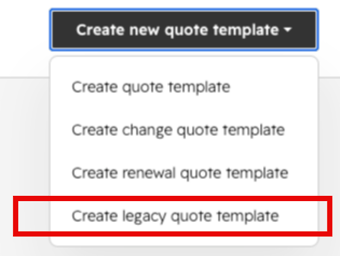
- Save/activate the new template.
Once an active legacy template exists, return to Quotivity and try generating your quote again.
Still Seeing the Error?
If you've confirmed all three items above and the error persists, reach out to support with:
- A screenshot of your Quotivity Templates settings (Step 1)
- A screenshot of your Quotivity template library showing template status (Step 2)
- A screenshot of your HubSpot quote template library (Step 3)
This will help us diagnose the issue faster.