
What is a Roll-up?
Roll-ups in Quotivity help you automatically calculate values across all line items on a quote—like totals, averages, minimums, or maximums. Think of them as smart summaries. You choose a line item property (like Net Price or Discount Percentage), and the roll-up will gather that info from all the quote lines and save it at the quote level.
This makes it easy to:
-
Set approval rules (like flagging high discounts)
-
Trigger automatic product discounts
-
Use calculated pricing based on totals (like implementation fees)
How to Set Up a Roll-up in Quotivity and use them to create outcomes
Example 1: Roll-up the Average Discount Percentage of a quote
-
Go to Rules > Roll-ups
-
Click Create Roll-up
-
Fill in the Roll-up details:
-
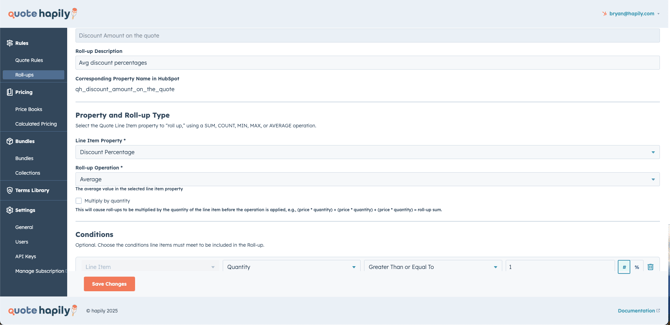
Label: Discount Amount on the quote
-
Corresponding Property in HubSpot: qh_discount_amount_on_the_quote
-
-
Under Property and Roll-up Type:
-
Line Item Property:
Discount Percentage -
Roll-up Operation:
Average -
Optional: Add conditions like “Quantity ≥ 1” to run the roll up for all products on the quote, or use other conditions like "Product type" to only total a value from certain products.
- Average discount rules is great when you have sales reps who discount their line items at different rates (ie. 5% Discounts and 10% Discounts on a single quote)
-
-
Click Save Changes
Now Let's use this roll up to run an approval rule. Once your Roll-ups are created, you can use them in rules to trigger actions.
Approval Rule for High Discount
-
Go to Rules > Quote Rules
-
Click Create New Quote Rule
-
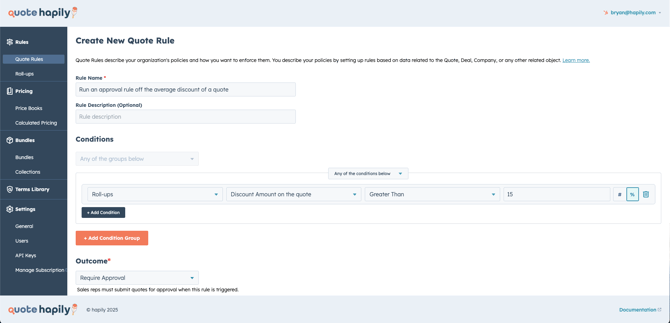
Name it: “Require Approval if Avg Discount > 15%”
-
Under Conditions:
-
Use the Roll-up:
Discount Amount on the quote -
Set:
Greater Than 15%
-
-
Outcome: Require Approval
Example 2: Roll-up the Net Price of Only Software Products
-
Create a new Roll-up
-
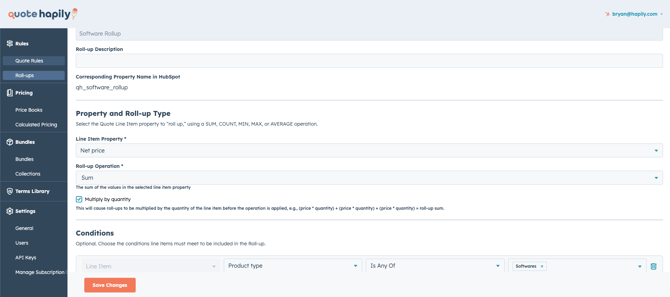
Roll-up Label: Software Rollup
Description: Rolling up Net Price of Software Products -
Set Line Item Property to
Net Price -
Choose Sum as the operation
- Multiply by quantity should normally not be checked unless you want to multiple the roll up by the total quantity of the products you're targeting.
-
Under Conditions, add:
-
Product type→Is Any Of→Softwares
-
-
Click Save Changes
Now Let's use this roll up to run a one time discount rule:
-
Create a Roll-up for Software Product totals (see above)
-
Go to Quote Rules
-
Add a rule like:
-
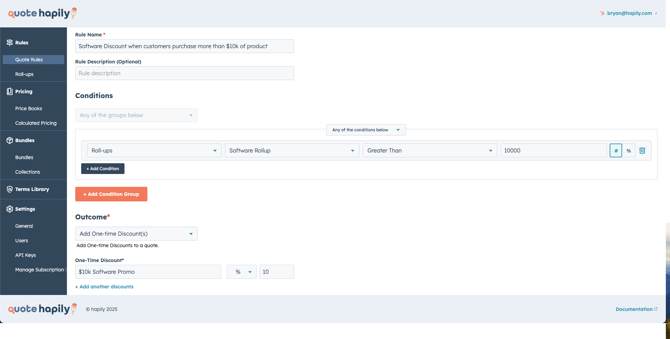
Name: “$10k Software Promo”
-
Condition:
Software Rollup>$10,000 -
Outcome: Add a one-time discount: 10%
-
Example 3: How to use Roll-ups in Calculated Pricing
Roll-ups can also help calculate prices dynamically. For example, you can calculate an Implementation Fee based on a field like Total Implementation Fee and use a formula. In HubSpot you might have products that have associated fee's and roll ups make it easy to present those fees as a product inside of a quote. Here is an example product library setup inside HubSpot:
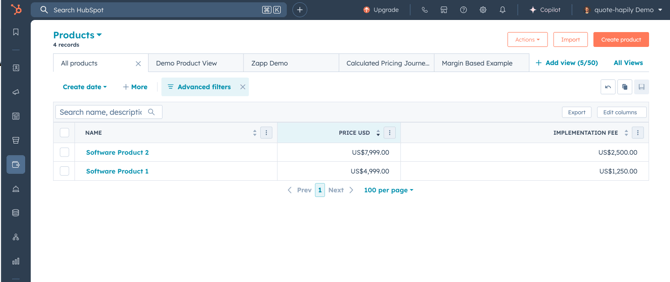
You will see that we have the price of the softwares but we also have a product property to tell us what the associated implementation fee for these products is. Now that we have the data, lets roll up those fees and use them to calculated an implementation fee product.
Rolling up a Dynamic Implementation Fee
First lets create the roll up:
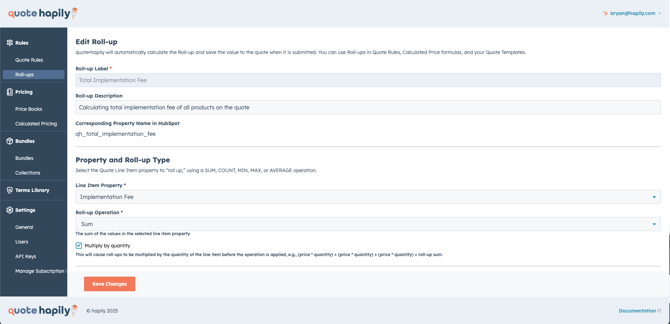
-
Go to Pricing > Calculated Pricing
-
Click Create Formula
-
Formula Name: Implementation Fee
Description: Calculate Implementation Fee on a quote -
Insert Roll Up Field Implementation Fee into the formula, this means we will use this amount to price this product on a quote. (if you click the dropdown on Insert, it will allow you to use roll up fields you've created)
-
Assign this formula to the Implementation Fee product inside HubSpot (Tip: Price the product at $1, to have the Roll up amount be the NET PRICE of the product.
- Click Save
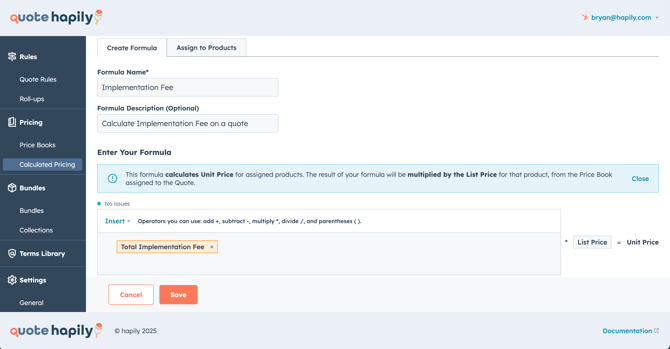
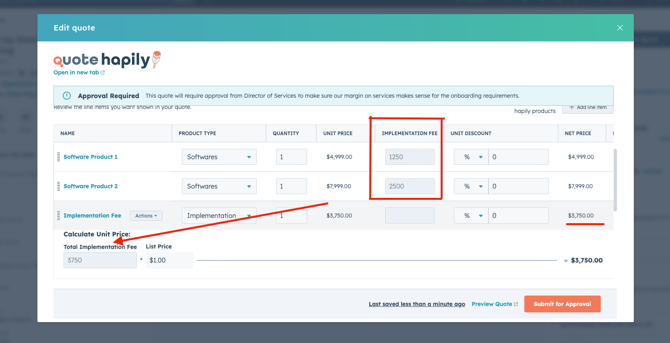
Now When reps add Software Products with their own implementation costs, this roll-up will total them up and auto-calculate the price for the Implementation Fee line item when its added to the quote:
💡 Tips & Best Practices
-
Name Roll-ups clearly so others know what they’re for
-
Use conditions to focus roll-ups on specific product types or thresholds
-
Use Roll-ups in:
-
Quote Rules (e.g., discount approvals, tiered discounts, update a line item)
-
Calculated Pricing (e.g., shipping fees, implementation fees)
-