

Adding discounts, fees, and taxes
Use the Add One-time Discount, Fee, or Tax outcomes to apply a percentage or fixed amount to a quote automatically.
Overview
Section titled “Overview”Three closely related outcomes let a rule apply a one-time amount to a quote: Add One-time Discount, Add One-time Fee, and Add One-time Tax. Each adds a labeled line to the quote as either a percentage or a fixed amount. Use them to apply promotions, standard fees, or taxes consistently whenever your conditions match.
- Create a Quote Rule and set the conditions that should apply the amount. See Creating a Quote Rule.
- Choose the outcome. Select Add One-time Discount, Add One-time Fee, or Add One-time Tax.
- Give it a label. This is the text that appears on the quote — for example, “Spring promo” or “Implementation fee.”
- Set the type and value. Choose percent or fixed, then enter the
amount.
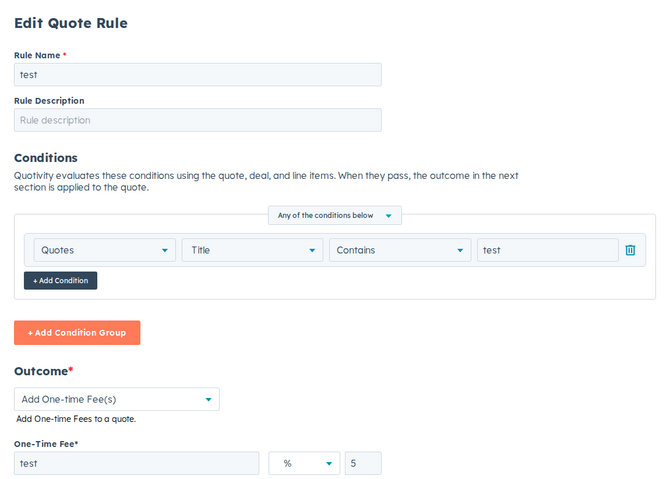
- Set it active and save. Matching quotes now carry the discount, fee, or tax automatically.
Examples
Section titled “Examples”- Promo discount: add a 10% one-time discount labeled “Spring promo” when a qualifying product category is on the quote.
- Implementation fee: add a fixed $500 fee labeled “Implementation” when a specific service product is present.
- Use clear labels — the buyer sees them on the quote.
- A percent discount must be greater than 0 and no more than 100. Switching between percent and a fixed amount clears the value so a dollar amount is not reused as a percent. Fees and taxes do not use that percent cap.
- For HubSpot tax rates on line items rather than a flat quote-level tax, see Setting up automatic sales tax. There is no Settings → Taxes page.
Related articles
Section titled “Related articles”Ask the help center
Answers come from these guides, with links to the articles used.
Ask anything about configuring quoting in Quotivity Studio.