

Generating API keys
Create an API key to connect other systems to Quotivity, and copy it safely before you close the dialog.
This feature requires an Enterprise plan.
Overview
Section titled “Overview”An API key lets another system connect to Quotivity on your behalf. You generate keys on the API Keys page, give each one a description so you can tell them apart, and copy the key when it’s created. Quotivity shows the full key only once, so store it somewhere secure.
Creating keys requires the API Keys capability (Enterprise, Trial, and Legacy Pro — not current Pro). Public price book and bundle API routes are a separate account grant. A key alone does not turn those routes on; if calls to price books or bundles return a plan/feature error, those Public API scopes are not enabled on the account.
Prerequisites
Section titled “Prerequisites”- An Admin role in Quotivity Studio
- A place to store the key securely, such as a password manager
- Open Settings → API Keys. From the Studio sidebar, go to Settings and select API Keys. The API Key Library lists the keys on your account with their descriptions.
- Click Create New API Key. A dialog opens with a warning that this is the
only time you’ll be able to retrieve the key.
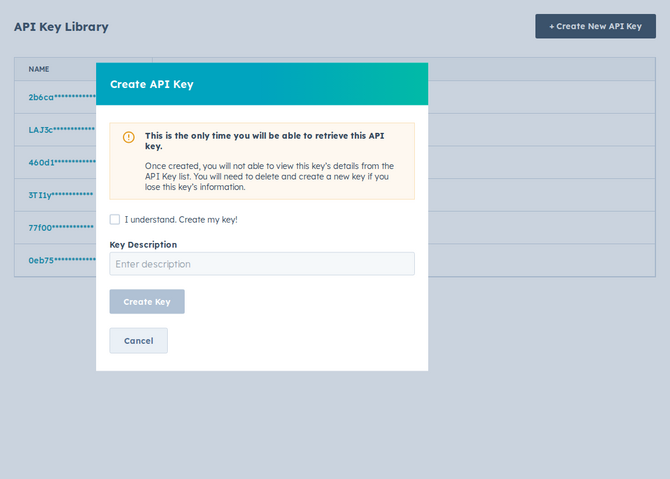
- Add a description. Enter a Key Description that names where the key will be used — for example, the system you’re connecting.
- Acknowledge and create. Check the box to confirm you understand the key shows only once, then click Create Key.
- Copy the key. Click Copy Key and paste it straight into the system that needs it, or into secure storage. Once you close the dialog, the full key can’t be viewed again.
- Confirm it’s ready. The new key appears in the API Key Library, and the connected system can now reach Quotivity.
- If you lose a key, you can’t recover it — delete the old one and generate a new one.
- Use a clear description per key so you know exactly what each integration is for and which to revoke if access should end.
Related articles
Section titled “Related articles”Ask the help center
Answers come from these guides, with links to the articles used.
Ask anything about configuring quoting in Quotivity Studio.