

Adding terms to templates
Attach terms to a quote template, or apply them with a Quote Rule — and optionally let the rep edit the selected terms.
Overview
Section titled “Overview”Once you’ve built terms in your Terms Library, you put them on a quote in one of two ways: attach them to a quote template so they appear on every quote built from it, or apply them dynamically with a Quote Rule so the right terms show up based on the quote’s conditions. You can also let the rep edit the selected terms before sending, when a quote needs one-off changes.
Prerequisites
Section titled “Prerequisites”- An Admin role in Quotivity Studio
- At least one set of terms in your Terms Library — see Building your Terms Library
Attach terms to a template
Section titled “Attach terms to a template”- Open the template. From Templates → Quote Templates, open the template you want to add terms to.
- Add or open the terms module. Make sure the template includes a terms section, then open it to configure it. See Configuring template modules and styling.
- Select the terms. Choose the set of terms from your library that this template should carry.
- Save and publish. Save the template and publish it so the terms appear on every quote built from it.
Apply terms with a Quote Rule
Section titled “Apply terms with a Quote Rule”When you want terms to depend on the quote — the region, product, or deal size — use a Quote Rule instead of hard-wiring them into the template.
- Open or create a Quote Rule. Set the conditions that should trigger the terms.
- Choose the Insert Template Terms outcome. This outcome adds your selected
terms to the quote when the rule’s conditions are met.
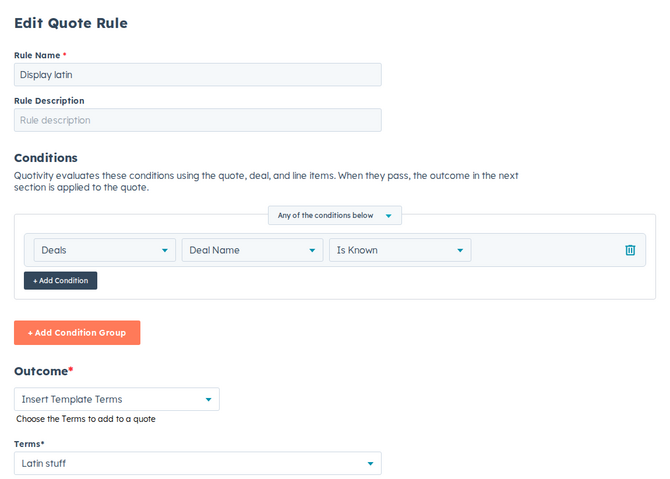
- Select the terms. Pick the set of terms from your library that the rule should insert.
- Decide whether reps can edit the terms. Optionally allow the rep to edit the inserted terms on the quote before sending, for cases that need one-off adjustments.
- Save the rule. When the rule’s conditions are met, the selected terms are applied to the quote automatically.
For the full set of related outcomes — template, terms, language, and sender — see Setting the template, terms, language, or sender.
Examples
Section titled “Examples”- Attach your Standard MSA terms to the default template so every quote carries them.
- Add a Quote Rule that uses Insert Template Terms to apply EU data processing terms whenever the buyer is in the EU, with editing turned off so the language stays consistent.
- Use template-level terms for language that applies to every quote, and rules for terms that depend on the deal.
- Leave rep editing off when terms must stay exactly as written; turn it on only where one-off changes are expected.
Related articles
Section titled “Related articles”Ask the help center
Answers come from these guides, with links to the articles used.
Ask anything about configuring quoting in Quotivity Studio.