

How the Bundle Configurator works
Give reps a guided way to configure bundles in Quote Builder — with visual product choices, clearer options, and fewer misclicks.
This feature requires an Enterprise plan.
Overview
Section titled “Overview”The Bundle Configurator changes how sales reps build quotes that include bundles. Instead of expanding a bundle on the line items table and swapping products row by row, the rep opens a guided Configure Bundle panel, walks through each option, picks products (often as visual cards), and saves the configured bundle back onto the quote.
Admin setup for the configurator itself is light and optional — icons on bundle options and images on products. Everything else is already in your bundle definition. See Setting icons and images for the Bundle Configurator.
How it changes Quote Builder for reps
Section titled “How it changes Quote Builder for reps”With the configurator on, configuring a bundle feels more like choosing a product kit than editing a spreadsheet:
- The rep starts configuration from the product library (Configure on a bundle), or from an existing bundle on the quote — for example the bundle header name, Configure Bundle, Swap, or Add Products.
- A side panel opens titled with the bundle name. Included options and add-ons appear as sections. When you’ve set option icons, those icons appear next to each option name so sections are easy to scan.
- The rep picks products for each option. Options with a small number of products show product cards — name, description, SKU, price, and, when available, the product image. Options with more products fall back to a compact picker, with details for the selected product.
- Selection rules stay visible. Labels like Pick one or Pick one or more sit next to the option name. Required included options must have a choice before the rep can save.
- Compatibility and property prompts stay in the flow. If Compatibility Rules or Dynamic Property Sets apply, the configurator surfaces conflicts and required fields while the rep is still choosing — not only after the bundle lands on the quote.
- The rep saves. Quotivity applies the configured header, included products, and add-ons to the quote and refreshes the line items table. The bundle is ready for the rest of quoting — discounts, approval, and send.
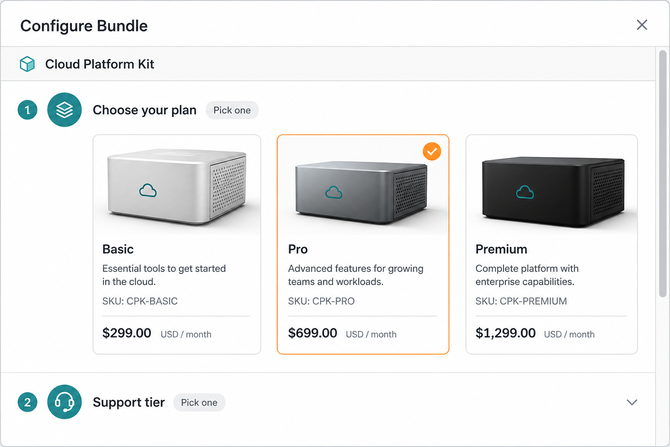
Without the configurator, reps still expand and edit bundles on the quote. The configurator doesn’t change your bundle catalog; it changes the path reps take to assemble one.
Turning it on
Section titled “Turning it on”The Bundle Configurator is available when your plan includes it. Reps use it when either:
- An admin checks Enable Product Configurator for all users under Settings → Quoting → General Quote Settings, or
- A rep turns it on themselves from the Try the Bundle Configurator banner on the Bundles experience in Quote Builder (Turn on).
If the banner is dismissed with Not now, that rep keeps the classic bundle editing experience until an admin enables the configurator for everyone.
When product cards appear
Section titled “When product cards appear”For included options with up to three products, and add-on options with up to six, the configurator prefers card selection. Cards show:
- Product name and description
- SKU and price for the quote’s currency
- The product image when HubSpot has a public image URL on the product
If none of the products in an option have a usable image, cards still work — they simply omit the image area. Larger option lists use a dropdown-style picker so the panel stays manageable.
When property choices appear as a dropdown
Section titled “When property choices appear as a dropdown”Single-choice Dynamic Property Set fields (dropdown, radio, or yes/no) and pricing-table choices with five or fewer options show as buttons. Six or more options show as a searchable dropdown. Multi-select checkbox properties stay a multi-select. When a pricing table sets a price for an option, that price appears next to the option name.
- Name bundle options for the decision the rep is making (“Choose your plan,” “Support tier”). Those names and icons are the primary landmarks in the panel.
- Keep option product counts small when you want the card layout — it’s the clearest experience for reps.
- Pair the configurator with Compatibility Rules when products shouldn’t be combined; violations show while the rep is still configuring.
Related articles
Section titled “Related articles”Ask the help center
Answers come from these guides, with links to the articles used.
Ask anything about configuring quoting in Quotivity Studio.