

Setting rule conditions
Conditions decide when a Quote Rule applies — combine properties, operators, and values into groups to match exactly the quotes you mean.
Overview
Section titled “Overview”Conditions are how a Quote Rule decides whether its outcome should fire. A condition is a simple test: a property, an operator, and a value — for example, quote total is greater than 50,000. When a quote matches, the rule applies.
How conditions are built
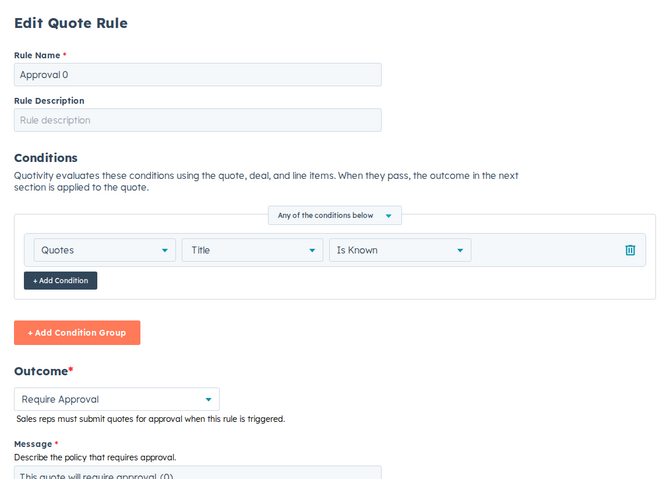
Section titled “How conditions are built”Each condition has three parts:
- Property — what you’re testing, such as the quote total, a product category, the customer’s region, a deal field, a HubSpot custom object associated to the deal, or — when Guided Selling is enabled — a Flow Response answer.
- Operator — how you’re comparing it. Operators depend on the property’s type. There is no between operator — use two numeric conditions (greater than or equal / less than or equal) in an AND group. Enumeration (dropdown) properties use is any of, is none of, is known, and is not known — not equals.
- Value — what you’re comparing against, such as a threshold amount or a specific category name.
Numeric values
Section titled “Numeric values”Type the number as you would read it. Currency properties show a currency
symbol. Percentage properties show a percent sign — type 20 for 20%.
Quotivity reads the property’s number format from HubSpot. Percentage and
probability properties are stored as decimals (0.2 for 20%), and Quotivity
converts the threshold before comparing. Other numbers are compared as entered.
You don’t choose decimal versus whole number on the condition.
Line item Unit discount percentage is the exception. HubSpot stores that
percentage as a whole number (20, not 0.2), and Quotivity still treats the
threshold as a percent.
HubSpot custom objects
Section titled “HubSpot custom objects”Conditions can read properties on HubSpot custom objects associated to the deal — for example a Subscription or Site object on the deal. The custom object is the condition variable, the same way Deal or Company is.
If several records of that object are associated to the deal, the condition matches when any of them satisfies it. It does not require every associated record to match, and it does not pick a primary record. Records associated only to the company or quote are not evaluated.
Custom object properties are for conditions only. They are not available as Update Line Items copy-from sources, and they cannot be used as inputs in Calculated Pricing formulas or Update Line Items formulas. To drive a line item value or a price from a custom object, copy that value onto the deal or a line item in HubSpot first, then reference that field.
Grouping conditions
Section titled “Grouping conditions”Conditions live inside condition groups. Within a group, you combine conditions to describe a single situation. A rule can hold more than one group, which lets you cover several distinct situations with the same outcome. A rule applies when its conditions match — so think of each group as one scenario the rule should catch.
An AND group with no conditions always matches. An OR group with no conditions never matches. Leave a group empty only when you mean “always” (AND) or when you are still filling it in.
Examples
Section titled “Examples”- Quote total over a threshold: property quote total, operator is greater than, value 50,000. Pair this with the Require Approval outcome to gate large deals.
- Renewal-only adjustment: variable Quote, property Quote Type, operator is any of, value Renewal. The property is set before rules first evaluate, so the outcome can safely apply only to renewal quotes.
- Product category match: property product category, operator equals, value Hardware. Pair this with Add line items to automatically include a required accessory whenever hardware is on the quote.
- Be specific. Narrow conditions keep a rule from firing on quotes you didn’t intend.
- If a rule isn’t firing when you expect, double-check the operator — equals and contains behave differently.
- For custom object conditions, confirm the record is associated to the deal and that at least one associated record matches.
- When you change a property or operator, finish the condition before saving. The editor blocks save while a condition can’t be evaluated, but it does not turn the rule off.
Related articles
Section titled “Related articles”Ask the help center
Answers come from these guides, with links to the articles used.
Ask anything about configuring quoting in Quotivity Studio.