

Creating a Bundle
Set up a header product and options so reps can add and configure a bundle in one step.
Prerequisites
Section titled “Prerequisites”- An Admin role in Quotivity Studio
- The products you want to include already in your HubSpot product catalog
- Open Bundles. In Quotivity Studio, go to Configurable Products →
Bundles. You’ll see your existing bundles.
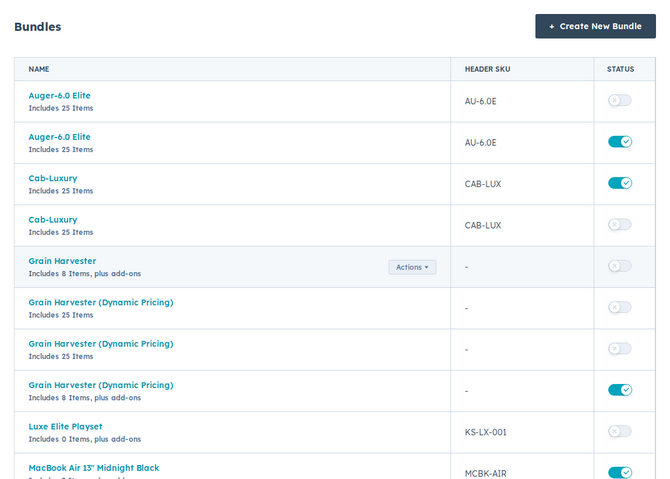
- Create a new bundle. Start a new bundle.
- Set the bundle header. Choose the standard HubSpot product that represents the bundle on the quote. This header is what a rep adds to start configuring the bundle, and it sets the bundle’s base price.
- Add at least one option. Add the choices reps will make inside the bundle. Every bundle needs at least one option — included or add-on. Each option holds one or more option products and a configuration. See Configuring bundle options for the details.
- Save the bundle. Once the bundle has a header and at least one option, save it so it’s available in Quote Builder.
When the bundle is saved with its header and options, it’s available in Quote Builder and reps can add and configure it.
Example
Section titled “Example”You sell a software platform with a required plan tier and an optional support package. Set the platform as the bundle header, add an included option for the plan tier, add an add-on option for support, then save. Reps now add the platform once and pick the rest.
- Build out and price every option before reps use the bundle, so they never see an incomplete bundle.
- You can also manage bundle structure in bulk by importing a CSV — see importing bundles.
Related articles
Section titled “Related articles”Ask the help center
Answers come from these guides, with links to the articles used.
Ask anything about configuring quoting in Quotivity Studio.