

Managing and prioritizing rules
View, enable, reorder, edit, and delete your Quote Rules — and use priority to control which rule wins when more than one applies.
Overview
Section titled “Overview”As your rule set grows, the Quote Rules list is where you keep it in order. From here you can see every rule, turn rules on or off, set their priority, and edit or remove them. This article covers each of those tasks.
Viewing your rules
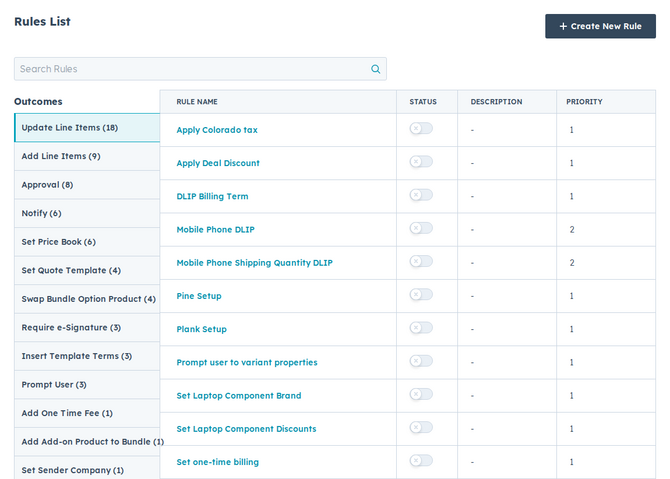
Section titled “Viewing your rules”Open Rules → Quote Rules in Quotivity Studio. Rules are grouped by outcome so you can quickly find, say, all of your approval rules or all of your add-line- item rules. Use the search box to find a rule by name or description.
Enabling and disabling a rule
Section titled “Enabling and disabling a rule”Each rule has an active toggle in the Status column. Turn it off to pause a rule without deleting it, and turn it back on when you’re ready. A paused rule never fires, which makes the toggle handy for testing or seasonal policies.
Setting priority
Section titled “Setting priority”When more than one rule of the same outcome type could apply to a quote, priority decides which one wins — but the direction is not the same for every outcome. Check the outcome before assuming 1 beats 2.
Lowest number wins (priority 1 beats 2):
- Require Approval and Require Validation — a blank priority is treated last, after every numbered rule.
- Set Price Book, Set Sender Company, and create-time Start Guided Selling Flow — a blank priority is treated as 0, which puts it ahead of a rule numbered 1.
Highest number wins (priority 2 beats 1):
- Set Quote Template, Insert Template Terms, Set Quote Language, and Set Signature Options — a blank priority is treated as 0, which puts it last.
Update Line Items and Update Bundle Members apply matching rules in order; the last write to a property wins, which is the lowest priority number within each method. Formula writes run after static, copy, and roll-up writes.
Outcomes such as Block, Notify, Prompt User, Add Line Items, and Dynamic Property Sets apply every matching rule; priority does not pick a single winner.
Set a rule’s priority in the rule editor. Give every rule of the same outcome type an explicit, distinct number so the order is unambiguous.
This matters most when an outcome only applies once per quote. For example, when several Require Approval rules match and you’ve chosen to apply just one, Quotivity applies the highest-priority match — the one with the lowest priority number — and ignores the rest. When several Set Quote Template rules match, the highest number wins instead.
Compatibility Rules use the opposite default of many Quote Rules: a higher number wins. See How Compatibility Rules work.
Editing and deleting
Section titled “Editing and deleting”When you edit a rule, finish every condition before saving. Changing a property or operator can leave a condition incomplete for a moment; the editor blocks save until the condition can be evaluated. Incomplete conditions never turn the rule off — they only prevent saving until you fix them.
- Edit: click a rule’s name to open it, make your changes, and save.
- Clone: hover a rule and choose Clone to start a new rule from a copy — a fast way to build a variant.
- Delete: hover a rule and choose Delete. Deleting permanently removes the rule from your account and can’t be undone, so disable instead if you might need it later.
- Give related rules distinct priorities so their order is unambiguous.
- Disable rather than delete while you’re experimenting — toggling off is reversible; deleting isn’t.
Related articles
Section titled “Related articles”Ask the help center
Answers come from these guides, with links to the articles used.
Ask anything about configuring quoting in Quotivity Studio.