

Setting up validation workflows
Build one HubSpot workflow per Validation Operation so shipping, taxes, and other checks finish cleanly before Submit Quote.
This feature requires an Enterprise plan.
Overview
Section titled “Overview”Each Require Validation Quote Rule points at a Validation Operation. When a rep submits for that operation, Quotivity sets Quotivity Validation Status to Validation Pending and Quotivity Validation Operation to the operation name.
Your HubSpot workflow then runs the check. Build a quote-based workflow whenever your HubSpot portal supports quote workflows — Quote appears as an object when you create a workflow from scratch. Use an app event workflow triggered by validationSubmitted only if the portal cannot create quote-based workflows.
It is the responsibility of the validation workflow — or the specific validation process it runs — to set Quotivity Validation Status to Validation Complete when the work is finished, then call Quotivity’s Submit Quote action. Quotivity sets the status to pending; it does not mark validation complete for you.
This article shows how to build those workflows, using Calculate Shipping and Calculate Taxes as examples.
Prerequisites
Section titled “Prerequisites”- An Enterprise plan with at least one Require Validation Quote Rule already saved for each operation you need
- HubSpot permission to create workflows
- Quote properties your process will set when validation finishes (for example, Shipping Applied or Taxes Applied) — these must also appear in the Quote Rule conditions so the rule stops matching after completion
Keep each validation process separate
Section titled “Keep each validation process separate”Unlike approval workflows, each Validation Operation needs its own HubSpot workflow. If you have both Calculate Shipping and Calculate Taxes, build two workflows — one for each operation. Do not put both processes in a single workflow and chain them with branches (if / then branches, or similar).
Quotivity already chains validations for you: after a workflow sets Quotivity Validation Status to Validation Complete and calls Submit Quote, Quotivity re-evaluates rules. If another validation rule still matches, it starts the next operation and a different workflow enrolls. Branching inside one workflow fights that model and makes failures and re-enrollment harder to reason about.
What every validation workflow must do
Section titled “What every validation workflow must do”Build each workflow as a straight line that:
- Enrolls for one Validation Operation only — from quote properties when quote-based workflows are available, or from the validationSubmitted app event when they are not.
- Allows re-enrollment so the same quote can enter the workflow again on a later submit.
- Runs your validation logic — a custom-coded HubSpot action, a third-party workflow action, or another process that writes the result back to the quote.
- Sets a completion signal your Quote Rule conditions watch for (so that rule no longer matches after this run).
- Sets Quotivity Validation Status to Validation Complete when the validation work is done — either as its own workflow step after your process, or from inside that process. This is your responsibility; Submit Quote rejects quotes that are still Validation Pending.
- Runs the Quotivity Submit Quote action, which re-evaluates rules and either starts the next validation, submits for approval, or publishes.
Submit Quote returns one Submit outcome. End this workflow on that result:
- Published — Submit Quote already published the quote. Do not run Publish the Quote.
- Submitted for approval — the quote is waiting on approvers. Leave approval to the approval workflow.
- Submitted for validation — Quotivity started the next operation. Validation Operation is that one operation. A different workflow enrolls for it; do not continue this workflow into the next check.
If validation can’t finish successfully, use Quotivity’s Quote Validation Failed workflow action instead of Submit Quote. That clears the pending status, notifies the quote owner, and records the failure.
Choose a HubSpot workflow type
Section titled “Choose a HubSpot workflow type”Use a quote-based workflow if your portal supports it. Use an app event workflow only when quote-based workflows are not available.
| Approach | When to use it | Quote ID on Submit Quote / Quote Validation Failed |
|---|---|---|
| Quote-based workflow | Your portal supports quote workflows. Enroll on Quotivity Validation Status and Quotivity Validation Operation | Leave Quote ID blank |
| App event workflow | Required only when the portal does not support quote-based workflows. Starts from the validationSubmitted app event on the deal | Required. Map it from the event’s Quote ID property |
The Submit Quote and Quote Validation Failed actions each have an optional Quote ID input. It works the same as Quote ID on Publish the Quote and Request Quote Approval (v2). Leave it blank on a quote-based workflow. On an app event workflow, map it from the event’s Quote ID token — HubSpot enrolls the deal, not the quote. Both actions are available on app event workflows.
Unlike the approval event, validationSubmitted keeps Quote Name and Validation Operation, and also includes Quote ID. Filter on Validation Operation the same way a quote-based workflow does.
Quote-based workflow
Section titled “Quote-based workflow”- In HubSpot, create a quote-based workflow named for the operation — for example, Quote Validation (Apply Shipping).
- Set enrollment criteria. Enroll when Quotivity Validation Status changes to Validation Pending, and add a filter so Quotivity Validation Operation is this workflow’s operation only (for example, Calculate Shipping). Turn re-enrollment on.
- Add your validation work. This is the step that actually calculates shipping, taxes, or whatever this operation does. Use a custom-coded workflow action or a third-party workflow action. In the example below, an Edit record action that sets the quote title stands in for that work — replace it with your real process.
- Set Quotivity Validation Status to Validation Complete. Do this in the workflow after your process finishes, or have the validation process itself update the field when it’s done. Submit Quote will not continue while status is still Validation Pending.
- Add the Quotivity Submit Quote action. The only input is Quote ID. Leave it blank — this is a quote-based workflow, so HubSpot already has the enrolled quote. The action evaluates Quote Rules and either starts another validation, submits for approval, or publishes.
- Turn the workflow on. Submit a test quote that matches the related Require Validation rule and confirm status moves Pending → Complete and Submit Quote continues the lifecycle.
App event workflow
Section titled “App event workflow”Skip this section if your portal supports quote-based workflows.
Quotivity writes the validationSubmitted app event to the HubSpot deal when a quote enters a Validation Operation. Use this event when quote-based workflows are not available. HubSpot enrolls the deal. Submit Quote still has only Quote ID as an input — map it from the event, the same way as on Publish the Quote and Request Quote Approval (v2). The event also includes Validation Operation.
- Create a workflow. In HubSpot, go to Automation → Workflows and create a workflow from scratch.
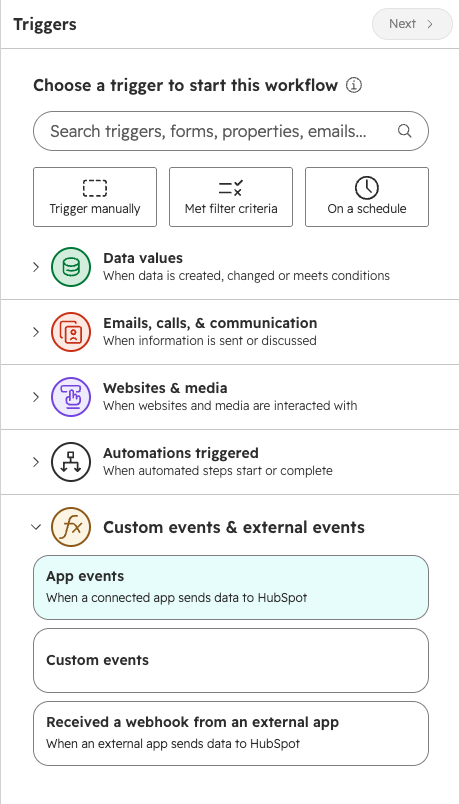
- Open App events. In the trigger panel, expand Custom events & external
events and select App events (When a connected app sends data to
HubSpot).
- Choose validationSubmitted. Search if you need to, then under the Quotivity app select validationSubmitted. The event is associated with Deal.
- Filter to one operation. Add criteria on the event’s Validation Operation so this workflow only runs for Calculate Shipping (or whichever operation this workflow owns).
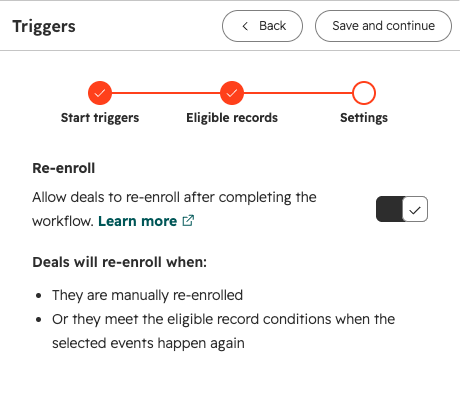
- Turn Re-enroll on. Continue through Eligible records. On
Settings, turn Re-enroll on so deals re-enroll when the event
happens again.
- Add your validation work, then set Quotivity Validation Status to Validation Complete, the same as in a quote-based workflow. Put the real calculation in a custom-coded or third-party action. Because the enrolled record is the deal, use a HubSpot action that updates the associated quote when you set those quote properties.
- Add Submit Quote. Click + to add an action. Search under Integrated apps, then under Quotivity select Submit Quote. The only input is Quote ID.
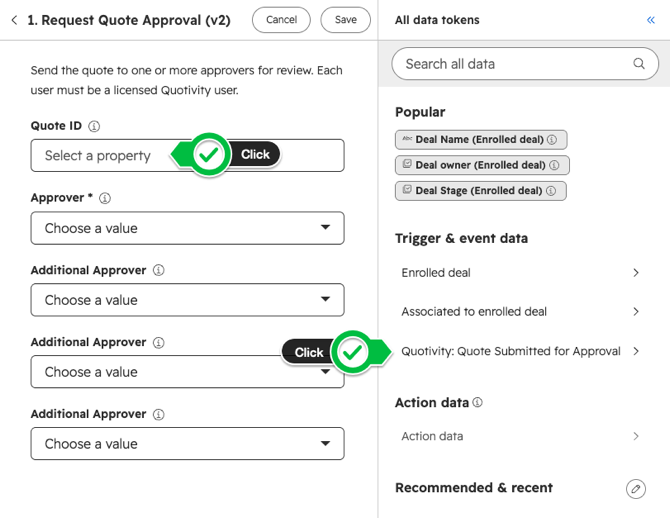
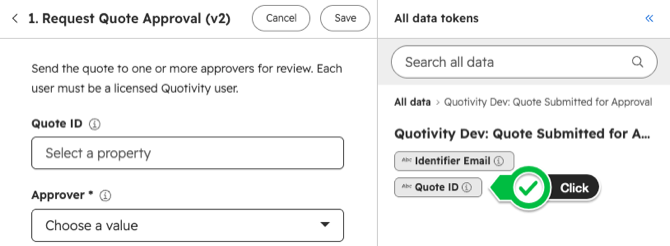
- Set Quote ID from the event. Click Quote ID, then in All data
tokens open Trigger & event data and select Quotivity: validationSubmitted. Click the Quote ID token. Do not leave it
blank. This is the same Quote ID mapping as Request Quote Approval
(v2) and Publish the Quote — the screenshots below show Request Quote
Approval (v2).
- Turn the workflow on. Submit a test quote for that Validation Operation and confirm the deal gets the app event, the workflow enrolls, and Submit Quote continues the lifecycle.
Event enrollment only catches events that happen after the workflow is turned on. It does not backfill quotes that were already pending validation.
If validation fails, use Quote Validation Failed instead of Submit Quote, and map Quote ID from the same event token.
Example: Calculate Shipping
Section titled “Example: Calculate Shipping”This quote-based workflow is named Quote Validation (Apply Shipping) and handles Calculate Shipping only. A Calculate Taxes operation would get a second workflow with the same shape — not a branch in this one.
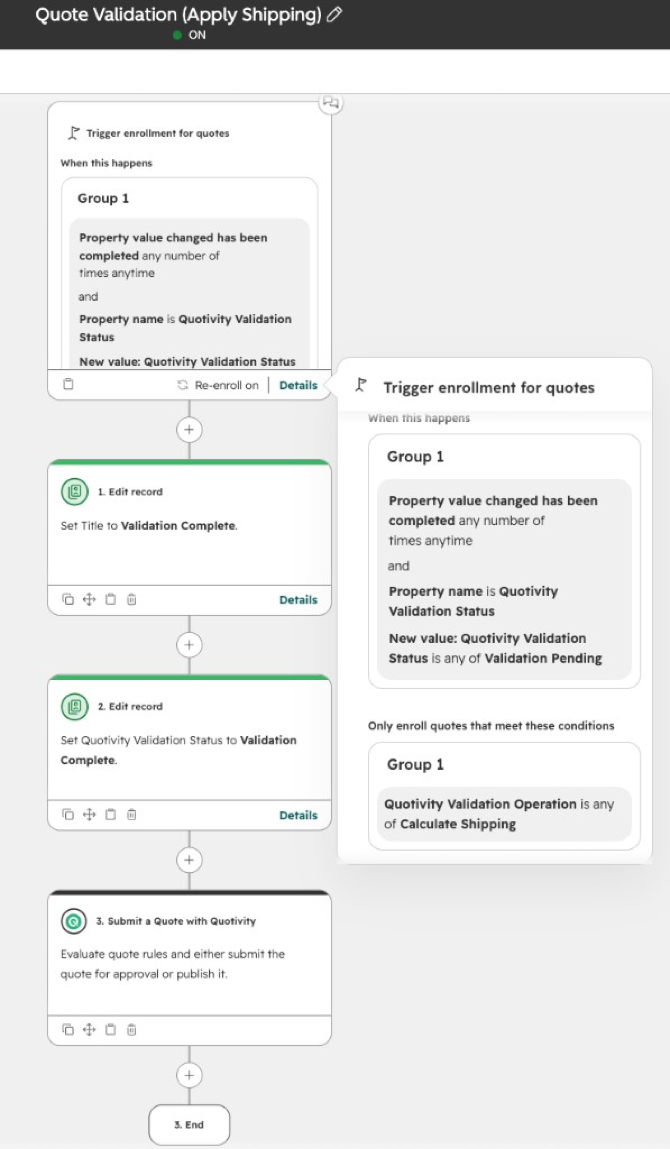
- Enrollment. Quotes enroll when Quotivity Validation Status changes to Validation Pending, and only when Quotivity Validation Operation is Calculate Shipping.
- Validation work. The first Edit record action (setting Title in this example) is a stand-in. Put your shipping calculation here — a custom-coded HubSpot action or a third-party action that writes the result back to the quote.
- Validation Complete. The next Edit record action sets Quotivity Validation Status to Validation Complete. This must happen before Submit Quote, whether the workflow sets it or your validation process does.
- Submit Quote. Submit Quote has a single optional input, Quote ID. Leave it blank on this quote-based workflow.
If a quote also needs taxes, Quotivity starts Calculate Taxes after this workflow submits. A separate taxes workflow then enrolls on the new Validation Pending status (or the validationSubmitted app event).
- Unlike approval workflows, give each Validation Operation its own HubSpot workflow. Shipping and taxes never share one workflow.
- Treat Validation Complete as a required handoff: Submit Quote will not continue while status is still Validation Pending. If validation cannot finish, use Quote Validation Failed instead.
- Put your calculation (custom-coded or third-party action) before Validation Complete and Submit Quote.
- Prefer quote-based workflows whenever the portal supports them. On those workflows leave Quote ID blank; on app event workflows always set it.
- Mirror the operation name exactly between the Quote Rule and the workflow filter so enrollment stays precise.
Related articles
Section titled “Related articles”Ask the help center
Answers come from these guides, with links to the articles used.
Ask anything about configuring quoting in Quotivity Studio.