

Importing and exporting price books
Export a price book to a file for bulk edits, then import it back to update prices in one pass.
Overview
Section titled “Overview”When you have a lot of prices to change, editing them one entry at a time is slow. Instead, fill in a CSV from our sample template and import it to update every price at once. It’s the fastest way to do a bulk price update or to set up a new book from a list you already maintain.
Prerequisites
Section titled “Prerequisites”- A price book to import prices into — see Creating a Price Book
- A copy of the Quotivity price-import sample spreadsheet
- Make a copy of the sample spreadsheet. Start from the Quotivity sample
template so your columns are formatted correctly.
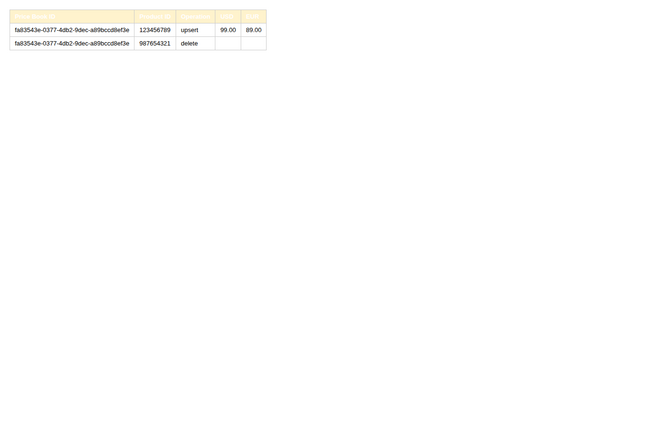
- Fill in the required columns. Each row needs:
- Price Book ID — the ID at the end of the price book’s URL in Quotivity Studio.
- Product ID — the product’s HubSpot record ID.
- Operation —
upsertto set a price ordeleteto remove one. - Currency columns — one column per enabled currency (for example,
USD,EUR), with the price for that currency.
- Enter prices as amounts or percentages. Use plain numbers without currency
symbols, and a period as the decimal separator. For a percentage adjustment,
enter the value relative to 100% —
110raises the price by 10%,80lowers it by 20%. Negative amounts and percentages aren’t supported. Cost Plus rows (model=costplus, Enterprise) use the currency column for the markup, margin, or amount and extra<CCY>_basis,<CCY>_mode, and<CCY>_roundcolumns — see Price book import file format. Cost Plus on a product with no HubSpot unit cost (or a cost of0) is skipped and listed in the feedback file; other rows still import. - Save as CSV and import it. Save the sheet as CSV and import it into the price book.
- Review the result. Confirm the entries reflect your changes.
Your price book now shows the prices from your imported file, updated in a single pass.
- Don’t include more than one row for the same price book and product pair, and only include columns for currencies you’ve enabled.
- Keep a copy of your filled-in sheet before importing, so you can fall back to the prior prices if needed.
Related articles
Section titled “Related articles”Ask the help center
Answers come from these guides, with links to the articles used.
Ask anything about configuring quoting in Quotivity Studio.