

Setting up countersigners
Turn on e-signature and add the people on your side who need to sign, using Set Signature Options.
Overview
Section titled “Overview”A countersigner is a person on your side who signs a quote, in addition to the buyer. Use the Set Signature Options outcome with Require e-Signature, then optionally name who must countersign. Matching quotes always collect the right signatures without the rep setting them by hand.
For no-signature and written-signature quotes, see Setting signature options with a rule.
Prerequisites
Section titled “Prerequisites”- An Admin role in Quotivity Studio
- E-signature available on your plan — see How e-signature works
- Create or open a Quote Rule. In Quotivity Studio, open Quote Rules and start a new rule or edit an existing one.
- Set the conditions (optional). Add conditions if only certain quotes should require countersignatures — for example, quotes over a certain amount or for a specific product line. Leave conditions off to apply to every quote the rule covers.
- Choose Set Signature Options. Set the outcome to Set Signature
Options, then choose Require e-Signature.
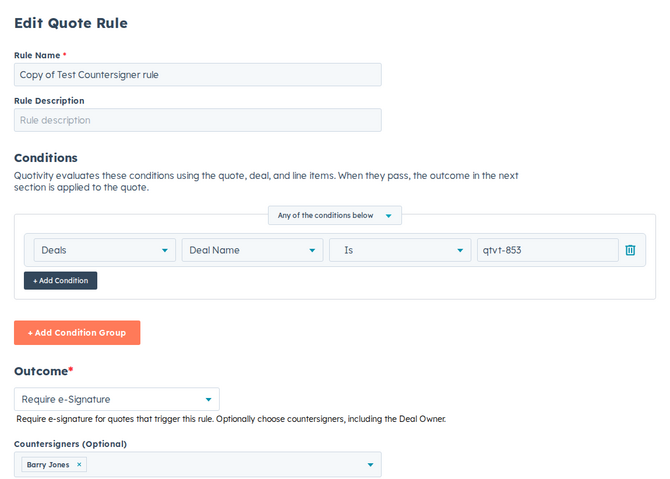
- Add your countersigners (optional). Under Require Countersigner, choose the people on your side who must sign. You can name specific HubSpot users, choose the deal owner, or both. Leave this empty to collect the buyer’s signature only.
- Save and activate the rule. Once the rule is active, qualifying quotes use e-signature, and your chosen countersigners are asked to sign as part of the signing flow.
The quote needs an associated contact, or the rule is skipped until one is added.
Examples
Section titled “Examples”- Every deal needs a sign-off. A rule with no conditions that uses Require e-Signature and names your VP of Operations as the countersigner on every quote.
- Large deals only. A rule conditioned on a quote total above a threshold that uses Require e-Signature and adds your CFO as a countersigner.
- Highest priority number wins, and only one signature rule applies. See Setting signature options with a rule.
- Combine this with other rules that set the template or sender to fully configure a quote. See Setting the template, terms, language, or sender.
Related articles
Section titled “Related articles”Ask the help center
Answers come from these guides, with links to the articles used.
Ask anything about configuring quoting in Quotivity Studio.