

Using Dynamic Property Sets
Control which line item properties show for each product in Quote Builder, so reps always see the right fields for what they're quoting.
This feature requires an Enterprise plan.
Overview
Section titled “Overview”A Dynamic Property Set controls which line item properties show up for a given product in Quote Builder. Instead of displaying the same columns on every quote, a dynamic property set makes sure the right properties appear for the right product — keeping the interface clean and relevant for your reps.
Each line item is evaluated on its own against the sets you define. When a product matches a set’s conditions, only that set’s properties appear for it.
How they’re used
Section titled “How they’re used”Reps see dynamic property sets in Quote Builder. When they add a product that matches a set, the set’s properties appear inline below that line item’s row, with validation enforcing any properties you marked required before the quote can be submitted. This lets you tailor the properties shown per product type while managing each set in one place.
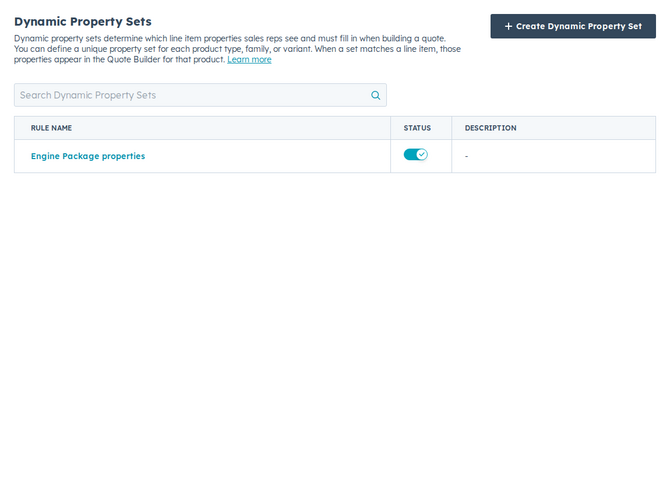
- Open Configurable Products → Dynamic Property Sets. In Quotivity Studio, go to the Configurable Products section and select Dynamic Property Sets.
- Click Create Dynamic Property Set. This opens the editor.
- Name the set. Give it a name that signals which products it’s for — for example, “Steel Door Attributes.”
- Set the conditions. Define which line items the set applies to using product properties (such as Product Type = Door). You can use multiple condition groups with AND/OR logic.
- Select the properties. Choose the line item properties to display. For each one, you can toggle whether it’s required, restrict its dropdown options, and set its display order.
- Save. The set activates immediately and its properties show on matching line items in Quote Builder.
Example
Section titled “Example”Create a “Steel Door Attributes” set that applies when Product Type is Door, and include properties like dimensions and finish. Reps building a quote with a door product see exactly those fields below the line item, and must fill in any you marked required before submitting.
- Build one set per product type or family so each stays focused and reusable.
- Mark the properties reps must always capture as required, so they can’t submit a quote without them.
- If you include a HubSpot percentage number property, reps type
20for 20%. Quotivity stores that as0.2, matching HubSpot. Re-enter values that were previously saved as whole numbers (20instead of0.2). - Currency-formatted properties (for example Unit cost) show the quote’s currency — the deal currency the quote was created with — not a dollar sign.
- If a property also drives a pricing table, a product variant, or a calculated pricing formula, Quote Builder shows it once. The pricing table field is the one reps edit when all three use it. Otherwise the formula input is shown instead of repeating the property in the set. A property the formula only reads still appears in the set when nothing else edits it.
Related articles
Section titled “Related articles”Ask the help center
Answers come from these guides, with links to the articles used.
Ask anything about configuring quoting in Quotivity Studio.