

How sales reps send quote emails
See what happens when a rep emails a published quote from Quote Builder — from connecting a mailbox to what the customer receives.
This feature requires an Enterprise plan. That gates the Quotivity quote-email composer in Quote Builder and reconnect deep links. Sending from the HubSpot quote card uses HubSpot’s native email composer and does not require Enterprise quote emails.
Overview
Section titled “Overview”Sales reps can email a published quote in two ways:
- Quotivity quote emails (Enterprise) — From Quote Builder, using the rep’s Gmail / Google Workspace or Microsoft (Outlook / Microsoft 365) mailbox. The message lands in the customer’s inbox as a normal email from the rep, and a copy appears in the rep’s sent folder. You control the starting template, signature, and defaults in Settings.
- HubSpot native email (any plan with HubSpot email) — From the Quotivity quote card on a deal, contact, or company record. That opens HubSpot’s one-to-one composer for the current record.
This article covers both paths so you can train your team and troubleshoot with confidence. For how Quotivity quote email fits the lifecycle and approvals, see How quote emails work.
Prerequisites
Section titled “Prerequisites”For Quotivity Quote Builder email (Enterprise):
- Quote emails are available and enabled on your account (see Configuring quote emails)
- The quote has been submitted — either published, or waiting in Pending approval
- The rep has (or can create) a Gmail or Microsoft mailbox connection
For HubSpot quote-card Send Email (native composer):
- The quote is published (including pending signature / approved states that behave like published on the card). Not offered for draft, rejected, signed, accepted, expired, or pending-approval quotes
- The rep can send email in HubSpot for that record
Where reps open the email composer
Section titled “Where reps open the email composer”- After submit or publish — On the confirmation screen, open the Compose email tab (use Preview quote to review the public page). That opens the Quotivity quote-email composer described below.
- From the HubSpot record (published quotes) — On the Quotivity quote card, choose Send Email. This opens HubSpot’s native one-to-one email composer for the current deal, contact, or company. The subject is the quote title. The message is the same starting body as Quote Builder: your account email template with merge tags filled from the quote Quotivity already has saved, or the built-in default when no custom template is saved. The quote link in that message opens the buyer page — the rendered Quotivity page for a Quotivity template, or HubSpot’s quote link for a HubSpot template. HubSpot then adds the rep’s HubSpot email signature. It does not attach the PDF automatically, and it does not run AI assist. If that saved quote isn’t available, the composer falls back to links for the published quote and PDF. This path does not use Quotivity mailbox connect. Copy link, next to View and Download, copies that same buyer page. It is not shown on accepted or signed quotes; View and Download stay.
- From the HubSpot record (pending approval) — When the quote is waiting for approval and the viewer is not the approver, More actions → Send Email still opens the Quotivity quote-email composer so the message is saved and held until the quote is approved (it is not sent immediately).
- Deep link — A Send quote email dialog when opening the quote wizard with a send-email action (for example from a reconnect link). That uses the Quotivity quote-email composer.
Connecting a mailbox
Section titled “Connecting a mailbox”Emails send from the rep’s mailbox — not from a shared Quotivity address. If the rep hasn’t connected a mailbox yet, or the connection has expired, the composer prompts them to Connect Gmail or Connect Outlook. That OAuth step is separate from signing in to Quotivity: it only grants send permission for quote emails.
After connect completes, the footer shows Sending as with their mailbox address. Google Workspace accounts use the Gmail connect path; Microsoft 365 accounts use the Outlook / Microsoft path. Open Settings next to Sending as to Reconnect (sign in again or choose a different mailbox) or Disconnect the current connection. Disconnect is also on Settings → Quoting → Quote Emails under Your Mailbox. Microsoft prompts the rep to select an account when connecting, so they should choose their own work account rather than an administrator’s.
If a later send fails because the connection expired, Quotivity marks the email as needing a reconnect and can email the rep a link back to the composer to fix it.
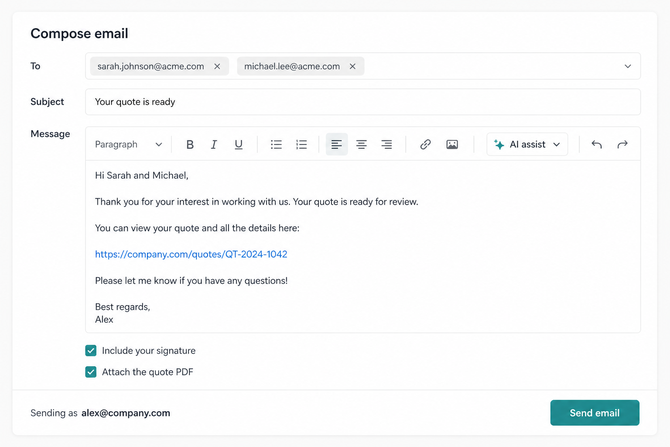
What the composer includes
Section titled “What the composer includes”| Field | What the rep does |
|---|---|
| To | Add one or more recipient emails. Quotivity prefills from deal contacts; if the quote requires e-signature signers, those emails take priority |
| Subject | Starts from your account default (for example, “Your quote is ready”); the rep can edit it |
| Message | Rich-text body. Merge tags from your account template are already filled in for this quote when the composer opens |
| AI assist | Optional. Opens with ⌘K / Ctrl+K, or the AI assist button. Quick actions include “Draft it for me,” “Make it shorter,” “Make it friendlier,” and “Make it more formal,” or the rep can type a custom instruction. The assistant sticks to facts from the quote and follows any account-level AI instructions you set |
| Include your signature | Shown only if you’ve configured an account signature. Starts from your default |
| Attach the quote PDF | Starts from your default. Reps can leave this on even if the PDF is still generating — Quotivity retries about every two minutes, up to three times. If the PDF still isn’t ready, the send fails and the quote owner is notified. Turned off and locked for quotes that require an access PIN |
There is no Cc/Bcc field and no separate email preview — the message the rep edits is what goes out.
Quotes with an access PIN
Section titled “Quotes with an access PIN”When the quote requires an access PIN (Quotivity Templates only — HubSpot templates are not supported), the composer shows a note with the PIN and:
- The message includes “Your access PIN to view the quote:” followed by the PIN. Quotivity adds this line again when the email is sent, so it stays in even if the rep deletes it or your template doesn’t include it. Emails written while the quote waits for approval, and resent emails, carry the quote’s current PIN.
- Attach the quote PDF is off and can’t be turned on, because an attached PDF would let the customer skip the PIN.
- AI assist never sees the PIN. Quotivity adds the PIN line itself.
The same applies to Send Email from the quote list. Send Email on the HubSpot quote card opens HubSpot’s own composer: its starting message includes the PIN line, but HubSpot sends that email, so Quotivity cannot add the line back if the rep deletes it. See Protecting quotes with an access PIN.
Send vs. write (approvals)
Section titled “Send vs. write (approvals)”- If the quote is already published, the primary button is Send email. Quotivity queues the message for delivery and the rep sees that the email is on its way. Delivery waits about 30 seconds before the message leaves the mailbox — enough time for a last-second change. If the rep attached the PDF and it is not ready yet, Quotivity keeps the email queued and checks again about every two minutes, up to three times. If the PDF is still unavailable after that, the send fails and Quotivity emails the quote owner. Close without sending leaves the published quote in place and does not send the email — after publish it switches to the quote preview; from the Send quote email dialog it just closes the dialog.
- If the quote is still in Pending approval, the button becomes Write email. Quotivity saves the message and sends it automatically after the quote is approved and published. That send also waits about 30 seconds after it’s released.
- If the quote is recalled or rejected while an email is still queued — including during that 30-second window — Quotivity cancels the email so the customer never receives it.
After the email goes out
Section titled “After the email goes out”- Quote Activity records a Quote emailed event with the recipients and sender.
- Failed or reconnect-needed emails for that quote can show in the composer with a Send now action once the mailbox is connected again. The same user’s waiting emails also appear under Emails Waiting to Be Sent on the Quote Emails settings page.
- Train reps to connect Gmail or Microsoft the first time they send — mailbox setup happens in the composer, not in a separate admin mailbox panel.
- If a rep edits the message heavily, remind them the quote link came from your template’s merge tags; they should keep a clear path for the buyer to open the quote.
- For deals that need approval, writing the email at submit time means the customer gets the message as soon as the quote publishes — without a second trip back to the composer.
Related articles
Section titled “Related articles”Ask the help center
Answers come from these guides, with links to the articles used.
Ask anything about configuring quoting in Quotivity Studio.