

Updating line items automatically
Use the Update Line Items outcome to keep line item properties in sync from a source property, a static value, or a formula — without overwriting reps' manual edits.
Overview
Section titled “Overview”The Update Line Items outcome keeps line item properties up to date automatically. For each property you want to manage, you choose how its value is set: copy from a source property elsewhere on the quote, set a static value, or set with a formula. This is how you keep line items consistent with deal data, prompted inputs, or fixed values — without anyone touching each row by hand.
How values are set
Section titled “How values are set”For every property the rule manages, pick one method:
- Copy from a source property: the line item value mirrors another property — for example, a value the rep entered or a field on the deal. When the source changes, the line item updates to match.
- Set a static value: the line item value is set to a fixed value you specify.
- Set with a formula: the value is calculated by a formula you build inline,
using the same formula editor as Calculated Pricing. Reference the line item’s
own properties, deal, company, quote, and roll-up properties — for example,
IF(Amount >= 50000, 15, 10)to set a discount tier from the deal amount. Dropdown (enumeration) properties can be referenced inside a formula; comparisons match the option’s internal value (e.g.newbusiness), not its display label. Formulas can be written to number and text properties (not dropdown properties), and require the Enterprise plan. That is not the same gate as Calculated Pricing: arithmetic Calculated Pricing is also on Legacy Pro, but Set with Formula is Enterprise (and Trial) only. Custom object properties cannot be used as formula inputs, and quote totals that are themselves derived from line items (quote amount, TCV/ACV/ARR/MRR, tax, margin, total discount) are not offered — use a roll-up for those. For number properties you can optionally round the result to two decimal places.
Quantity is an exception worth noting: Update Line Items can set quantity to 0. Use that for usage-based products that should appear on the quote at zero quantity (billed later) while other properties stay visible. Empty or missing source values are never coerced into zero — only an explicit numeric zero is written.
When copying, choose Line Item (the same line item being updated), Deal, Company, or Roll-up as the source. Flow Response is also available when Guided Selling questions exist. HubSpot custom objects are not copy-from sources — you can condition a Quote Rule on a custom object associated to the deal, but you cannot copy its properties onto line items. See Setting rule conditions.
You can also mark a managed property read-only so reps can’t change it in Quote Builder. Read-only works the same for a static value, a copied value, and a formula. That includes Unit discount and properties shown through a Dynamic Property Set: once the rule has written the value, the cell is locked. That lock wins when the same property is an input to a calculated price: the formula row does not offer an editor for it. Expanding the formula still shows the value.
Updating bundle members
Section titled “Updating bundle members”The Update Bundle Members outcome also sets a static value, copies from a source, or (Enterprise) sets a value with a formula. Copy sources are Bundle Header plus Line Item, Deal, Company, Roll-up, and — when Guided Selling is on — Flow Response. It first selects bundle headers, then optionally narrows the members inside those headers. See Updating bundle members automatically.
Respecting manual edits
Section titled “Respecting manual edits”Update Line Items tracks what it has applied. If a rep manually changes a value the rule manages, the rule won’t overwrite that edit as long as the source value hasn’t changed. When the source does change, the rule re-syncs to the new value. This tracking is why a rule can keep a property in sync continuously without clobbering a rep’s deliberate change.
Scoping which line items are affected
Section titled “Scoping which line items are affected”By default, the rule applies to every line item on the quote. To narrow it, add an optional condition group that scopes which line items are in play — for example, only line items in a particular product category. Leave the condition group empty to affect all line items.
- Create a Quote Rule and set the conditions for when the rule should run. See Creating a Quote Rule.
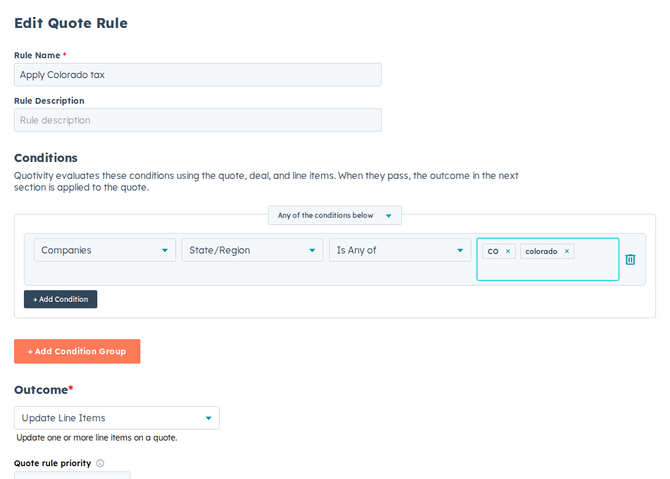
- Choose the Update Line Items outcome. Select Update Line Items as the rule’s outcome.
- Add a property to manage. For each one, choose copy from a source property, set a static value, or set with a formula, then provide the source, the value, or the formula.
- Set read-only if needed. Mark properties read-only when reps shouldn’t be able to change them.
- Optionally scope the line items. Add a condition group to limit which line
items the rule touches, or leave it empty to affect all of them.
- Set it active and save. Matching quotes now keep the chosen line item properties in sync automatically.
Example
Section titled “Example”Copy the deal’s contract term onto every line item: choose copy from a source property, point it at the deal’s term field, and leave the line item condition group empty so it applies to all rows. As the term changes on the deal, the line items follow — unless a rep deliberately overrode a row, which the rule leaves alone until the source changes again.
- Use read-only with a static value, a copy, or a formula to lock a value reps shouldn’t type over.
- Properties managed this way pair naturally with reusable property sets. See Using Dynamic Property Sets.
- Property to update hides HubSpot-defined price fields (unit price and
hs_price_*currency prices). Custom properties can still appear when their internal name includes “price”.
Related articles
Section titled “Related articles”Ask the help center
Answers come from these guides, with links to the articles used.
Ask anything about configuring quoting in Quotivity Studio.