

Setting the template, terms, language, or sender
Use Quote Rules to set a quote's template, insert terms, choose its language, or pick the sender company automatically.
Overview
Section titled “Overview”Four outcomes let a rule shape how the finished quote document looks and reads: Set Quote Template, Insert Template Terms, Set Quote Language, and Set Sender Company. Use them to apply the right branding, legal language, and presentation automatically based on the deal, region, or product mix — so reps never have to remember which combination to use.
The four outcomes
Section titled “The four outcomes”- Set Quote Template chooses the template that controls the quote document’s layout and styling. See How Quote Templates work.
- Insert Template Terms adds terms-and-conditions text to the quote. You can optionally allow the rep to edit the inserted terms. See Building your Terms Library.
- Set Quote Language sets the quote’s language.
- Set Sender Company sets which sender company — its name, address, and branding — appears as the sender on the quote. See Setting up Sender Companies.
- Create a Quote Rule and set the conditions that should drive the choice — for example, the customer’s region or the deal type. See Creating a Quote Rule.
- Choose the outcome. Select Set Quote Template, Insert Template Terms, Set Quote Language, or Set Sender Company.
- Pick the value. Choose the template, terms, language, or sender company —
and for terms, decide whether the rep may edit them.
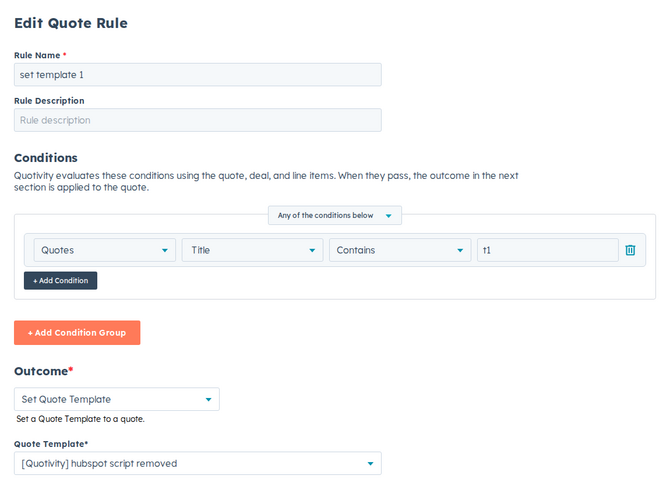
- Set it active and save. Matching quotes now use the template, terms, language, or sender company you selected.
Examples
Section titled “Examples”- Localized quotes: when the customer’s region is Germany, Set Quote Language to German and Set Sender Company to your German entity.
- Standard terms: when a particular product line is on the quote, Insert Template Terms with the matching clause and allow the rep to edit it for deal-specific tweaks.
- Combine these outcomes across several rules to fully localize quotes by region.
- If terms should stay exactly as written, leave the rep-edit option off when you insert them.
Related articles
Section titled “Related articles”Ask the help center
Answers come from these guides, with links to the articles used.
Ask anything about configuring quoting in Quotivity Studio.