

Creating a Quote Rule
Build a rule from conditions and an outcome so it runs automatically as your reps create and update quotes.
Overview
Section titled “Overview”Every Quote Rule starts the same way: name it, set the conditions that decide when it applies, choose what it does, and turn it on. This article walks through creating a rule end to end.
Prerequisites
Section titled “Prerequisites”- An Admin role in Quotivity Studio
- A clear idea of the outcome you want — see Quote rule outcomes reference
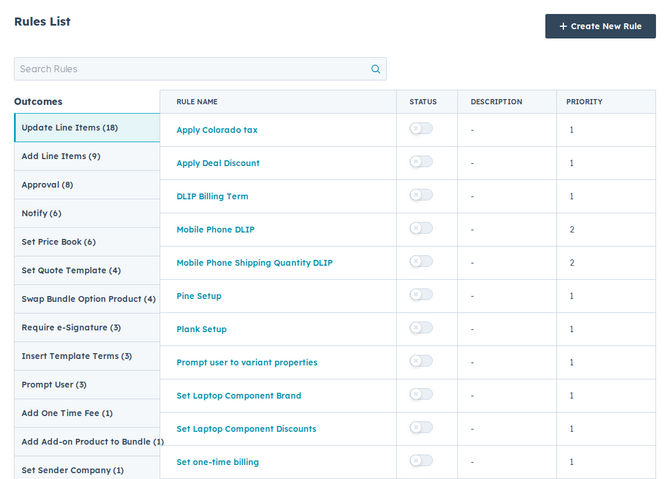
- Open Rules → Quote Rules. In Quotivity Studio, go to the Rules section and select Quote Rules. You’ll see your existing rules grouped by outcome.
- Click Create New Rule. This opens the rule editor.
- Name the rule. Give it a clear, specific name — and an optional description — so teammates can tell at a glance what it does.
- Set the conditions. Add a condition group and one or more conditions that decide when the rule applies. See Setting rule conditions.
- Choose an outcome. Pick the single action the rule takes when its conditions match, then fill in the details that outcome needs.
- Set it active and choose a priority. Turn the rule on and set its priority to control where it falls in the evaluation order. See Managing and prioritizing rules.
- Click Save. The rule is now active and applies to new and updated quotes the moment its conditions are met.
Example
Section titled “Example”To require approval on deep discounts: name the rule “Approval over 20% discount,” add a condition for the quote’s discount percentage being greater than 20, choose the Require Approval outcome, set it active, and save. From then on, any quote that crosses that threshold waits in Pending approval.
- Start simple. A single condition and a clear outcome is easier to test than a rule with many groups.
- Use the description field — future you (and your teammates) will thank you.
Related articles
Section titled “Related articles”Ask the help center
Answers come from these guides, with links to the articles used.
Ask anything about configuring quoting in Quotivity Studio.