

Creating a Price Book
Set up a catalog that ties your products to prices, ready to assign to quotes with a rule.
Prerequisites
Section titled “Prerequisites”- An Admin role in Quotivity Studio
- The products you want to price already in HubSpot, each with a standard price
- Open Pricing → Price Books. From the Quotivity Studio sidebar, go to
Pricing and select Price Books. You’ll see every price book in your
account.
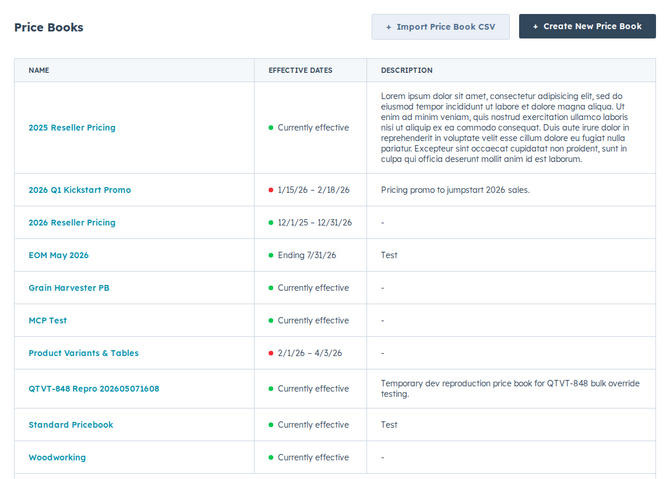
- Create a new price book. Click + Add Price Book to start a fresh catalog.
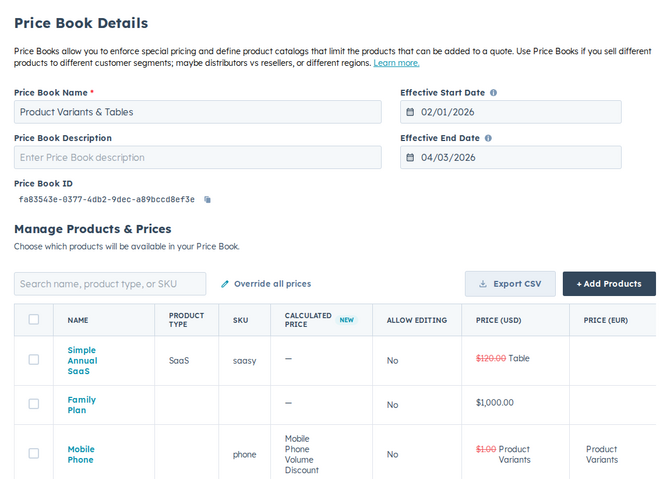
- Name and describe it. Give the price book a clear Price Book Name — like “North America Retail” — and an optional Price Book Description so your team knows when to use it.
- Add your products. Open the Products & Prices tab and search for products by name, product type, or SKU, then check the box next to each one you want to include. Each product you add gets its own entry.
- Set each product’s price. Select the products you want to adjust and click
Override Prices, then choose how the price is set. On Pro, Override
By offers a fixed amount or a percentage of the standard price. Volume
tiers and pricing tables need Enterprise or Legacy Pro. Product
variants need Enterprise. If you select more than one product at once, only
a percentage increase or decrease is available; to set a fixed amount,
override a single product on its own.
- Save. Click Save.
Your price book is now ready to assign to quotes — typically with a Set Price Book rule that selects it when its conditions are met.
- Start with the products your reps quote most. You can keep adding entries over time.
- To stand up a new book quickly, clone an existing one and adjust the prices rather than building from scratch.
Related articles
Section titled “Related articles”Ask the help center
Answers come from these guides, with links to the articles used.
Ask anything about configuring quoting in Quotivity Studio.