

Setting unit price editability
Decide whether reps can edit a product's unit price in Quote Builder, or keep it locked to the price book.
Overview
Section titled “Overview”By default, the list price a price book sets is locked — reps quote the price you configured, and nothing else. When you want to give reps room to negotiate, you can allow them to edit a product’s unit price directly in Quote Builder. This setting lives on the price book entry, so it applies to that product in that price book across every currency.
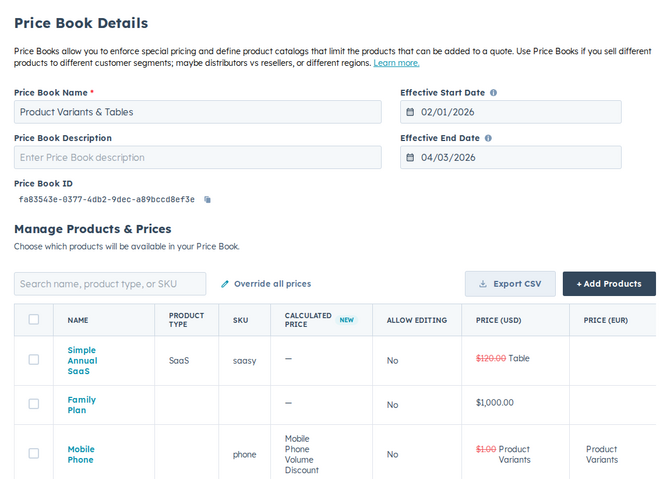
- Open Pricing → Price Books. From the Quotivity Studio sidebar, go to Pricing, select Price Books, and open the book that contains the product.
- Find the product’s entry. Locate the product whose editability you want to change.
- Allow unit price editing. Turn on the option that lets reps edit the unit
price for that entry. This applies to the whole entry — every currency — not a
single price.
- Save. Save your changes.
When editing is on, reps can change that product’s unit price in Quote Builder. When it’s off, the price stays locked to the price book.
Locked vs. editable
Section titled “Locked vs. editable”- Locked (default). The list price from the price book is fixed. Reps add the product and quote exactly the price you set. This keeps pricing consistent and on-policy.
- Editable. Reps can type a different unit price in Quote Builder. Use this for products where you trust reps to negotiate, and pair it with quote rules — like requiring approval below a margin threshold — to keep discounts in check.
- Editability is per entry, so the same product can be locked in one price book and editable in another.
- If reps can edit prices, consider an approval rule that catches unusually deep discounts before the quote goes out.
Related articles
Section titled “Related articles”Ask the help center
Answers come from these guides, with links to the articles used.
Ask anything about configuring quoting in Quotivity Studio.