

Creating a pricing formula
Build a formula with properties and functions, assign it to products, and let Quotivity price them at quote time.
This feature requires an Enterprise plan.
Prerequisites
Section titled “Prerequisites”- An Admin role in Quotivity Studio
- The products you want to price by formula already in HubSpot
- Open Pricing → Calculated Pricing. From the Quotivity Studio sidebar, go
to Pricing and select Calculated Pricing. You’ll see your existing
formulas.
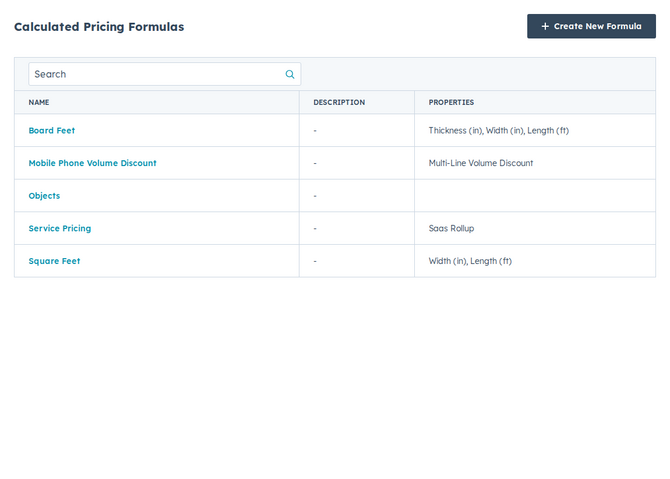
- Create a formula. Click Create Formula and give it a clear Formula Name — like “Board Feet” — and an optional Formula Description.
- Choose rounding (optional). Check Round results to two decimal places when the unit price should use standard currency precision. Leave it unchecked to keep up to five decimal places.
- Write the formula. In Enter Your Formula, build the expression with
properties, operators, and functions:
- Use Insert Property to add line item, deal, company, quote, or roll-up properties — numbers, text, enumerations, and booleans are all available. HubSpot properties Quotivity hides from Studio (and a few pricing fields that would loop back into the formula, including Unit Price, Net Price, and quote totals) stay out of the list, and HubSpot custom object properties are not available here. Each property appears as a colored pill in the editor. The formula result must still be a number, which is then multiplied by List Price.
- Use Insert Function to add
IF,CASE,AND,OR,NOT,ISBLANK,BLANKVALUE,MIN,MAX,ROUND, orMROUNDsnippets. - Turn on Function hints for signature help while you type.
- Optionally click Draft with AI, describe the pricing logic in plain
English, review the draft, and click Apply — then verify the formula
before you save.
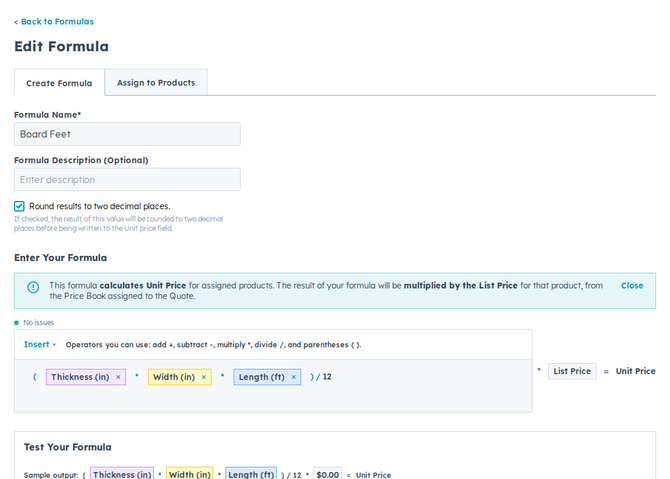
- Resolve any issues. The issue count above the editor lists problems such as unknown properties or unrecognized functions. Fix them before saving. The footer shows the formula length; formulas can be up to 5,000 characters.
- Test your formula. In the Test Your Formula section, enter sample values for each property along with a list price, and check the Sample Output to confirm the result. Adjust the formula if it’s off.
- Assign products. Switch to the Assign to Products tab and check the products this formula should price.
- Save. Click Save.
Your formula is live: whenever an assigned product is quoted, Quotivity applies the calculated price as that line item’s unit price.
Example
Section titled “Example”To price signage by area, insert width and height line-item properties, write a formula that multiplies them, and assign your sign products. Quotivity multiplies the result by your list price, so reps enter the dimensions and the price calculates itself.
For a quantity discount, use a conditional formula — for example
IF(quantity >= 10, 0.9, 1) — so the formula result scales the list price when
quantity is 10 or more. See Using functions in pricing formulas
for the full function reference.
- Name properties clearly in HubSpot (for example, “Width (in)”) so pills in the formula stay readable.
- Test with several sample values before assigning products, including empty
inputs if you rely on
ISBLANKorBLANKVALUE. - Always review an AI draft — apply it, check the sample output, then save.
- Remember the list-price multiplier: a formula that already returns a final currency amount will be multiplied again.
Related articles
Section titled “Related articles”Ask the help center
Answers come from these guides, with links to the articles used.
Ask anything about configuring quoting in Quotivity Studio.