

Setting up Sender Companies
Add the company name, address, and branding that appear as the sender on every quote you send.
A sender company is the company information — name, address, and branding — that appears as the sender on your quotes. Setting one up means buyers see your business clearly identified on every document you send.
Prerequisites
Section titled “Prerequisites”- An Admin role in Quotivity Studio
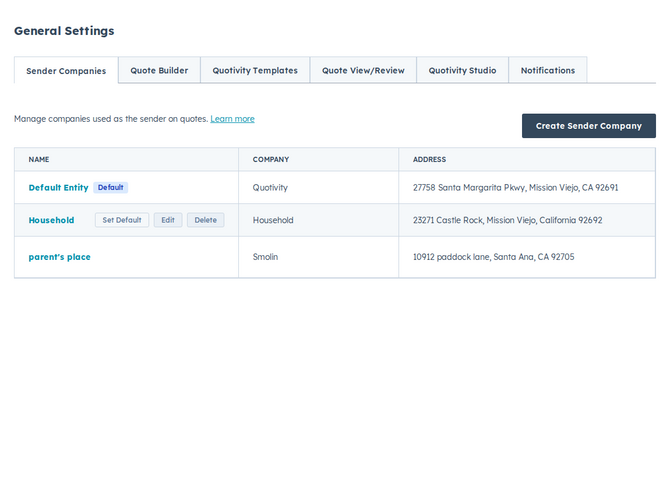
- Open Settings → Sender Companies. You’ll see a list of the sender companies on your account, with the default one marked.
- Click Create Sender Company to add a new one, or click an existing
company’s name to edit it.
- Enter a profile name. This is the internal label you’ll use to recognize this sender — for example, “US Company” or “EU Company.”
- Fill in your company information. Add the Company Name, Company Domain, and a Company Logo URL for the branding that shows on the quote. The logo previews as soon as you add its URL.
- Add your address. Enter the street address, city, state, ZIP, and country that should appear on quotes from this sender.
- Click Create (or Update when editing) to save. Your sender company now appears in the list and is ready to use on quotes.
- The first sender company you create becomes your default. To change which one is the default, hover over a company in the list and click Set Default. On Enterprise, you can also set a default sender per user on Settings → Users.
- Keep the address and logo current — whatever you save here is exactly what buyers see at the top of the quote.
Related articles
Section titled “Related articles”Ask the help center
Answers come from these guides, with links to the articles used.
Ask anything about configuring quoting in Quotivity Studio.