

Optional and prorated line items
Let buyers choose which items to include at finalization, and adjust recurring costs based on timing.
Overview
Section titled “Overview”Two line item behaviors give your quotes flexibility around what the buyer commits to and what they pay. Optional line items (Enterprise and Trial) let the buyer decide whether to include certain items when they finalize the quote. Prorated line items (all plans) adjust a recurring item’s cost based on timing, so the buyer pays only for the portion of a billing period they’ll actually use. They solve different problems, and you can use either or both.
Optional line items
Section titled “Optional line items”Optional line items require an Enterprise plan.
When a line item is marked optional, it appears on the published quote as a choice the buyer makes at finalization rather than a committed charge. The buyer ticks the items they want, and Quotivity includes only their selections in the final accepted quote and the amount that syncs to the deal. The Amount on the Quotivity quote list card uses that same committed total — it excludes optional line items — even though HubSpot’s native quote amount still includes them until finalization.
This is useful for add-ons, upsells, and “good-better-best” offers — present everything in one quote and let the buyer self-select, instead of sending several versions.
To turn this on, add the Optional? column on Settings → Quoting → Line Item Table Columns and set Sales User Can Edit to Yes. Reps then mark which products are optional in the Review Line Items section of a quote. On the published quote, required items appear under Products and Services and optional ones under a separate Optional Items section, and the total updates as the buyer includes them.
Prorated line items
Section titled “Prorated line items”Proration adjusts a recurring line item’s cost so it reflects partial use of a billing period. If a subscription starts midway through a billing cycle, a prorated item charges for the remaining days rather than the full period — so the math lines up with when service actually begins.
Enabling prorated line items
Section titled “Enabling prorated line items”Prorated line items default to on. Recurring items already prorate based on timing unless you turn the setting off.
- Open Settings → Quoting → General Quote Settings. In Quotivity Studio, go to Settings, then Quoting, then General Quote Settings.
- Find the Additional Options group. Look in the Quoting Settings
section.
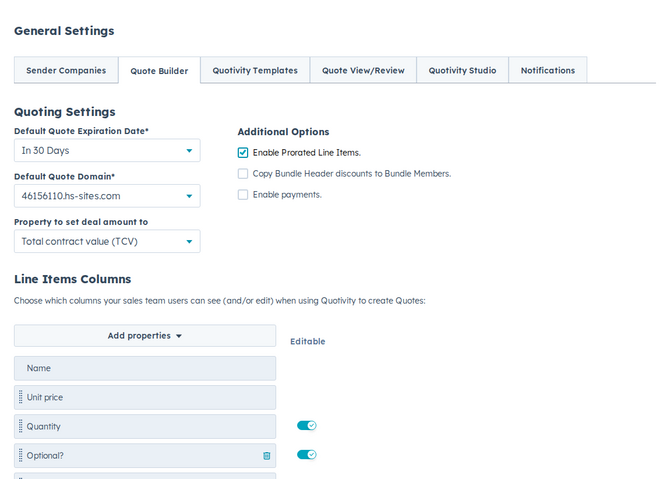
- Confirm Enable Prorated Line Items is checked. Leave it on to prorate, or uncheck it to charge the full billing period even when the term is shorter.
- Confirm your change saved. Settings save automatically. New quotes use the setting immediately.
Examples
Section titled “Examples”- A vendor quotes a base plan plus three optional add-ons; the buyer includes only the one they want at finalization, and the deal amount reflects that choice.
- A subscription starting on the 20th of the month prorates the first period so the buyer is charged only for the days remaining in that cycle.
- Optional items keep one quote flexible instead of forcing multiple versions — great for upsells.
- Pair proration with clear billing columns so buyers can see start dates and terms. See Configuring line item columns.
Related articles
Section titled “Related articles”Ask the help center
Answers come from these guides, with links to the articles used.
Ask anything about configuring quoting in Quotivity Studio.