

Configuring template modules and styling
Add, remove, and reorder the sections of a quote document, configure each one, and set the visual styling.
Overview
Section titled “Overview”A Quote Template is built from Quotivity modules placed on its HubSpot landing page — each one a section of the quote document. You add and arrange modules on the landing page, then configure each one inside Quotivity. This article covers configuring the detected modules and where styling lives.
Most modules are ready-made building blocks you configure. If you need to go further, the Custom Code (Quotivity) module lets you build a bespoke section with your own HTML, CSS, and LiquidJS.
Prerequisites
Section titled “Prerequisites”- An Admin role in Quotivity Studio
- A quote template to work in — see Creating a Quote Template
Adding and arranging modules
Section titled “Adding and arranging modules”Modules live on the template’s HubSpot landing page, so you add, reorder, and remove sections there. In HubSpot’s editor, search for “Quotivity” to find the modules you can drop in, then drag them into the layout. Common Quotivity modules include:
- Quote Info — header details like the quote number, creation and expiration dates, and sender details.
- Buyer Company and Buyer Contacts — the buyer’s company and contacts on the quote, pulled from the CRM.
- Line Item — the products table, with the columns and grouping you choose.
- Quote Signature — where the buyer and any countersigners sign.
- Custom Code (Quotivity) — a free-form section built with HTML, CSS, and LiquidJS.
- Quote Attachments — displays files attached to the quote.
Once you publish the landing page, Quotivity detects the modules and lists them in the template editor. Every module, and where to configure it, is listed in the Template modules reference.
Configuring modules in Quotivity
Section titled “Configuring modules in Quotivity”- Open the template. From Quote Templates, open the template you want to
edit. The detected modules appear in a panel next to a live preview.
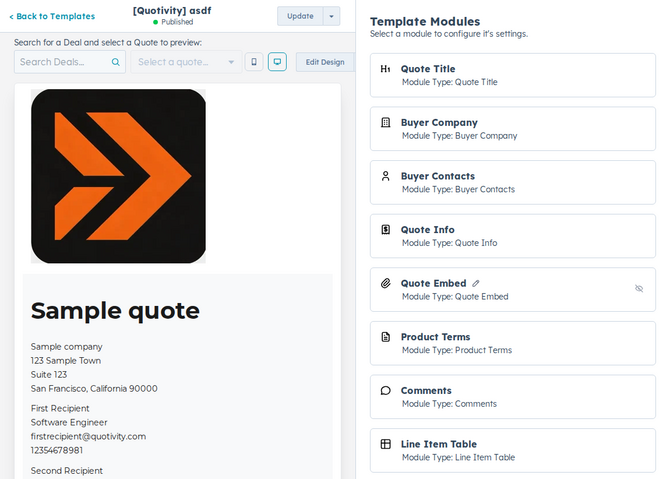
- Configure each module. Open a module to set its options. The Line Item Table module has six tabs — Columns, Totals, Filters, Visibility, Groups, and More Settings — covered in Configuring the Line Item Table module and Configuring quote totals on the Line Item Table. Every other module’s settings are documented in the Template modules reference.
- Preview as you go. Changes update the preview automatically, so check it as you configure each module.
Styling
Section titled “Styling”The template’s colors, fonts, and layout come from its HubSpot landing page rather than Quotivity. Adjust the visual look on the landing page so the document matches your brand, then return to Quotivity to configure the modules. If the customization is mostly visual — such as typography, colors, spacing, alignment, column widths, or responsive layout — customize the landing page CSS instead of rebuilding the content with custom code.
When every module is configured, publish the template to make your changes live.
Creating a Custom Code module
Section titled “Creating a Custom Code module”The Custom Code (Quotivity) module requires an Enterprise plan.
Use a Custom Code module when a ready-made module cannot produce the structure, data-driven content, or conditional logic you need. It renders a complete section of the quote. To customize one value in each line item row, use a custom column in the Line Items module instead.
- Click Edit Design to open the HubSpot landing page, add Custom Code (Quotivity), and publish the page.
- Select Custom Code in the Quotivity template editor.
- Write HTML and LiquidJS, or start from the AI assistant, then save.
Tokens, filters, examples, and sanitization rules live in Custom Code Module (LiquidJS).
Choosing the right customization
Section titled “Choosing the right customization”- Use a standard Line Items property column when the value already exists on the line item and only needs a label, order, layout, or supported numeric format.
- Use an Enterprise custom column when each line item needs calculated, combined, conditional, or specially formatted output.
- Use the Enterprise Custom Code (Quotivity) module when the quote needs a bespoke section or logic outside a single table column.
- Use the HubSpot landing page CSS when the content is correct and the change is mostly visual.
- Rename column labels to match your customers’ language rather than internal terminology.
- For the line items table specifically, see Configuring line item columns.
- For LiquidJS tokens, filters, and examples, see Custom Code Module (LiquidJS).
Related articles
Section titled “Related articles”Ask the help center
Answers come from these guides, with links to the articles used.
Ask anything about configuring quoting in Quotivity Studio.