

Configuring quote emails
Set the account template, signature, and defaults so reps can email published quotes from their own Gmail or Microsoft mailbox.
This feature requires an Enterprise plan.
Overview
Section titled “Overview”Quote Emails is where you turn on outbound quote email for the account and shape what every rep starts with — subject, message template, signature, PDF attachment default, and AI assist guidance. Reps still send from their own Gmail / Google Workspace or Microsoft (Outlook / Microsoft 365) mailbox and can edit each message before it goes out. Only Admins can change these settings.
For the big picture — mailbox model, approvals, and what customers receive — see How quote emails work.
Prerequisites
Section titled “Prerequisites”- An Admin role in Quotivity Studio
- Quote emails available on your account (the Quote Emails item appears under Settings → Quoting when it is)
- Open Settings → Quoting → Quote Emails. You’ll see the page description
and the enable toggle at the top.
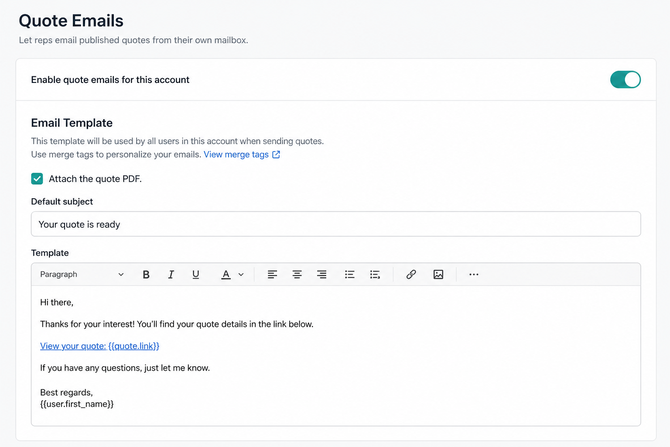
- Turn on Enable quote emails for this account. Until this is on, reps see a message that quote email isn’t enabled and can’t send. Changes save as you go — no separate Save button.
- Connect or disconnect Your Mailbox if you send quotes yourself. Quote emails go out from the signed-in user’s Gmail or Microsoft mailbox. Use Disconnect here (or Settings in the composer) to remove a connection or switch mailboxes. Reps can also connect from the composer the first time they send.
- Choose Attach the quote PDF under Email Template if you want the PDF attached by default. Reps can change this on each email before sending.
- Set the Default subject. This pre-fills the subject line in the composer. The built-in default is Your quote is ready.
- Edit the Template. Use the rich-text editor and merge tags for Contact, Company, Deal, and Quote — including the published quote link — so every email starts with the right greeting and a path to the quote. Tags resolve for the specific quote when a rep opens the composer. The quote link opens the buyer page: the rendered Quotivity page when the quote uses a Quotivity template, and HubSpot’s quote link when it uses a HubSpot template. The same template also prefills Send Email on the HubSpot quote card, with merge tags filled from the saved quote. If you haven’t saved a custom template, that composer starts from the built-in default.
- Add Assistant instructions (optional). These guide AI assist for the whole account — tone, length, phrases to include — while the assistant still sticks to facts from the quote.
- Configure the Signature. One account-wide signature applies to every sender. Quotivity starts you with a default that uses Sender merge tags (first name, last name, email, company name) so each rep’s details fill in at send time — edit it to match your brand. Turn on Include the sender’s signature to include it by default; reps can still change that on each email.
- Confirm settings are saved. Subject, template, defaults, AI instructions, and signature show a brief Saving / Saved status as you edit. Your team can now email quotes from Quote Builder.
Emails waiting to be sent
Section titled “Emails waiting to be sent”If the signed-in user has quote emails that failed or need a mailbox reconnect, an Emails Waiting to Be Sent section lists them with the subject, recipients, and reason. Use Send now once that mailbox is connected again. This list is for the current user’s waiting emails — not an account-wide admin inbox.
- Reps can connect Gmail or Microsoft from the quote email composer or from Your Mailbox on this page — not from a company-wide SMTP setup. You don’t need a shared Quotivity mailbox.
- Keep the template short and leave room for the rep’s voice — AI assist and manual edits work best on a clear starting draft.
- Put the quote link near the top of the template so buyers don’t have to hunt for it after a rep personalizes the message.
- Signature merge tags always resolve from the sending rep, not from the HubSpot contact on the deal.
Related articles
Section titled “Related articles”Ask the help center
Answers come from these guides, with links to the articles used.
Ask anything about configuring quoting in Quotivity Studio.