

Blocking a quote
Use the Block outcome to stop a quote in its tracks with a clear message when it violates a hard policy.
Overview
Section titled “Overview”The Block outcome stops a quote and shows the rep a message you write. The rep can’t move the quote forward until the blocking condition is resolved. Use Block for hard policy violations — situations where the quote simply shouldn’t proceed.
When to use it
Section titled “When to use it”Reach for Block when there’s no acceptable path forward, not just a caution. Compare it to its softer cousins:
- Block stops the quote entirely.
- Notify shows a message but lets the rep continue. See Showing a notification.
- Require Approval lets the quote proceed once an approver signs off. See Requiring approval.
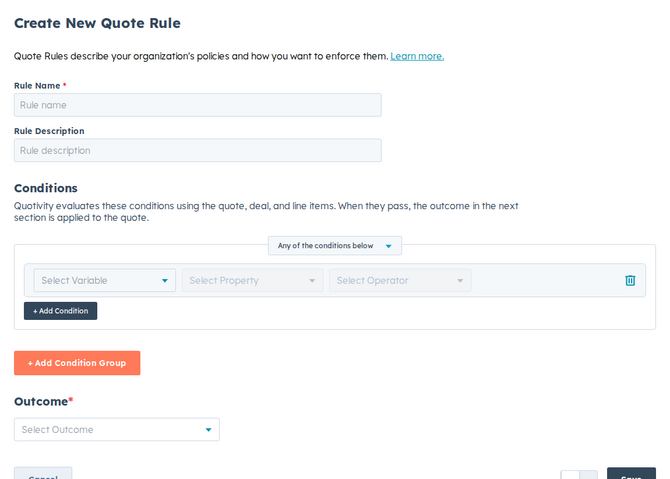
- Create a Quote Rule and set the conditions that define the violation. See Creating a Quote Rule.
- Choose the Block outcome. Select Block as the rule’s outcome.
- Write the message. Explain what’s wrong and what the rep needs to change.
A clear message (“Quotes can’t exceed a 40% discount — adjust the pricing to
continue”) saves a support ticket.
- Set it active and save. When a matching quote appears, the rep sees your message and can’t continue until the condition no longer applies.
Example
Section titled “Example”To enforce a maximum discount: set a condition for the quote’s discount exceeding your ceiling, choose Block, and write a message telling the rep to bring the discount back within policy.
- Make the message actionable — tell the rep how to fix it, not just that something’s wrong.
- If you want the quote to proceed with a sign-off instead of being stopped, use Require Approval rather than Block.
Related articles
Section titled “Related articles”Ask the help center
Answers come from these guides, with links to the articles used.
Ask anything about configuring quoting in Quotivity Studio.