

Configuring notifications
Turn on email and Slack alerts for approval requests, approvals, and rejections so the right people hear about quotes.
Overview
Section titled “Overview”Quotivity can notify your team by email and Slack when a quote needs attention. You decide which events send alerts — approval requests, approvals, and rejections — and where they go. This article covers turning those notifications on and connecting Slack.
Prerequisites
Section titled “Prerequisites”- An Admin role in Quotivity Studio (only admins can change notification settings)
- Open Settings → Approval & Review → Customize Notifications. You’ll see a
table with a row for each event — Approval Request, Quote Approved,
and Quote Rejected — and columns for sending via email and via Slack.
Connect Slack on Notification Channels if you want Slack delivery.
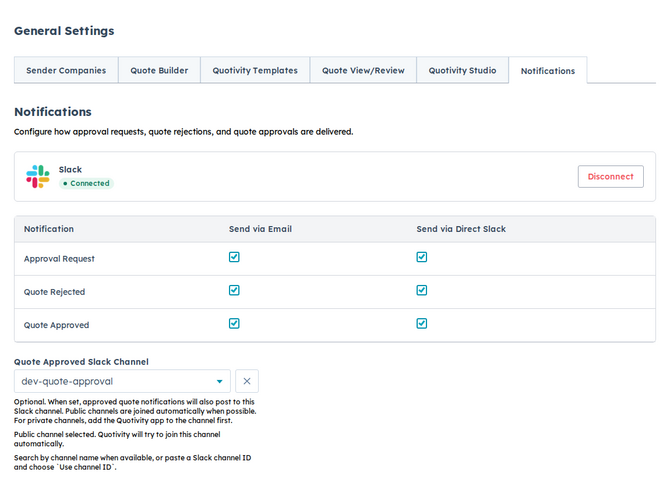
- Choose your email notifications. Check the email box for each event you want delivered by email. Each event keeps at least one delivery method turned on.
- Connect Slack. In the connection card at the top, connect your Slack workspace so Slack notifications become available.
- Choose your Slack notifications. With Slack connected, check the Slack box for any event you want posted to Slack.
- Pick a channel for approved quotes. Use the Quote Approved Slack Channel selector to search for a channel by name, or paste a channel ID. Quotivity joins public channels automatically; for a private channel, add the Quotivity app to it in Slack first.
- Confirm your choices are saved. Your selections save as you make them — no separate save step — and your team starts receiving alerts for the events you enabled.
- Settings save automatically as you toggle them, so there’s nothing to submit.
- If the Slack checkboxes stay greyed out, connect a workspace first — they unlock once Slack is linked.
Related articles
Section titled “Related articles”Ask the help center
Answers come from these guides, with links to the articles used.
Ask anything about configuring quoting in Quotivity Studio.