

Requiring approval
Use the Require Approval outcome to hold a quote in Pending approval until the right person reviews and signs off.
Overview
Section titled “Overview”The Require Approval outcome gates publishing. When a quote matches the rule’s conditions, it can’t be published until an approver signs off — the quote moves into Pending approval and waits. This is how you keep deep discounts, large deals, or non-standard terms under control without blocking them outright.
This article covers the rule outcome itself. For the reviewer’s side of the process, see How approvals work.
Options
Section titled “Options”When you choose the Require Approval outcome, you can fine-tune how it behaves:
- Approval queue: route the quote to a specific approval queue so the right reviewers see it. The queue name is shown to approvers when they review.
- Apply only the first matching approval: when several approval rules could trigger on one quote, apply just the highest-priority match instead of stacking them. Priority runs lowest number first, so the rule with the lowest priority number wins. See Managing and prioritizing rules.
- Prompt the rep for an explanation: ask the rep to add a note when they submit the quote. That explanation is shown to approvers alongside the quote, so they understand why it needs sign-off.
- Create a Quote Rule and set the conditions that should require sign-off. See Creating a Quote Rule.
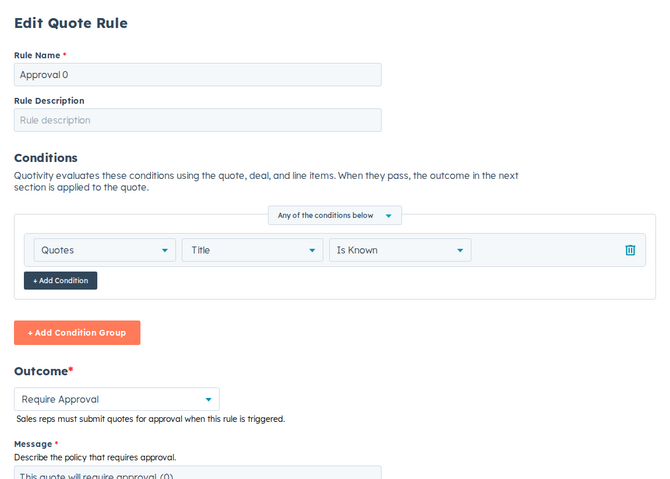
- Choose the Require Approval outcome. Select Require Approval as the rule’s outcome.
- Set the approval options. Optionally pick an approval queue, choose to
apply only the first matching approval, and decide whether to prompt the rep
for an explanation.
- Set a priority. When more than one approval rule can match, priority decides which one applies first.
- Set it active and save. Matching quotes now move to Pending approval and wait for sign-off before they can be published.
What happens when a quote needs approval
Section titled “What happens when a quote needs approval”Once a rule requires approval, the quote follows a clear path:
- The rep submits the quote. Instead of publishing, the quote’s status changes to Pending approval.
- Approvers are notified with a link to review the quote. When the approver opens it, they see the quote details, the rules that triggered approval, the approval queue, and the rep’s explanation if you asked for one.
- The approver approves or rejects:
- Approve clears the gate so the quote can be published. (If you run multi-stage approvals through HubSpot, the next stage continues from there.)
- Reject sets the quote to Rejected, saves the reviewer’s feedback, and clears the approval state so a revised quote starts the process cleanly.
- The rep can recall the quote while it’s pending if they need to make changes before it’s reviewed.
Every step is recorded — submitted, requested, approved, rejected, recalled, and published — so you always have an audit trail. See Reviewing and approving quotes and Rejecting and recalling quotes.
Notifications
Section titled “Notifications”Approvers can be notified by email and, when Slack is connected, by Slack — a direct message with the review link and quote PDF, plus updates in a configured approval channel. Configure these in settings. See Approval notifications via email and Slack.
Example
Section titled “Example”To require manager sign-off on big discounts: set a condition for the quote’s discount exceeding 20%, choose Require Approval, turn on the explanation prompt so reps justify the discount, set a priority, and save. When a rep builds a quote with a 25% discount, it goes to Pending approval with their explanation attached, and the manager gets a link to approve or reject.
- Pair the explanation prompt with high-stakes rules so approvers always have context.
- Use Apply only the first matching approval with deliberate priorities to avoid sending the same quote through overlapping approvals.
- A rejected quote keeps the reviewer’s feedback, so reps know what to fix before resubmitting.
Related articles
Section titled “Related articles”Ask the help center
Answers come from these guides, with links to the articles used.
Ask anything about configuring quoting in Quotivity Studio.