

Approval notifications via email and Slack
Choose how your team hears about approval requests, approvals, and rejections — by email, in Slack, or both.
Overview
Section titled “Overview”Approvals work best when the right people hear about them at the right time. In Settings → Approval & Review → Customize Notifications, you control how three approval events are delivered — by email, in Slack, or both.
The three notifications are:
- Approval Request — sent when a quote is submitted and needs approval.
- Quote Approved — sent when an approver approves a quote.
- Quote Rejected — sent when an approver rejects a quote.
Prerequisites
Section titled “Prerequisites”- An Admin role in Quotivity Studio — only admins can change notification settings or manage the Slack connection
- For Slack delivery, your Quotivity account connected to your Slack workspace
- Open notification settings. In Quotivity Studio, go to Settings →
Notifications.
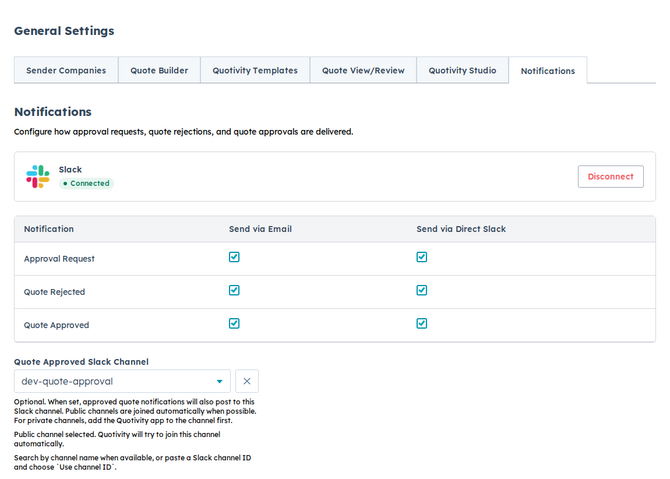
- Choose email delivery. For each notification — Approval Request, Quote Approved, and Quote Rejected — turn Send via Email on or off.
- Connect Slack. In the Slack connection card, connect your Slack workspace. Slack notifications are an admin-only setting and stay off until Slack is connected.
- Choose Slack delivery. With Slack connected, turn Send via Direct Slack on for any of the three notifications. Direct Slack messages go to the relevant people as direct messages.
- Pick an approval channel (optional). Set a Quote Approved Slack
Channel to also post approved-quote notifications to a shared channel.
- For a public channel, Quotivity joins it automatically when possible.
- For a private channel, add the Quotivity app to the channel in Slack first, or notifications won’t post.
- You can search by channel name, or paste a Slack channel ID.
- Confirm your choices are saved. Settings save automatically as you change them. When the events you care about show the right delivery methods, your team is set.
Examples
Section titled “Examples”- Email-only team. Leave Send via Email on for all three events and skip Slack entirely — approvers and submitters get everything in their inbox.
- Slack-first team. Connect Slack, turn on Send via Direct Slack for Approval Request, and set a Quote Approved Slack Channel so the whole team sees deals clear approval in one place.
- At least one delivery method stays on for each notification, so people are never left fully in the dark about an approval event.
- Direct Slack messages reach individuals; the approval channel is for shared visibility. Use both when it helps.
Related articles
Section titled “Related articles”Ask the help center
Answers come from these guides, with links to the articles used.
Ask anything about configuring quoting in Quotivity Studio.