
How it works
A product's default calculated price is set in Quotivity Studio and applies across all price books. Within any individual price book, you can override that default with a different calculated price. Overrides are independent — the same product can have a different override in each price book it appears in.
The Price Book product list shows a Calculated Price column for each product. The cell displays the effective assignment at a glance:
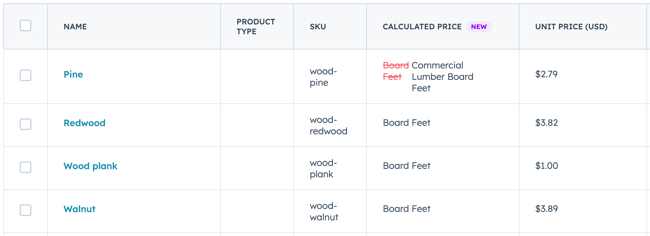
Set a product's default calculated price
The default calculated price is assigned in Quotivity Studio and applies globally across all price books.
- In Quotivity Studio, navigate to Calculated Prices.
- Open the calculated price you want to assign.
- Under Products, find the product and assign it.
- Save your changes.
Override a calculated price in a price book
Overrides are managed from the Price Book Editor and apply only within that price book.
- Navigate to Quotivity > Price Books and open the price book you want to edit.
- Find the product in the product list.
- Hover over the Calculated Price cell — a pencil icon appears.
- Click the pencil icon to open the Override Calculated Price modal.
- The modal shows the product's current default calculated price (with a formula preview) and a dropdown to select an override.
- Select a calculated price from the dropdown and click Set Calculated Price.
Clear a calculated price override
- Hover over the product's Calculated Price cell and click the pencil icon.
- In the Override Calculated Price modal, click Clear Override.