

Creating a Quote Template
Generate a template's HubSpot landing page, configure its modules, then publish it so you can assign it to quotes.
Prerequisites
Section titled “Prerequisites”- An Admin role in Quotivity Studio
- A sender company set up, so the template can show your branding — see Setting up Sender Companies
- Open Quote Templates. In Quotivity Studio, go to Quote Templates.
You’ll see any templates you’ve already created.
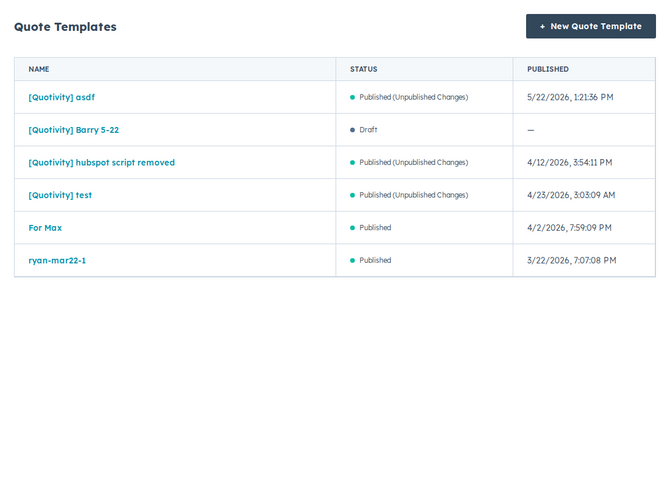
- Create the template. Click New Quote Template, enter a clear name — something like Standard quote or Renewal quote — and click Create Template. Quotivity generates a new HubSpot CMS landing page to back the template, which can take a few seconds. New templates start from the Clean landing page. If Quotivity has enabled it for your account, you can also choose the Proposal landing page — a multi-page layout for longer sales documents that end in a quote. Clean remains the default.
- Load sample data. Use the search field to find a representative deal. This
loads real quote data into the preview so you can see how the template renders.
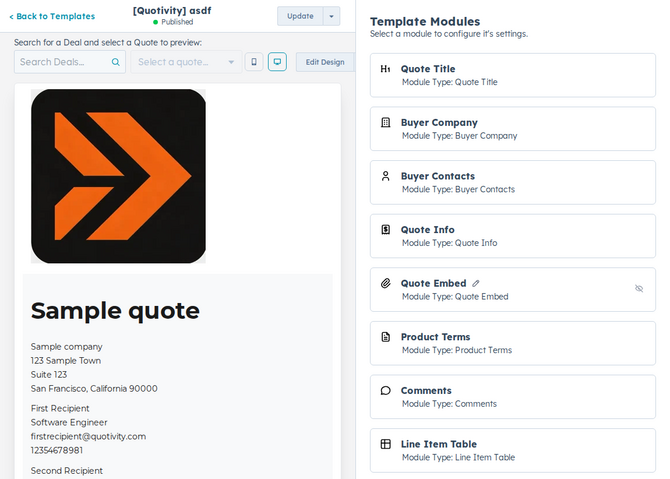
- Review the detected modules. The editor shows a live preview alongside a panel listing the Quotivity modules detected on the landing page. Hover a module in the panel to highlight where it appears in the preview.
- Configure each module. Open every module and set its options — for the Line Item Table that means columns, totals, filters, visibility, groups, and more settings. Each module’s settings are documented in the Template modules reference; for how configuration and publishing work overall, see Configuring template modules and styling. For Custom Code or custom columns, see Custom Code Module (LiquidJS).
- Publish. Click Publish to make the template available in Quote Builder.
Once published, the template is available to assign to quotes — directly or with a Quote Rule that sets the template based on its conditions.
- Add or rearrange modules on the underlying HubSpot landing page, then return to Quotivity to configure the modules it detects.
- Keep a separate template for distinct scenarios (new business vs. renewals) rather than overloading one template with conditional content. Hover a template and click Clone to copy it. Leave Create a new landing page for this template unchecked (the default) to keep sharing the original HubSpot landing page, or check it so the clone gets its own page you can redesign independently.
- You can keep refining a template after publishing — just publish again to push your changes live.
- The Published column on the template list, and Last published and Last saved in the editor, are shown in UTC.
Related articles
Section titled “Related articles”Ask the help center
Answers come from these guides, with links to the articles used.
Ask anything about configuring quoting in Quotivity Studio.