How to Review and Approve Quotes
The Review Quote screen gives approvers a single, unified view to review all the details of a quote before approving or returning it. This guide walks you through the layout, actions, and customization options available.
Overview
When a quote is submitted for approval, approvers receive an email with a link that opens the Review Quote screen. From here you can:
- View general quote information (name, company, deal, owner, amount)
- View details about the quote and line items
- View the full quote preview as it will appear to customers
- See the complete approval activity timeline
- Approve, return, or recall & edit the quote
Understanding the Layout
The Review Quote screen is divided into several sections:

Quote Information — Displays the quote name, associated company and deal (with links to HubSpot), the quote owner, and the total amount.
Action Buttons — Located in the top-right area of the header:
- Approve — Approves the quote
- Reject — Opens a dialog to return the quote with comments
- Recall & Edit — Sends the quote back to the editor for changes (available to Admins and Users only)
Quote Activity (left sidebar) — A collapsible timeline showing the full approval history of the quote. Click the collapse/expand button to toggle visibility.
Main Content Area (center):
- Approval Request Details (if applicable)
- Quote Details
- Line Item Details
- Quote Preview
Approval Request Details
If the quote was routed through an approval rule, the Approval Request Details card appears at the top of the main content area. It displays:
- Rule Name — The approval rule that was triggered
- Rule Description — Why the quote required approval
- Queue Name — The approval queue the quote was routed to (if any)
- Request Explanation — An explanation provided by the person who submitted the quote (if your admin has enabled this setting)
Reviewing Quote Properties
The Quote Properties card shows key fields from the quote record. Which fields appear here is controlled by your admin (see Customizing the Review Quote Screen below).
Reviewing Line Items
The Line Items card displays a table of all products on the quote. The columns shown are configurable by your admin.
Financial Summary
Below the line items table, a financial summary section shows:
- Subtotal — Total before adjustments
- Line Item Discounts Applied — Expandable breakdown of one-time and recurring discounts
- Line Item Taxes Applied — Expandable breakdown of one-time and recurring taxes (if applicable)
- Future Payments — A visual timeline of upcoming payment amounts (if applicable)
- Total Contract Value (TCV)
- Monthly Recurring Revenue (MRR) and Annual Recurring Revenue (ARR) (if applicable)
Click the arrow next to discounts or taxes to expand the detailed breakdown by billing frequency.
Viewing the Quote Preview
The Quote Preview card shows a rendered preview of the quote as it will appear to the customer.
Quote Activity Timeline
The Quote Activity sidebar on the left shows a chronological history of all actions taken on the quote:
- Submitted — When the quote was submitted for approval, and by whom
- Requested — Which approvers were requested to review
- Approved — When and by whom the quote was approved
- Rejected — When the quote was returned, by whom, and the rejection comments
- Recalled — When the quote was recalled for editing
- Published — When the quote was published

Approving a Quote
- Review the quote details, line items, and preview
- Click the Approve button in the header
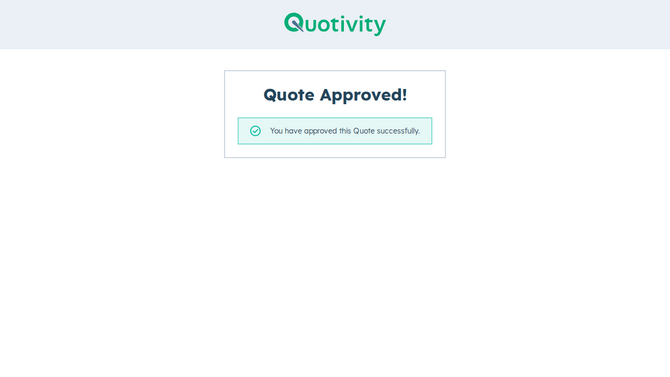
- You will be redirected to a confirmation page
Returning a Quote
If the quote needs changes before it can be approved:
- Click the Reject button in the header
- In the Return Quote dialog, enter your rejection comments in the Rejection Comments field (required)
- Click Return With Comments
- You will be redirected to a confirmation page
The quote owner will receive your comments and can make the necessary adjustments before resubmitting.
Recalling & Editing a Quote
If you are an Admin or User, you can recall a quote to edit it directly:
- Click the Recall & Edit button in the header
- The quote will open in the quote editor where you can make changes
- After editing, you can resubmit the quote for approval
Note: The Recall & Edit option is only available to users with Admin or User roles.
Customizing the Review Quote Screen
Admins can control which fields appear on the Review Quote screen for all approvers. To access these settings:
- Navigate to Settings > Approvals tab
- Scroll down to the Review Quote screen customizations section

Customizing Quote or Line Item Properties
- Under Quote Properties (or Line Item Properties), click Add properties
- Use the search bar to find the property you want to add
- Check the box next to each property you want displayed
- Click Done
- Drag and drop properties to reorder them
- Click the trash icon to remove a property

Note: The Name, Price, and Quantity columns cannot be removed from the line items table.
Both standard HubSpot properties and custom properties are available for selection.
Tip: Approvers with Admin access can also reach these settings directly from the Review Quote screen by clicking the Customize link at the bottom of the Quote Properties or Line Items cards.

Requiring Approval Explanations
Admins can require that users provide an explanation when submitting a quote for approval:
- Navigate to Settings > Approvals tab
- Check the box for Require an explanation when submitting quotes for approval
When enabled, users will be prompted to enter an explanation each time they submit a quote. This explanation will appear in the Approval Request Details section of the Review Quote screen.
FAQ & Troubleshooting
Why don't I see the Recall & Edit button? The Recall & Edit button is only available to users with Admin or Sales Rep roles. If you have an view-only approver role, this option will not appear.
Why don't I see the Customize link on the Review Quote screen? The Customize link is only visible to users with the Admin role. Contact your admin if you'd like to request changes to which fields are displayed.
A property or column I added in Settings isn't showing on the Review Quote screen. Properties only appear if the quote has data for that field. If the value is empty, it will display as a dash (—) but will still be visible. Make sure the property name in Settings matches the HubSpot property name exactly.
The quote shows "already approved" or "no longer in approval" when I try to approve it. Another approver may have already taken action on this quote. Check the Quote Activity timeline to see the latest status.
I can't find a specific property when searching in Settings.
- For Quote Properties, only non-hidden and non-calculated fields are available
- For Line Item Columns, certain internal properties (e.g., bundle configuration fields) are hidden by default
- Try searching by the property label rather than the internal name
- If it's a new field, click the "Sync HubSpot Properties" button in the user menu.
How do I change the order of properties or columns? In Settings > Approvals, drag and drop the items in the list to reorder them. The order in Settings determines the display order on the Review Quote screen.